AutoCollapse applies After Effects' Collapse Transformations switch across layers in an open main composition. It is for projects where enabling the switch on vector or precomp layers helps keep artwork crisp, including work with deeply nested compositions.
Choose the layers to process
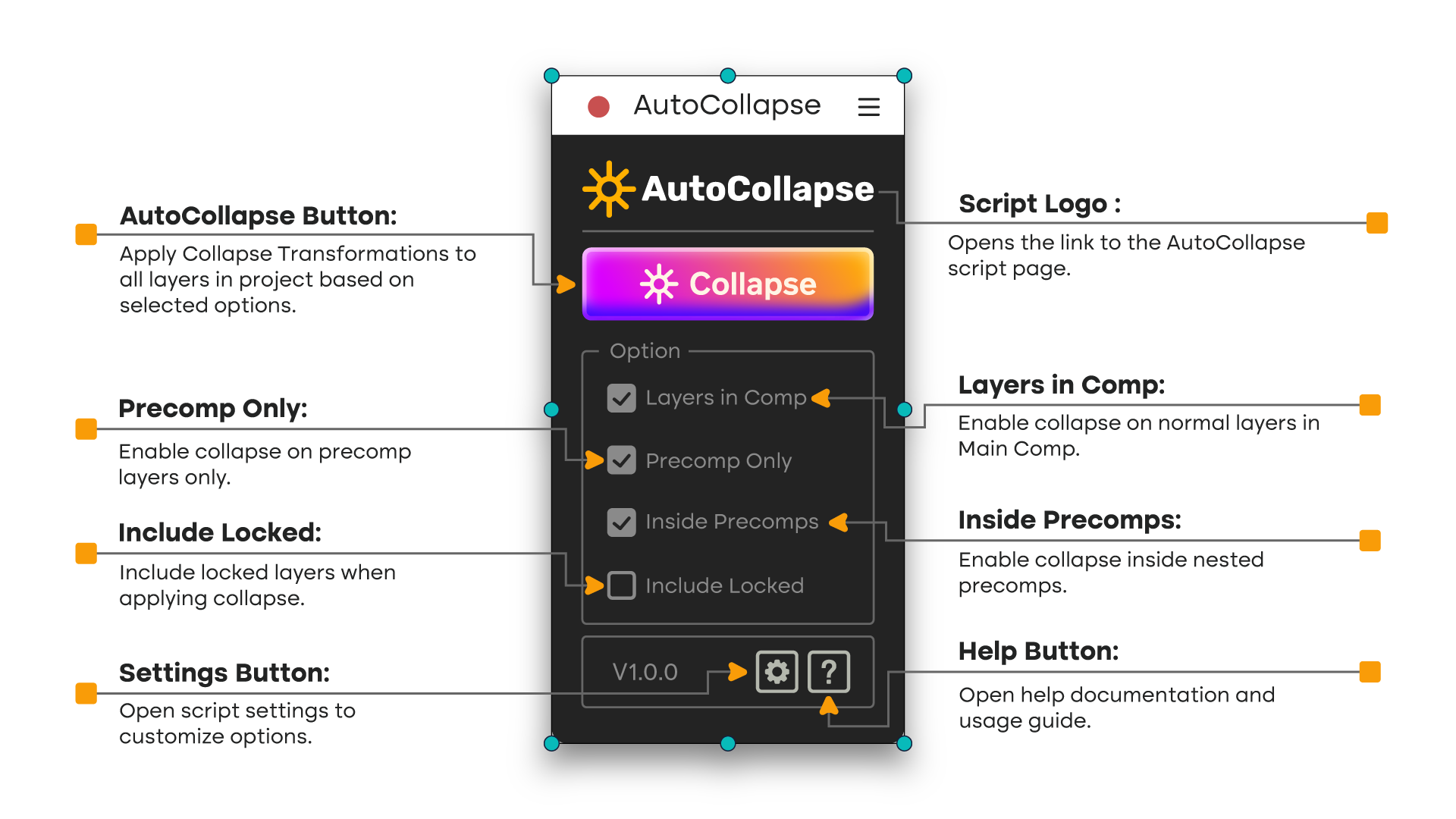
For a broad pass, open the main comp and select which categories to include: regular layers, precomp layers, layers inside nested compositions, and locked layers. Click AutoCollapse to run it. For a narrower pass, select layers or precomps manually and enable only the matching category checkbox.
Locked layers can also serve as exclusions: lock the layers to skip, then turn off Include Locked. If Include Locked is enabled, the script can apply the switch to locked layers as well.
Review the result and manage the panel
The success notice reports how many layers were updated, already had Collapse enabled, or do not support the feature, along with additional details. In Settings, you can disable the notice or customize its message, then save preferences or reset them to defaults. The interface can be minimized to a small toggle button; clicking it restores the full panel.
Compatibility and license
The listing names After Effects 2020 through 2025 as compatible versions. Its EULA allows one copy on one computer at a time; multiple copies or users require an appropriate license for each copy and user.