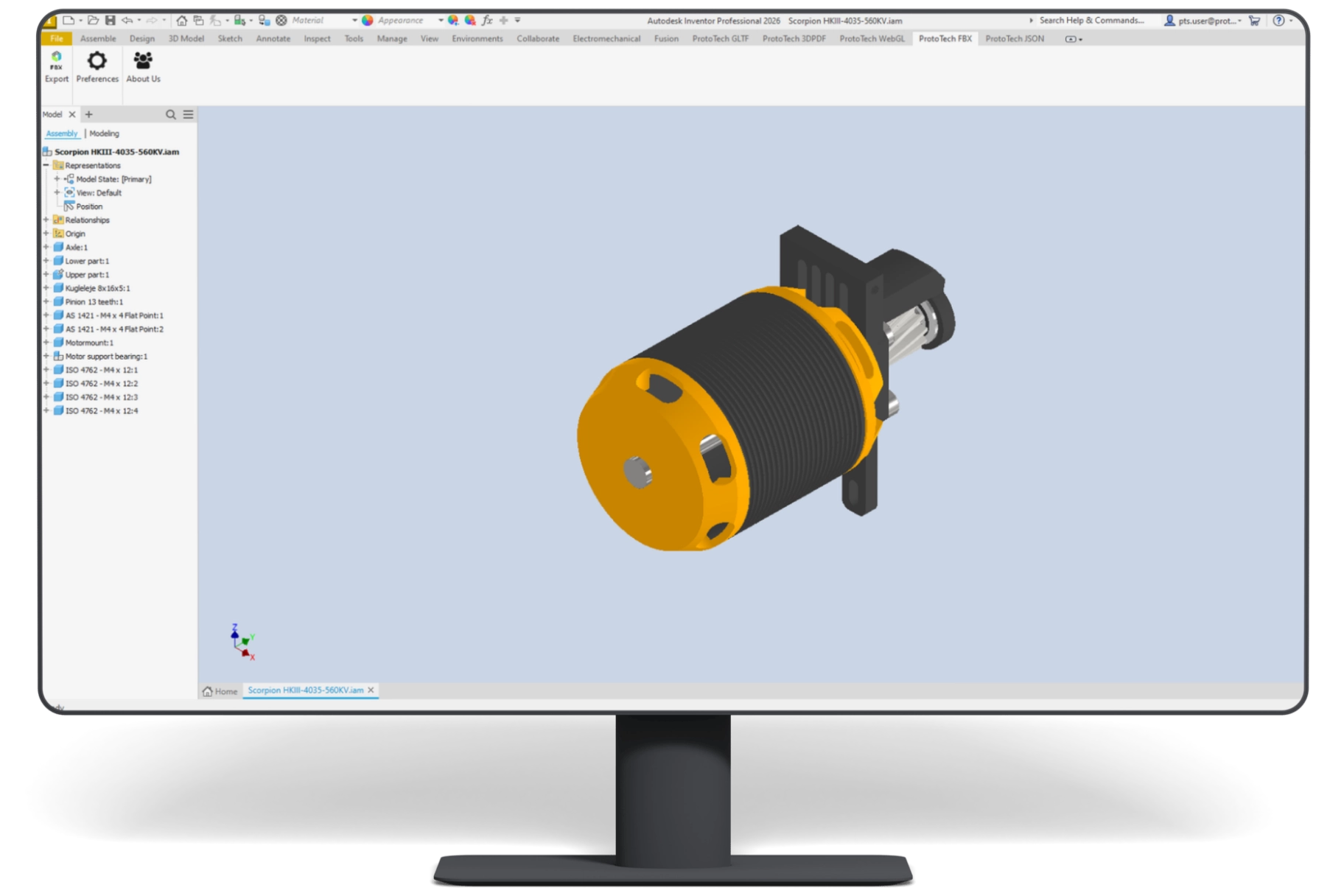
CM TabSlot is an add-in for Autodesk Inventor Parts and assemblies. It creates a row of tabs on a selected plate and cuts matching slots in target material. It supports multi-body Parts, as well as assemblies whose tab and slot components are in separate part files. Before creating features, an aligned preview shows tabs in cyan and the exact target material to remove in orange.
Set up tab and slot spacing
Select the solid to cut with Target body, a planar face on the tab plate with Sketch face, and a straight boundary edge on that face with Edge (dir). Each button starts its selection while the dialog stays open. Enter the tab count, end offset, protrusion, and depth in millimeters. Increment mode fixes the gap and calculates tab width. Fitted mode fixes tab width and calculates the gap.
Tab thickness extends into the selected plate face, and the mating slot uses the same frame, including for rotated or translated assembly occurrences. Before applying the joint, check that the selected plates and proposed geometry intersect.
Preview and center the layout
Center first tab places the seed tab at the edge midpoint, then alternates tabs toward the edge end and start. With an even tab count, one extra tab goes toward the edge end. End offset remains a minimum end clearance, so check the preview for the layout you need. The preview uses transient graphics and does not add preview sketches.
Create and edit saved features
Choose OK to create the joint and close the command, or Apply to create it and keep the command open. Consolidate groups the Part features into an editable node. In assembly workflows, CM TabSlot creates linked Tab Only and Slot Only nodes in the participating parts. Double-click a saved node to edit its parameters; open the assembly to edit a linked assembly joint. Saved center positioning and original selection references support later edits.
Cancel or Esc exits the command. Cancellation is checked between modeling operations and rolls back the current transaction; an individual Inventor API call must return before cancellation can take effect. After creating the joint, review the geometry and save all modified parts and assemblies. Keep an independent project backup before making manufacturing decisions.
Trial and activation
The Store edition includes a seven-day local trial and monthly or annual subscriptions. First activation requires Autodesk sign-in and an internet connection. During an outage, previously verified access can be cached for up to 72 hours, but trial access cannot extend beyond its original seven-day deadline. Offline subscription expiry or revocation may take up to 72 hours to be detected.