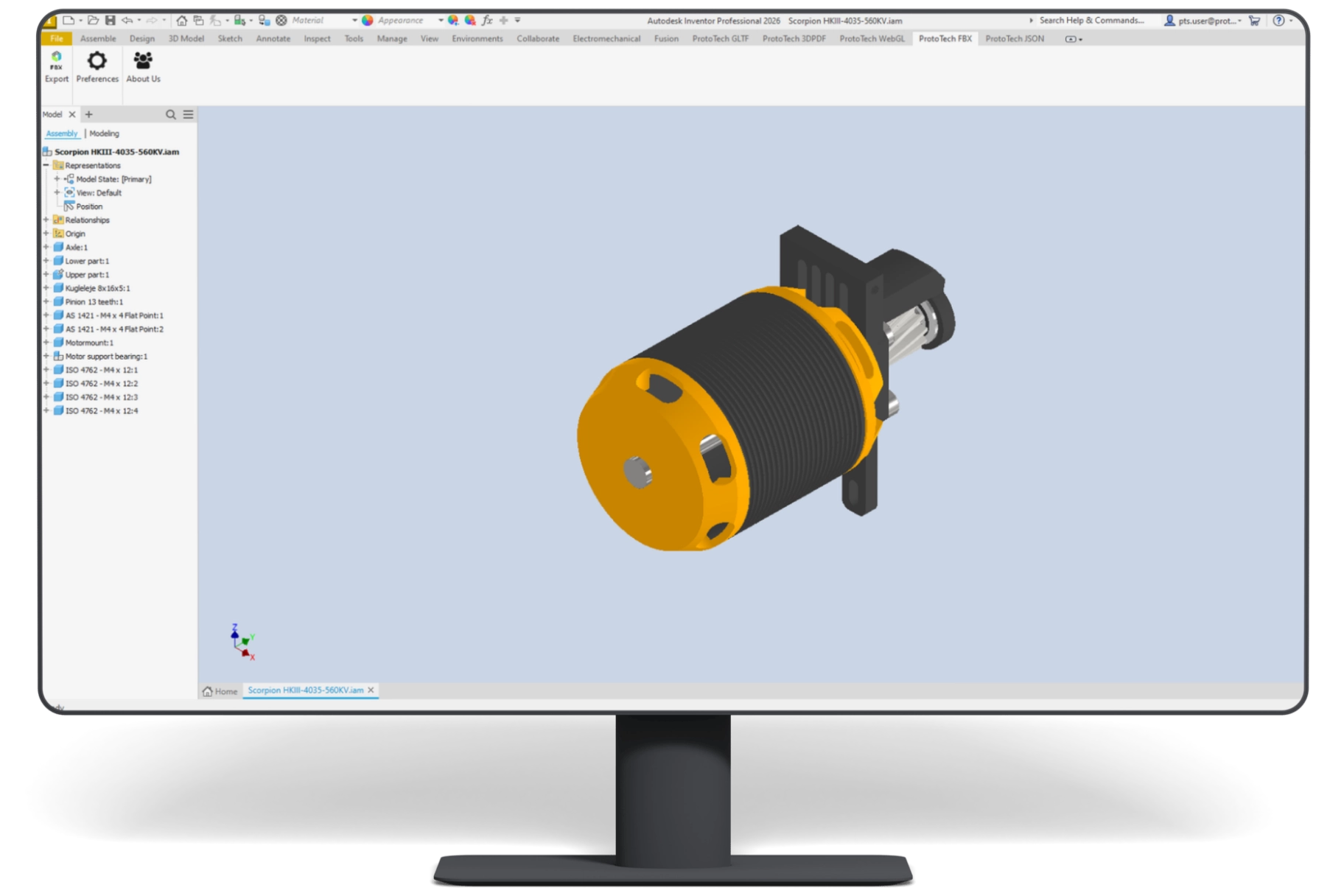
ProtoTech’s FBX Exporter for Autodesk® Inventor® exports Inventor parts and assemblies to FBX for visualization and interoperability. Its controls cover tessellation, selected or hidden elements, colors, textures and exported properties.
FBX export controls
You can adjust normal export, precision, facet tolerance and tessellation quality, including body-level and face-level tessellation. The add-in can export face-level colors, preserve colors, include textures and properties, and write ASCII or binary FBX files. Scaling, feature rotation and axis swap or flip settings are also listed.
The Marketplace listing describes polygon reduction with approximately 30–70% optimization. It does not specify a benchmark or guarantee the same reduction for every model. Review the Autodesk Marketplace feature details against the model and export settings you use.
Inventor and Windows compatibility
Autodesk Marketplace lists version 2.0.26159.3807 as compatible with Inventor 2024, 2025, 2026 and 2027. The listing supports Windows 10 and Windows 11 only. The add-in uses a custom installer rather than the standard App Store installer.
Trial and license terms
The first installation activates a trial with 30 exports over 15 days and access to the full feature set. No activation key is required during the trial. ProtoTech's product page lists a $159 one-machine license, while Marketplace text shows $139 in one capture and $159 in another. The Marketplace lists floating and automation licenses at $599 each. Check the Marketplace listing for current prices before buying.
The Marketplace listing calls the license perpetual, with free updates for the first year, and says access to plugin versions released after that year requires a license upgrade. ProtoTech's product page says a renewal is needed for updates or support after the first year.
Automated export
The separate automation license is for standalone PCs. It lets a plugin call an export function in the same host application without user intervention. ProtoTech says the call can use standard input parameters and avoid the graphical interface. The paid version must be activated after the trial period.
Installation and add-in controls
Restart Inventor after installation to see the changes. To unload the add-in without uninstalling it, select it on the Add-Ins tab in the Scripts and Add-Ins dialog and choose Stop. Uncheck Run on Startup to keep it from loading in future Inventor sessions.
Check the Fusion reference
The Marketplace overview contains a sentence saying the exporter exports Fusion design models, while the product title, overview details and compatibility entry identify Inventor. The listing does not clarify Fusion compatibility. If you need to export Fusion models, confirm support with ProtoTech before relying on that sentence.