Fusion to Fuse connects Autodesk Fusion's Manufacture workspace to Formlabs Fuse SLS printers through PreFormServer. It sends an additive setup nested in Fusion to a selected printer or saves it as a PreForm .form file. Each part stays separate and in its Fusion position, so you can keep the layout you prepared.
The Send to Fuse button appears in the Manufacture workspace's Actions panel when the active additive setup uses a Formlabs Fuse machine.
How the workflow works
- Sign in with your Formlabs account. Fusion to Fuse remembers the session until you log out.
- Select a Fuse printer found on your network or in your Formlabs Dashboard account. The printer's model, status, and loaded material are shown.
- Choose a print setting for the loaded material, name the job, then send it to the printer or save it as a
.formfile.
Layout, checks, and estimates
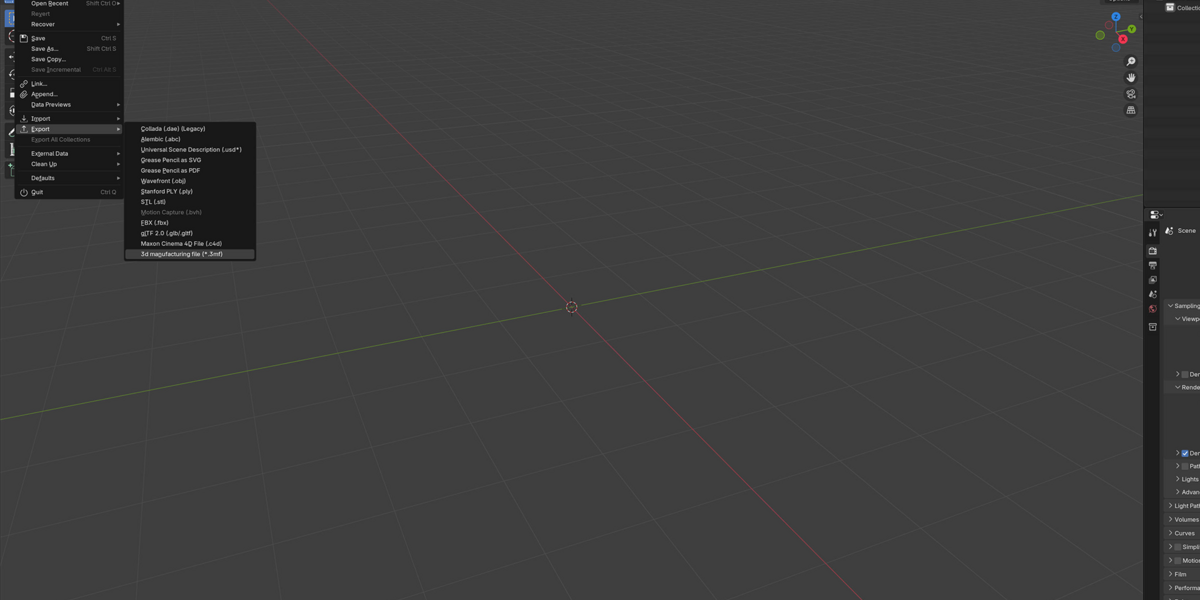
The add-in exports the setup as a 3MF and imports it into PreFormServer with each part in its Fusion position. Fusion and PreForm desktop use the platform's front-left corner as the origin; the PreFormServer API uses the center. Fusion to Fuse adjusts the build for that difference before import.
Before sending, the add-in checks whether parts fit the printer and lists parts that do not fit. It checks the build in Fusion and again in PreForm. Overlapping parts trigger a warning. The add-in also warns if the selected printer model differs from the Fusion machine or if the setup's material differs from the material loaded in the printer.
Print information includes estimated total print time, cooling time before removal, total and sintered powder, and mass packing density. PreFormServer supplies the available print settings for the loaded material, with PreForm's recommended setting selected by default.
Requirements and supported equipment
- Autodesk Fusion with the Manufacture workspace and an additive setup.
- Formlabs PreFormServer 3.64 or newer, using PreForm API v1, installed locally. It runs at
127.0.0.1:44388. Fusion to Fuse can start PreFormServer from common installation locations when it is not already running, then checks its version. - A Formlabs account and a Fuse printer available on your network or in your Formlabs Dashboard account.
- Formlabs Fuse 1, Fuse 1+, or Fuse X1. The listing does not include Fuse Sift or Fuse Blast.
- Windows (Win64) and macOS are supported. Available materials depend on the printer and PreFormServer version; examples include Nylon 12, Nylon 12 GF, Nylon 11, TPU 90A, and Polypropylene.
Formlabs provides PreForm API downloads and release notes. The add-in stores its settings and login session token in ~/.fusion2fuse/settings.json; it does not save your password.
Limits to know before sending
Cancel works while a job is being prepared. Once the interface says Sending to printer, PreFormServer cannot stop an upload that has started, so the job may still arrive. If it does, remove it from the printer's queue.
PreFormServer can move a part that extends beyond the build volume back inside it. Fusion to Fuse stops the send and lists those parts rather than sending a changed build. Fusion's check uses a rectangular volume, so parts near the platform's rounded corners may only be caught by the PreForm check.
For jobs sent through PreFormServer, the printer screen shows Total Powder and Fused Powder as 0. This does not affect the print; Fusion to Fuse's result screen shows the powder estimates.
Support
For Fusion to Fuse support, email [email protected] with a description of the issue, your operating system, Fusion and PreFormServer versions, and printer model. For PreFormServer or Fuse connectivity questions, use the Formlabs support portal. The Formlabs developer portal has PreForm API documentation. For Fusion additive workflow questions, visit the Autodesk Fusion Manufacture forums.