Batch Export is a Blender add-on by baeac that writes each selected object to its own file and names the file after the object. It is useful when a group of Blender objects needs to be delivered as separate assets instead of one combined export.
Formats and naming
The add-on lists support for ABC, GLB, FBX, OBJ, STL, and PLY. Alembic (ABC) batch export was added in add-on version 1.3 and later. The product listing describes the supported formats and workflow.
Batch Export uses object names for output filenames, so you do not need to enter a name in the export dialog. Check object names before exporting if you want the resulting files to be easy to identify.
Exporting objects
- Select the objects you want to export in Blender.
- Open
File > Exportand choose the Batch Export option for the format you need. The options appear near the bottom of the export list. - Adjust the available settings, confirm the export, and give Blender time to write the files.
Compatibility, settings, and GLB limits
The Superhive overview says the add-on works with Blender 4.2+ and 3.6+, while its compatibility details list Blender 3.6 and versions 4.0 through 4.3. The listing directs users to choose the ZIP file for their Blender version, so check its current details before installing if your release is not clearly covered.
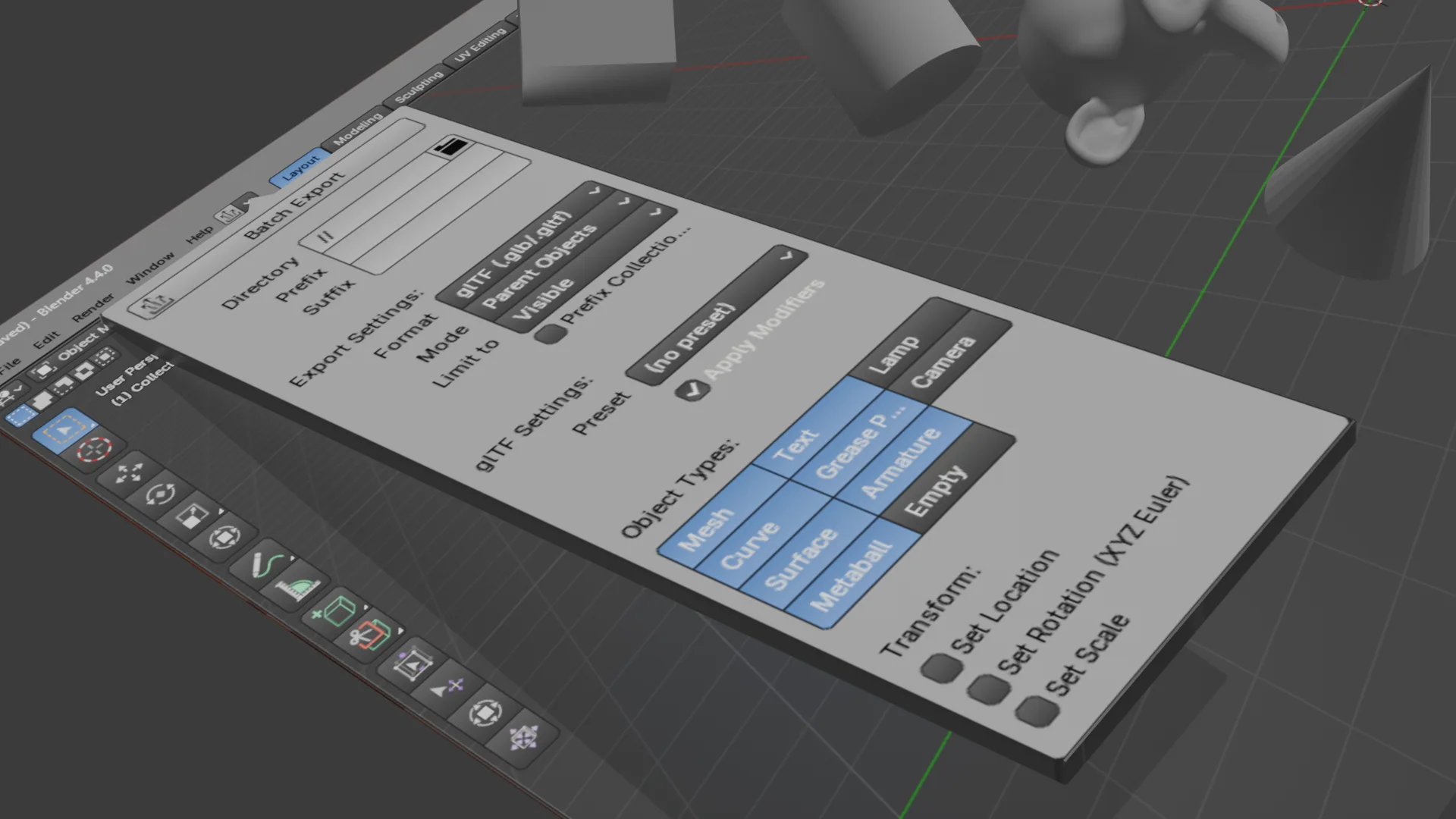
The developer documentation says version 1.2 and later exposes most format-specific export settings. They start with Blender's default values, and some settings are unavailable. GLB's Data subpanel options remain at their defaults. For FBX, select the object types you need in the scene before exporting, because the add-on's Object Types setting was removed.
GLB exports can take longer, especially with many objects. The documentation recommends exporting only a few at a time to reduce lag. If Blender crashes during an export, files already written may remain on disk, but the last file may be corrupted. Superhive lists the add-on's license as GPL.