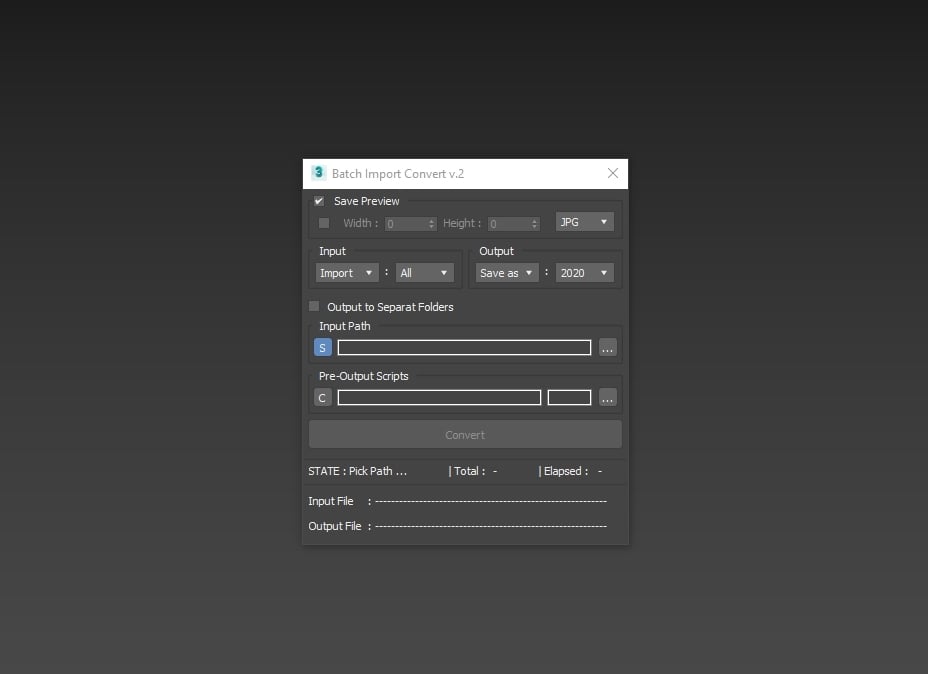
Batch Import Convert is a 3ds Max script for importing selected file types from a folder and its subfolders, then saving them as Max files in a chosen version. It can also open existing Max and Mat files for saving to an older version. During conversion, it can capture a viewport preview.
Import and output modes
The script has four modes: Import/Export, Import/Save as, Open/Export, and Open/Save as. In the import list, choosing “All” processes every listed file type. The output files go into a new folder named Max inside the converted folder.
You can also set MS/MSE scripts to run in order before the output process. For 3ds Max 2021 or newer when saving Max files to an older version, a checkbox converts poly objects to mesh to help prevent vertex distortion. The developer’s v2.3 Gumroad update also describes converting the Chamfer modifier to mesh under those conditions to help avoid a Max crash.
Converting material libraries
ScriptSpot documents a two-step workflow for saving material libraries to a lower version. First, run the script in the higher Max version, set the input to Open-MAT and the output to Save Max - Lower Version, add the Matlibs path, and convert. Then run the script in the lower Max version, set the input to Open-MAX and the output to Save Mat - Current Version, add the Matlibs path, and convert again.
Set import defaults and test a file
Batch Import Convert uses 3ds Max’s default import settings. To change them, perform a normal import in 3ds Max and adjust the settings there; the script then uses those defaults. The developer recommends manually converting one file first to check that 3ds Max can import its file type. ScriptSpot also notes that the script was not heavily tested and may fail in some cases.
Price and availability
AnyPlugins lists Batch Import Convert as free, while the developer’s Gumroad page currently displays $5+. Check the developer listing for current pricing and terms.