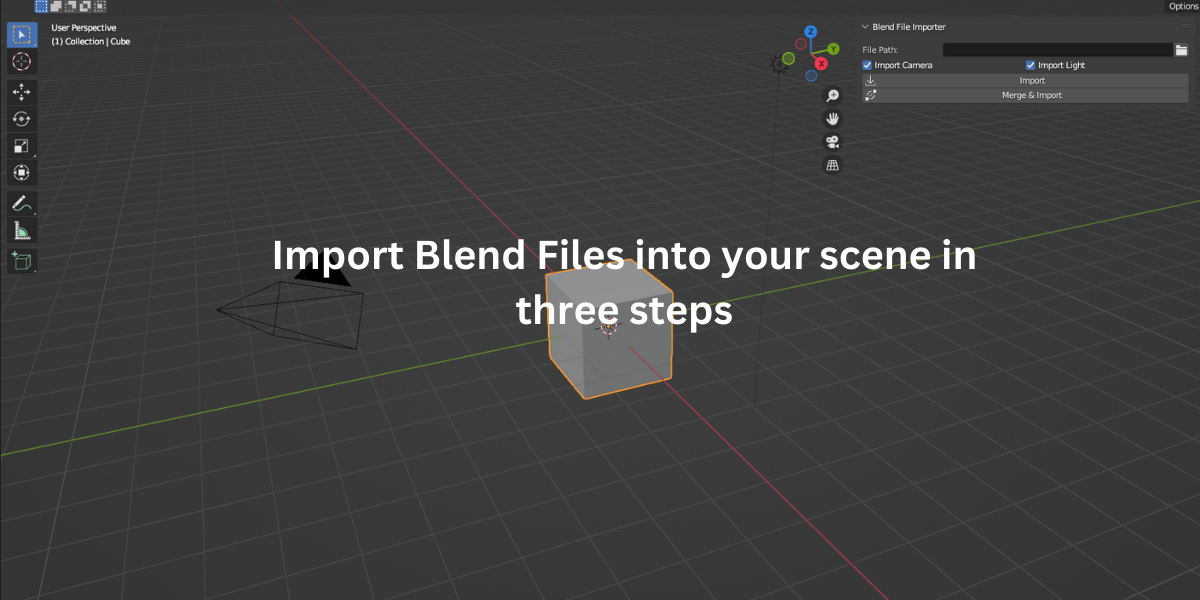
Blend File Importer Addon V3.2(M2) imports models from a blend file into the current Blender project, without opening the source file to export them first. It also lists support for OBJ, STL, X3D, FBX, and GLB/GLTF files. The Superhive product listing describes its supported formats and import options.
Import models from a blend file
The documented blend-file workflow has three steps: install the addon, select the blend file path, then click Import. The import dialog can create a collection and lets you set its name before importing.
Formats and blend-file options
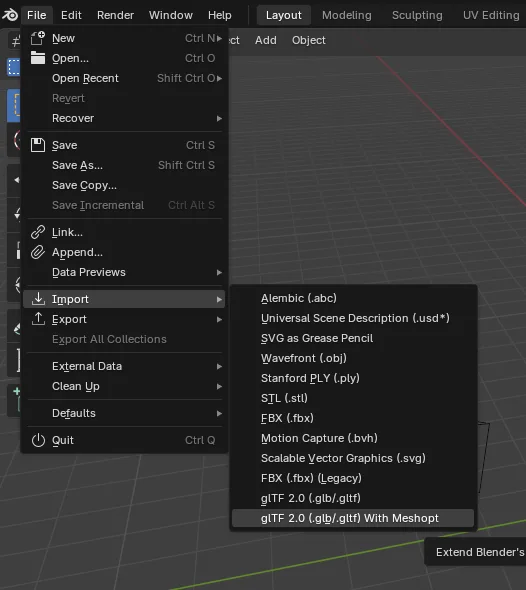
Alongside blend files, the listing names OBJ, STL, X3D, FBX, and GLB/GLTF as supported formats. Three controls are specifically limited to blend files:
- When Import Camera is enabled, cameras from the blend file are imported into the scene; when it is disabled, no cameras are imported.
- When Import Light is enabled, lights from the blend file are imported into the scene; when it is disabled, no lights are imported.
- Merge & Import brings the objects in joined together as one object.
The listing says these options are not supported for other formats.
Version and installation notes
Version 3.2(M2) adds the Create Collection and Rename Collection dialog and fixes the installation error “No module named blend_fileimporterV3.” The release notes say the addon supports Blender 3.0 and up. The product details list Blender versions 3.0 through 4.0, so check the developer’s listing if you use a newer release.
If you are replacing an earlier version, Krishna Bros advises removing the existing Blend File Importer addon first: open Edit > Preferences, search for “Blend File Importer,” and choose Remove before installing the new version.
Who may find it useful
This addon is aimed at Blender users who bring models from blend files into an existing project and want to choose a collection name during import. It may also suit workflows that involve the listed OBJ, STL, X3D, FBX, or GLB/GLTF formats. Camera, light, and merge controls apply only to blend files. The product notes do not explain material handling, scale, or naming-conflict behavior, so check those details with a representative file if they matter to your workflow.