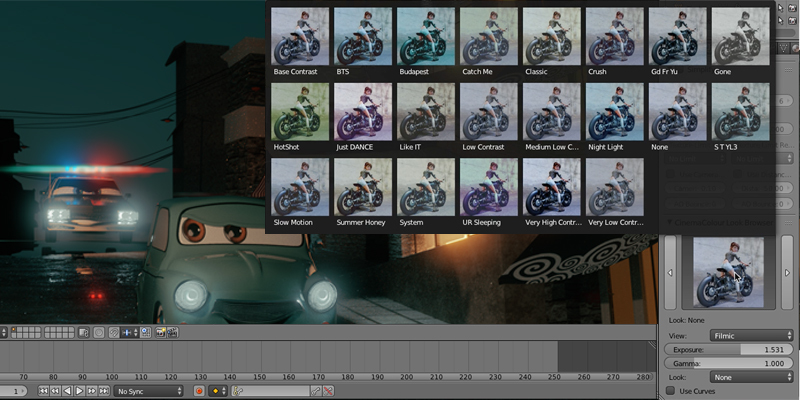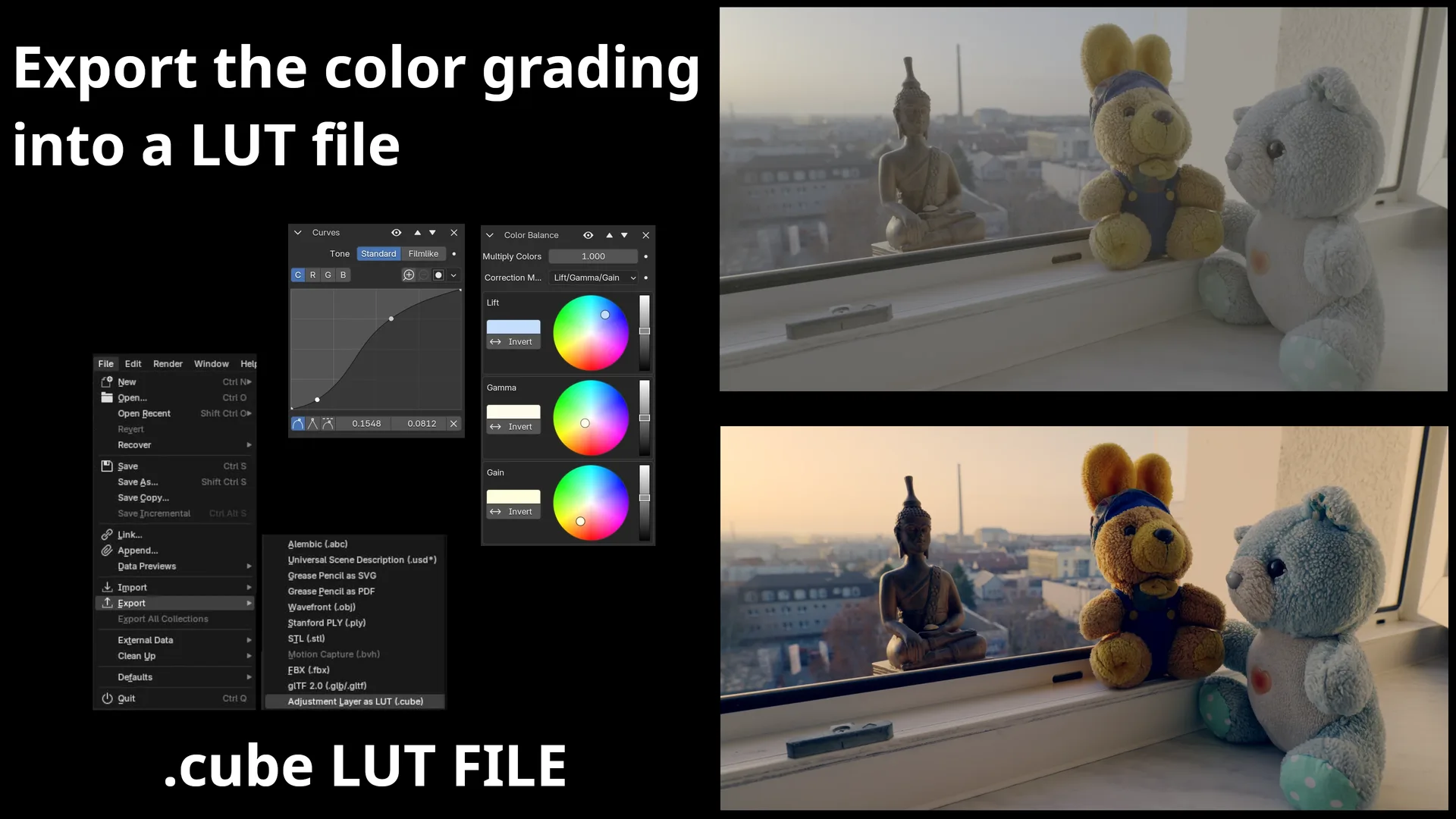
LUT Exporter and Importer moves color adjustments from Blender's Video Sequence Editor (VSE) into .cube LUT files and brings LUTs back as adjustment layers. A LUT stores color-conversion data, so you can save a grade for reuse in another project or editing software.
Export a grade from the VSE
- Create an adjustment layer in the VSE and apply the color grading you want to save.
- Choose File > Export > Adjustment Layer as LUT.
- Set an output path ending in
.cubeand choose a resolution.
Choose a LUT resolution
The standard resolution is 33, which produces a 33 × 33 × 33 LUT. A higher resolution represents the original colors more precisely, but takes longer to export and creates a larger file. Choose a grid size that fits the level of color detail you need and the time and file size you can accommodate.
Import the LUT and match its color space
Use the Import menu to add a LUT as a new adjustment layer in the active VSE. Set the input strip beneath that layer to Linear Rec.709 or to the working space used when the LUT was exported. The import dialog lets you select the expected color space, and the exported LUT records the original color space. The LUT can also be added to Blender by editing the OCIO configuration file.
Version and compatibility
The Blender Extensions listing shows version 2.0.1 and compatibility with Blender 5.0 and newer. It lists the add-on under Import-Export and Sequencer. Check the Blender Extensions listing for installation instructions.