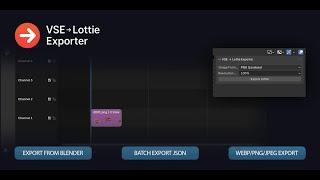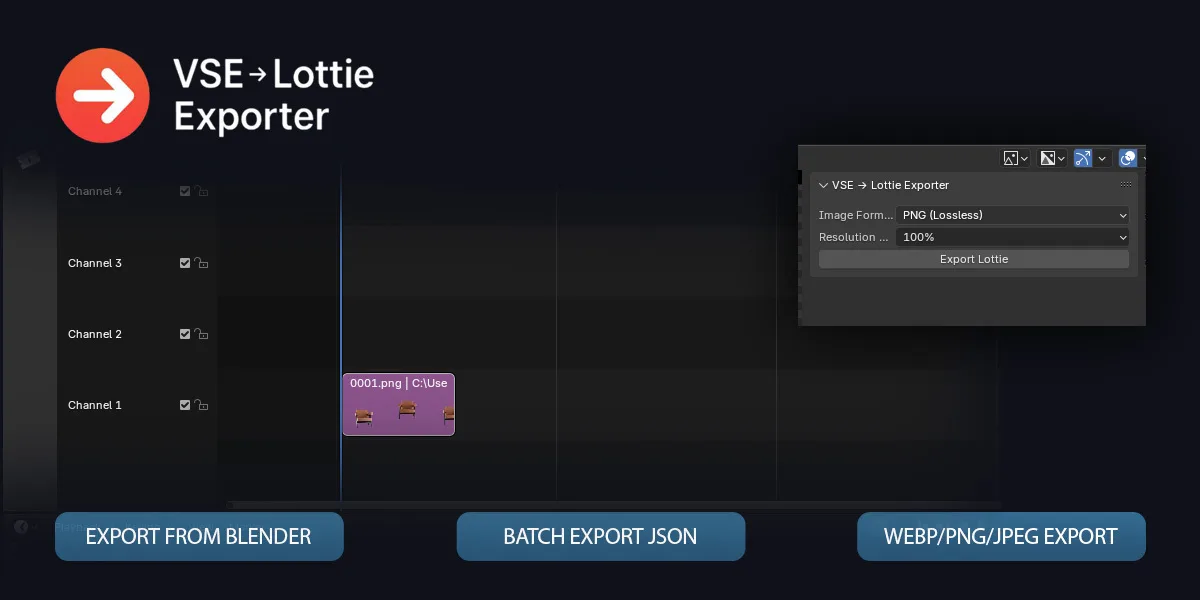
Blender VSE to Lottie JSON Exporter turns a Blender Video Sequence Editor timeline into a Lottie JSON animation. It renders the timeline's frames and embeds image assets as Base64 in the JSON, creating one self-contained output file. Version 1.0.1 is listed with no external dependencies. See the product listing for its feature and compatibility details.
Review the export in a browser
The browser preview shows the file size, resolution, frame rate, duration, and validation status. Its checks include missing keys, zero-length animations, invalid FPS, and file-size thresholds. This gives you a chance to inspect the generated file before using it in a web or mobile project.
Choose image formats and resolution
The exporter supports PNG, JPEG, and WEBP. PNG keeps sharp graphics lossless, JPEG provides compressed output for photographic content, and WEBP is listed as the smallest option for web delivery. The product FAQ says PNG and WEBP support alpha when using RGBA color mode.
You can set output resolution to 100%, 75%, or 50% without changing the scene settings. The add-on also rounds float values and removes unused keys, including markers, characters, and fonts. Muted timeline strips are skipped.
Check Blender version support
The product details list Blender 4.4 through 5.0, while the compatibility table lists single export and browser preview for Blender 4.4 through 5.x. Per-channel export writes each VSE channel to its own Lottie file; the compatibility table lists it for Blender 4.4 through 4.x. For Blender 5.x, the listing says per-channel export falls back to a single export, while the documentation describes the feature as nonfunctional after VSE API changes. Treat per-channel export as unavailable in Blender 5.x unless the developer confirms otherwise.
Install and export from the VSE
- In Blender, open Edit > Preferences > Add-ons > Install and select the add-on file supplied with the package. The product listing identifies
__init__.pyas its install file. - Switch to the Video Editing workspace. Open the Sidebar with N and select the VSE to Lottie panel.
- Choose the image format and resolution. Enable Open Preview After Export if you want the browser preview to open automatically. Use per-channel export only in Blender 4.4 through 4.x.
- Click Export Lottie. The add-on renders the frames and builds and optimizes the JSON. The browser preview opens automatically when Open Preview After Export is enabled; otherwise, open the exported file with Preview Lottie JSON in the sidebar.
Know what the output contains
The exporter creates frame-based image animations, not vector shapes, and it does not include audio. File size depends on the frame count, resolution, and image format. These limits make it worth checking the preview's file size and validation status before moving the animation into a project.