Botton_Remove is a Blender add-on for cleaning scene data and managing deletions that may need to be restored. It groups tools for materials, geometry, node groups, and collections for artists working with complex scenes or iterating on objects and data. The Quick Cleanup creates no history entries.
Remove scene data by category
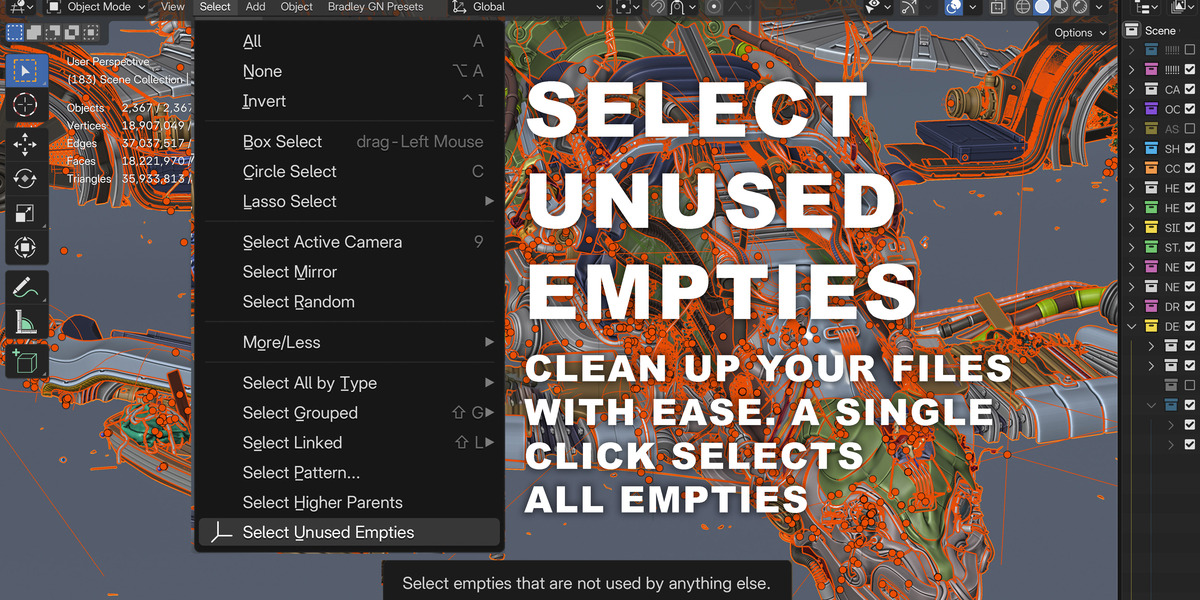
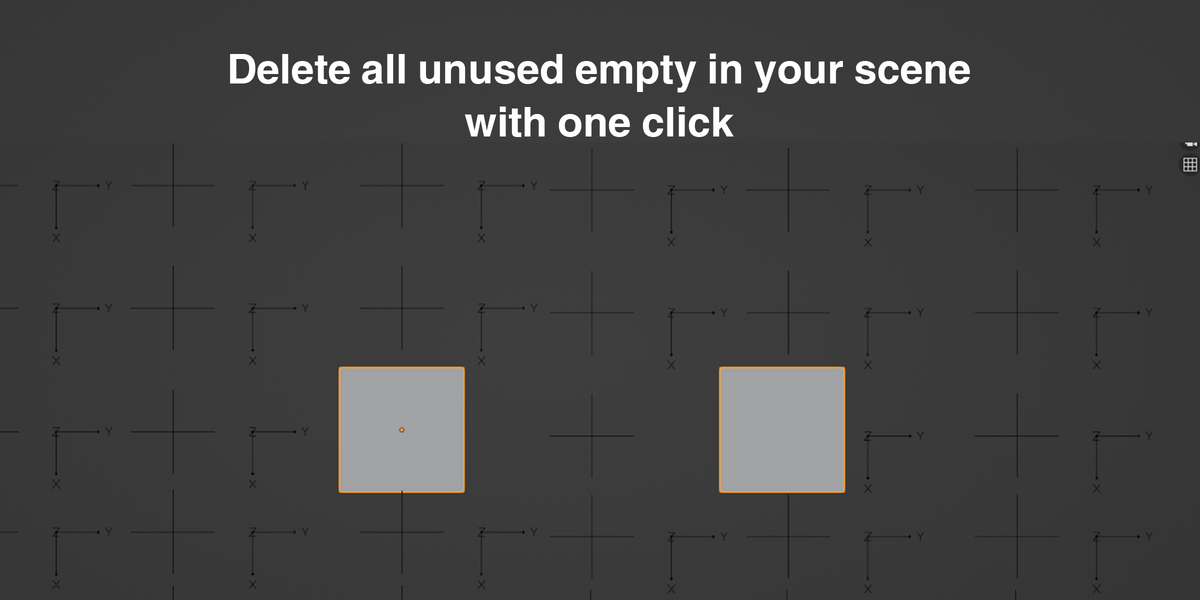
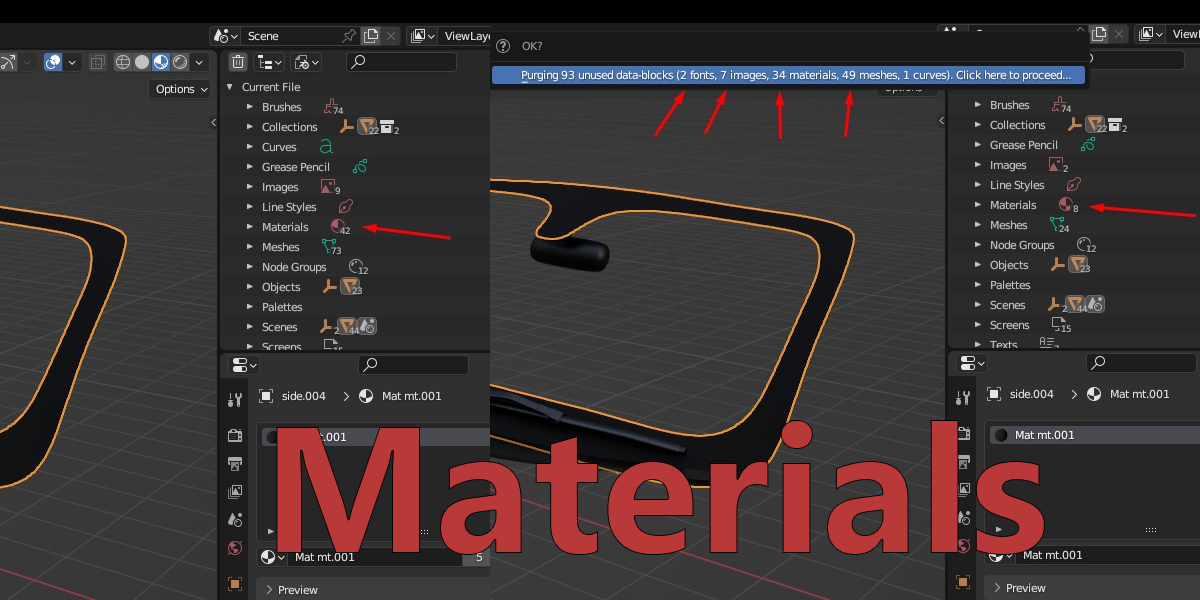
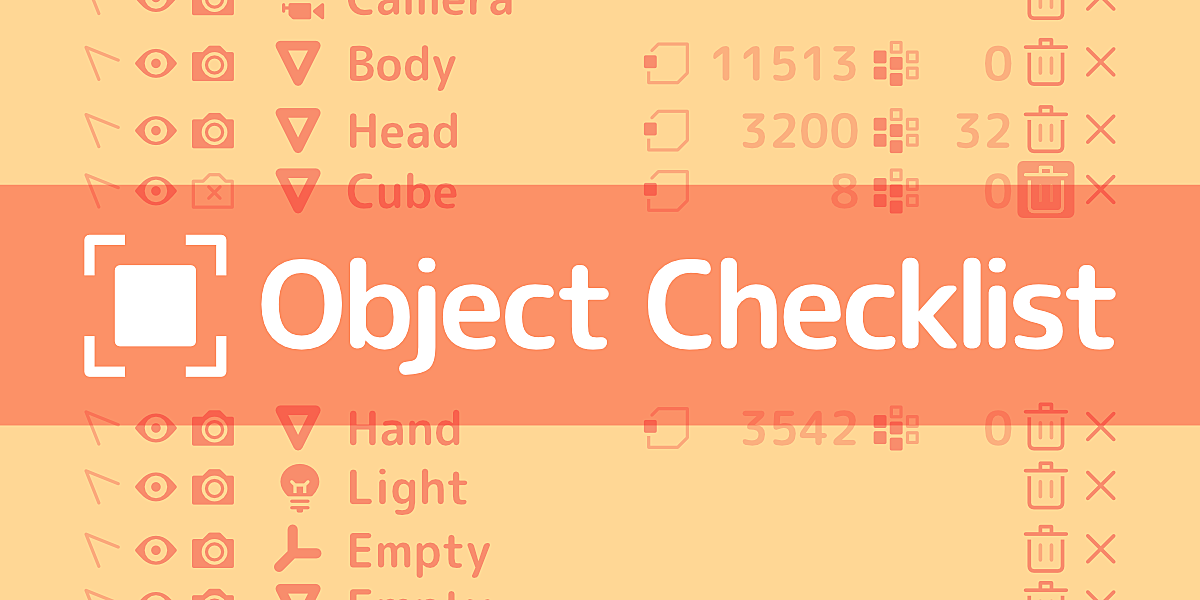
Category-specific eliminators let you inspect materials, objects, node groups, or collections before removing selected items. Dialogs provide filters such as name and type. The Collections Eliminator can back up a collection hierarchy for restoration. Quick Cleanup tools remove unused materials, orphan data, empty material slots, and unused material duplicates created after restoration.
Quick Cleanup operations create no history entries and permanently delete the targeted data. Use them for final cleanup when you do not need to restore the changes.
Use deletion history when recovery matters
History-backed removals appear in a timestamped panel, where you can search entries and restore individual items or batches. Depending on the item and operation, restoration can return objects to their original position or place them at the world origin. With Unlimited Restore enabled, you can restore an entry more than once; additional copies receive a _restoun suffix.
When enabled, pressing X or Delete without Shift moves selected objects to a hidden Trash Collection. When enabled, Permanent Delete makes deletions bypass history. Quick Cleanup creates no history entries, and the Node Groups Eliminator removes node groups without a backup; object history can restore objects with their Geometry Nodes modifiers intact. Check the instructions for the specific operation before relying on recovery.
Open tools from Blender
Press Shift+X to open the circular menu or choose the classic pie menu in the add-on preferences. Its shortcut keys include M for Materials, G for Geometry, N for Nodes, C for Collections, H for History, A for Clear All, D to toggle Delete-to-History, and P to toggle Permanent Delete. Buttons can also appear in the Outliner, 3D View header, Node Editor, Properties panels, and T-panel.
Install and check compatibility
The marketplace details list Blender 4.0–5.0, while the documentation says Blender 4.0.0 or newer. Check the seller listing and documentation for current support and operation details before installing. Download the ZIP, then in Blender open Edit > Preferences > Add-ons, choose Install, select the ZIP, and enable the add-on.