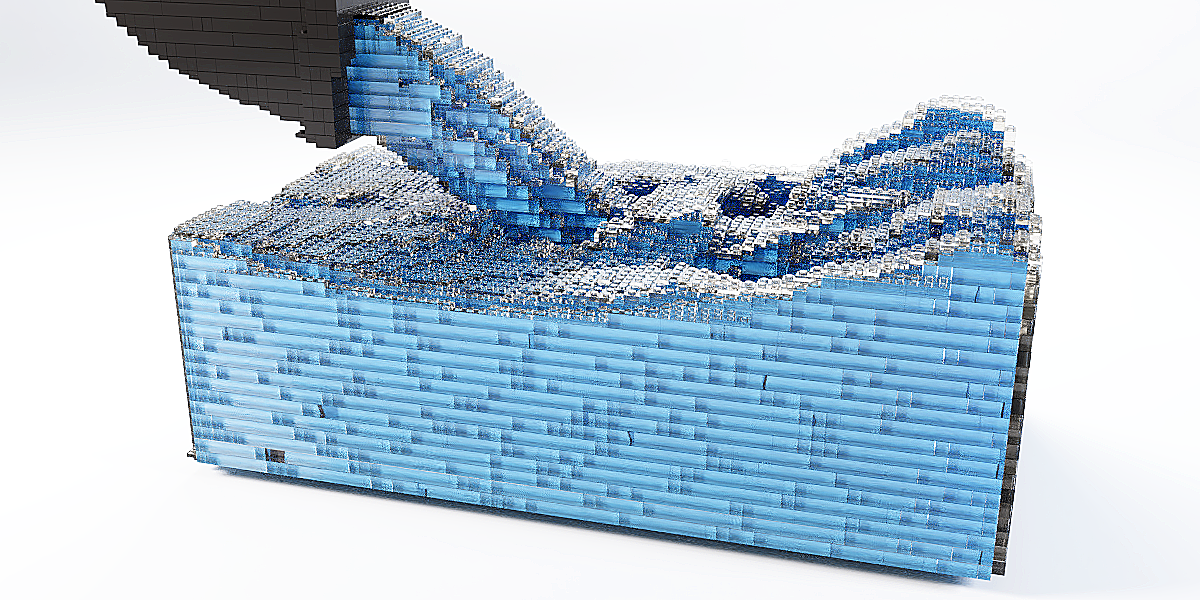
Bricker is a Blender add-on from Bricks Brought to Life that converts a 3D mesh into a brick sculpture, or builds an animated brick model from animation and simulations. Artists can adjust the brick layout, materials and surface detail, then use the result for a render or plan a physical build. The Bricker product listing describes its main features, and the developer documentation covers the workflow and settings.
Convert meshes into brick sculptures
Bricker can use standard bricks and plates, studs, cylinders, cones or custom objects. Material options include colors from the source object, UV colors, random assignments and custom materials. Settings for shell thickness, brick size, connectivity and merging affect how the sculpture follows its source mesh. For a more finished render, you can adjust stud detail, logos, underside detail and bevels.
The add-on also supports models intended for real construction. Set a maximum brick size, choose the outer shell thickness and configure internal supports such as cross-beams, a lattice or columns. Bricker can report the model's brick count, weight in grams and dimensions in metric units. The documentation also lists export to LDraw format.
Make animated brick models
Bricker can create a brick model for each frame of keyframed animation, soft body physics, armatures, cloth and other supported animation. Rigid body physics must be baked to keyframes first. It can also brickify Mantaflow fluid, smoke and fire simulations. For Mantaflow smoke and fire, select the domain and bake its data before generating the brick model; for liquid, select the domain and bake its mesh first. Frame-by-frame generation takes time and can result in a large Blender file.
Generation uses cached brick models and a background processor. Object instancing and selective detailing can help manage memory for large scenes, though the result depends on the model and settings.
Basic workflow and editing
- Create or import a mesh in Blender. The manual recommends a single watertight mesh for best results.
- With the source mesh selected, open the Bricker panel in the 3D Viewport, create a new model, then choose Brickify Object.
- Adjust the model settings and select Update Model to apply the changes.
If you want to edit the topology as a regular Blender object, the manual describes Bake Model as the conversion step. Baking clears Bricker data, and the documentation warns that the source object will be lost, so keep a separate copy if you may need it later.