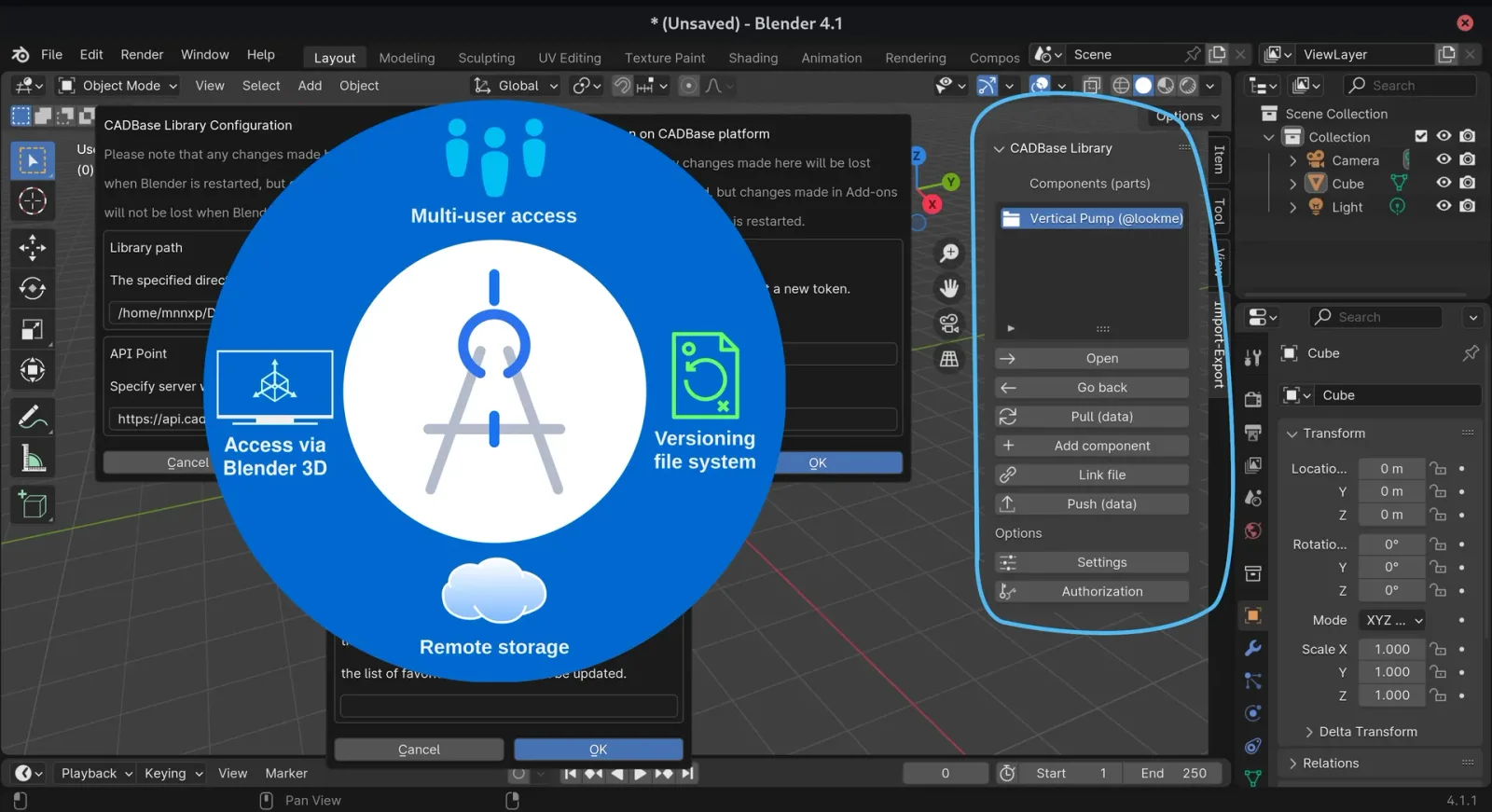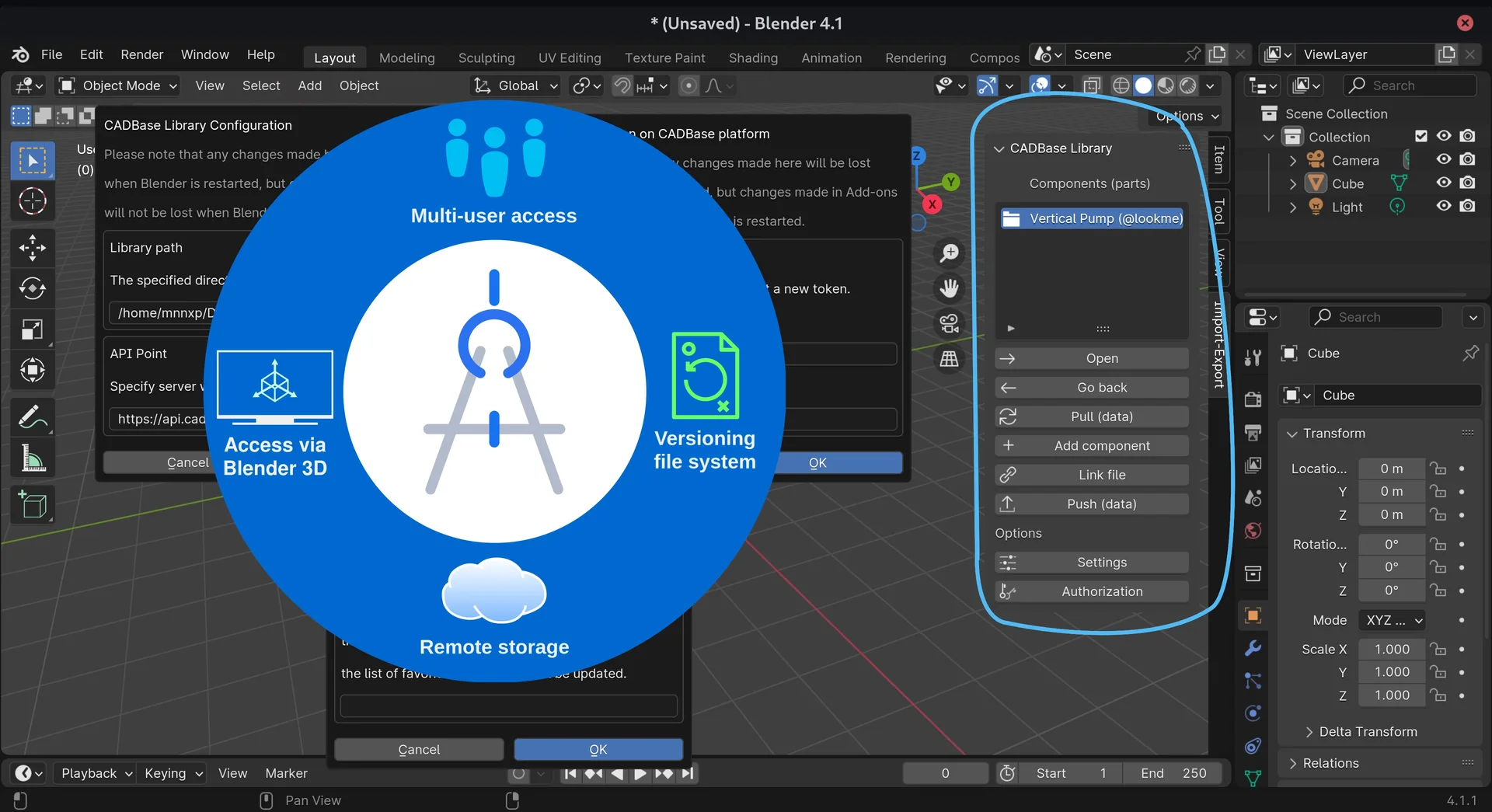
CADBase Library connects Blender to CADBase, a platform for publishing and sharing information about components, 3D models, drawings, and manufacturers. In Blender, the add-on organizes bookmarked or previously downloaded components, their modifications, and the files in each modification’s Blender file set. It requires a CADBase account and a local library path. The Blender Extensions listing shows version 0.3.0 for Blender 4.2.0 and newer. See the official extension listing
Browse components and modifications
The browser has three levels. At the root, it lists local library components, including favorites. Select a component to view its modifications, then open a modification to see the files in its Blender file set. The levels correspond to folders beneath the path set in the add-on’s Library path property.
When you open a modification, the add-on displays files from that modification’s Blender folder. It downloads Blender files through the add-on; files for other CAD programs are not downloaded. Components need to be bookmarked on the CADBase website or already downloaded before they appear in Blender.
Pull and upload files
Use Pull to retrieve favorite components and modifications or download files from a selected modification. Pull updates the local library and the browser view. Auto pull data can retrieve data automatically when you open an empty folder. Existing local files are skipped during downloads to help prevent data loss.
To upload, open a modification and choose Push. The add-on can compare local and remote files before upload and lists changes as new, modified, or deleted. Deleted files are marked for removal from the remote copy. You can add a commit message, review the listed changes, and confirm the upload. Only files in the Blender file set are uploaded.
Uploads normally use SHA-256 hash checks to avoid sending unchanged files. The Forcibly update files option skips hash verification and uploads files in all cases. Files uploaded to a file set are versioned on CADBase, where earlier versions can be restored, changes compared, modifications reviewed, and the last editor identified.
Set up the add-on
Choose a local Library path and set the CADBase server URL or IP address in the add-on settings. A CADBase account is required. The add-on can create an account if the username you enter is available. Enter your username and password in Blender’s add-on preferences to obtain an authorization token; if the token expires, authorize again. The authorization option is also available in the CADBase Library window.
After installation, open the 3D View sidebar and select CADBase Library under Import-Export. Press N in the 3D View to open the sidebar. Blender’s extension installation instructions cover installing an extension from disk.
Local library and extension details
The local layout follows the component, modification, and Blender file set levels: Library path, then component, modification, and Blender folder. The add-on creates component and modification metadata files in these folders. Avoid using cadbase_file_2018 or cadbase_file_2018.log as file or folder names because they are reserved for logs and server responses.
Version 0.3.0 added SHA-256 file comparison, Open directory and Copy link buttons, automatic pull settings, and token re-login for expired sessions. Its permissions cover importing and exporting library data to disk, network access to sync with a remote server, and clipboard access to copy component links. The extension is licensed under GPL-3.0-or-later. The developer repository provides a place to check project details and report issues.