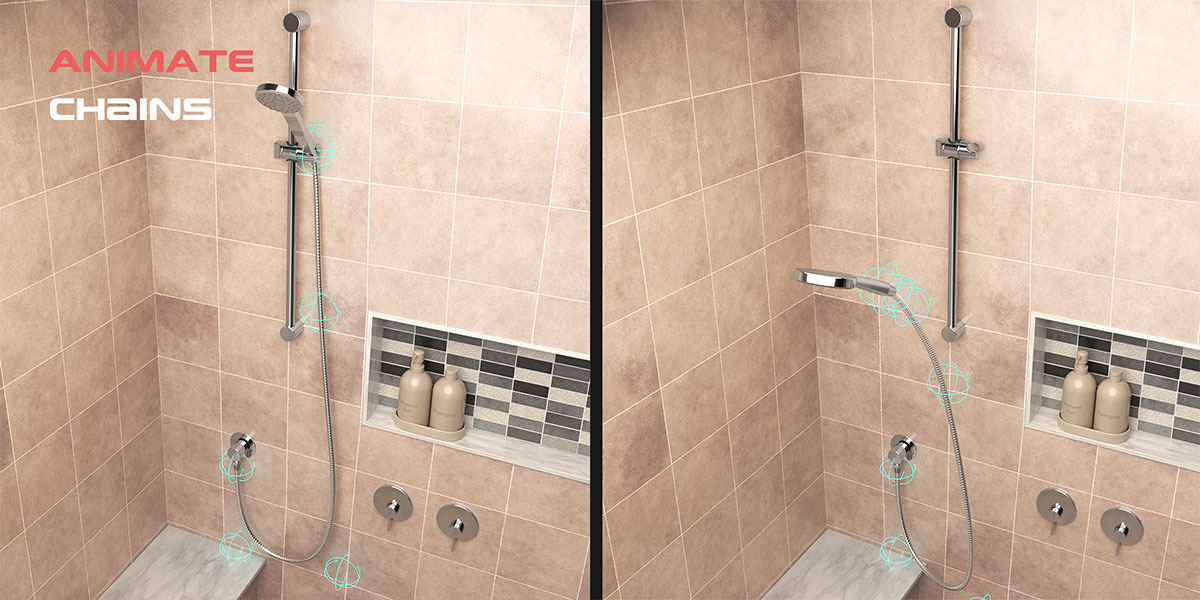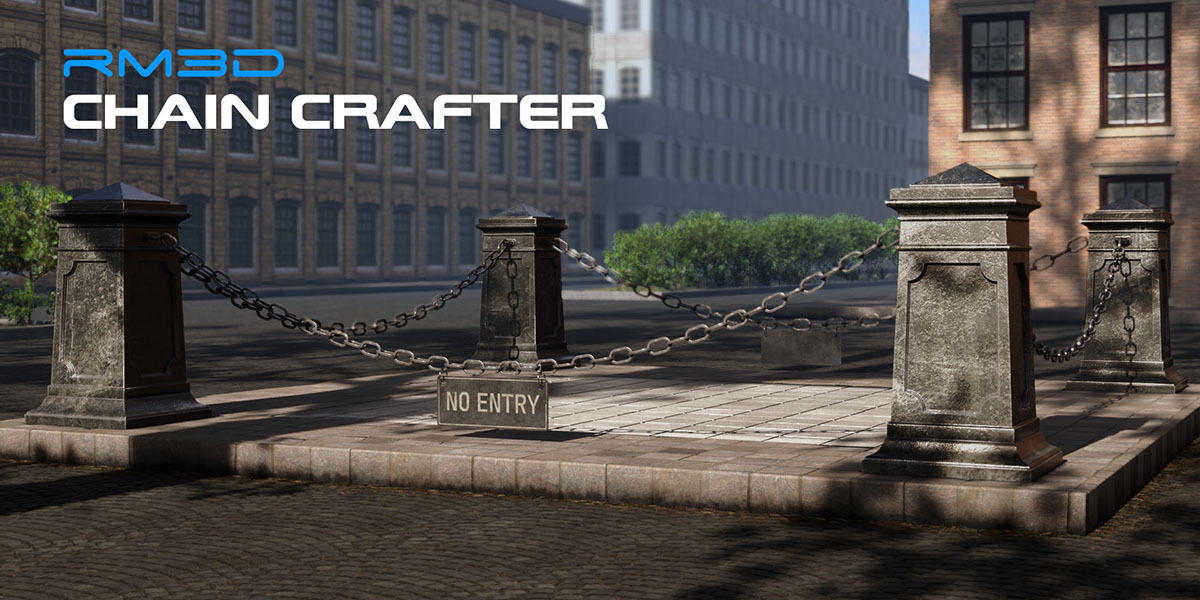
Chain Crafter generates procedural chains in Blender with attached control handles. Draw a chain, connect two objects, or convert an existing curve, then position, tilt and animate the result while staying in object mode.
Choose how to create a chain
Use Draw Chain to sketch a path; controls attach when you finish. Connecting Chain joins two objects and automatically tethers the chain at both ends. If you already have a curve, convert it into a chain instead. After creation, you can add or remove controls as needed.
Pose and animate with controls
Move and tilt a chain through its attached controls. Chain Crafter can set or remove keyframes for all controls at once, which lets you animate the chain without keyframing each control separately. You can also save a default pose to return to later; the pose is stored with the blend file.
Controls can be resized, reshaped and hidden. A set of modifier parameters lets you change each chain's appearance. The side panel also includes commands to duplicate, rename or delete selected chains and their components.
Create mesh copies and reuse assets
Extract Mesh creates a mesh copy of a chain without altering the original. This gives you a snapshot while leaving the procedural chain available for further control or adjustment.
The add-on includes more than 75 chain assets: 50 links and over 25 clasps. They are organized in catalogs in Blender's Asset Browser, so you can browse the included parts from there.
Interface and Blender versions
Chain Crafter's functions are arranged by category in a 3D Viewport side panel. Predefined keyboard mappings are available for key functions, and the add-on preferences contain the full shortcut list.
The Superhive product listing marks Chain Crafter as Blender Extension compatible and lists Blender 4.2, 4.3 and 4.4. It separately notes compatibility with Blender 4.4 animation slots. Check the listing and its documentation for the compatibility details that apply to your Blender setup.