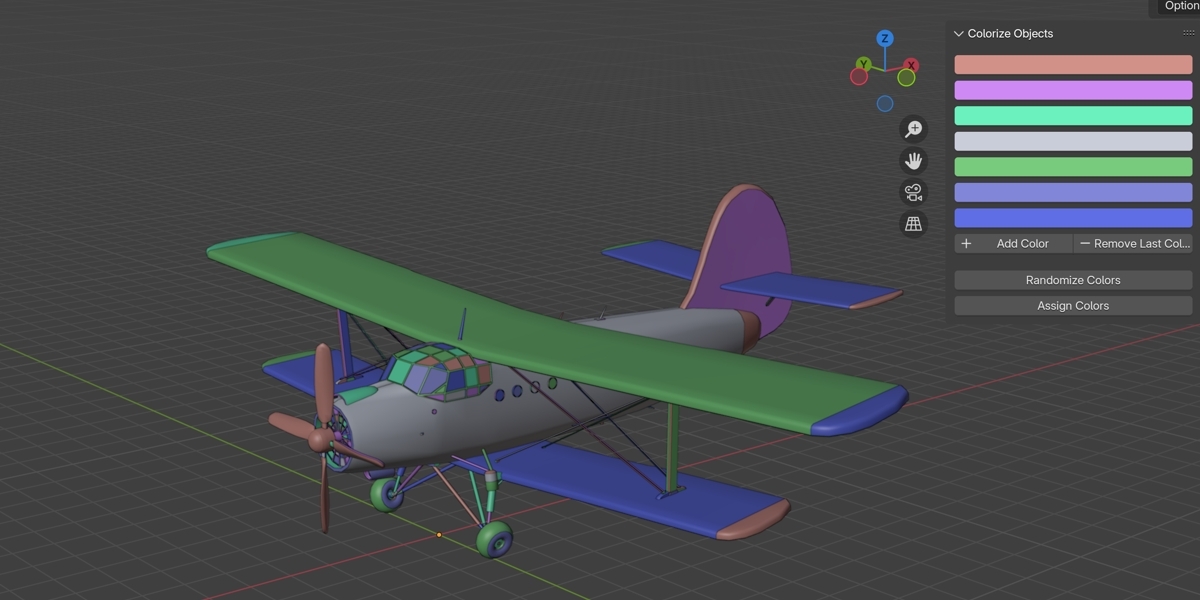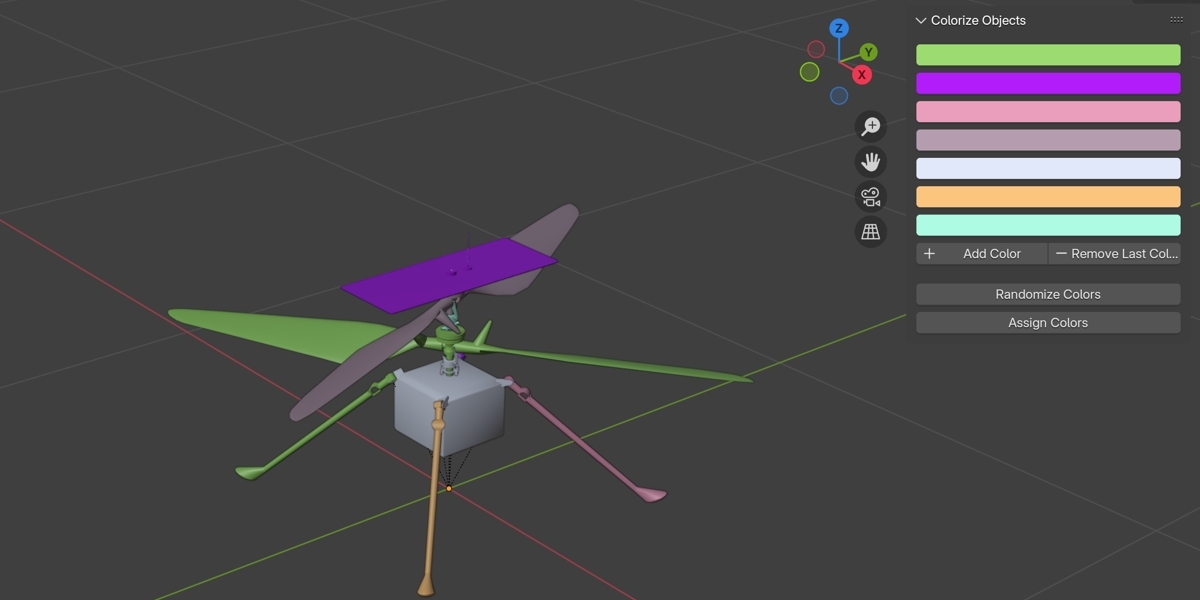
Colorize Objects is a Blender add-on by Azerilo for assigning custom viewport display colors to selected mesh objects. It helps you distinguish assets in a busy scene or visually group objects without changing their materials or shaders.
Assign viewport colors from a palette
Select mesh objects and click Assign Colors in the add-on’s Colorize panel. Each selected object receives a color from the current palette. The add-on automatically randomizes or cycles through the palette, with no repeats until needed.
Install and use the add-on
- Install the add-on and restart Blender.
- Open the 3D Viewport Sidebar and choose the Colorize tab.
- Select mesh objects in the scene and click Assign Colors.
To see the assigned colors, open the Viewport Shading menu, set Color to Object, and use Solid shading. The colors appear in the viewport only; they do not appear in final renders. Azerilo’s documentation covers these setup and display steps.
Adjust the color palette
The panel starts with default colors. Use Randomize Colors to generate new colors, click a color swatch to choose one manually, or use Add Color and Remove Last Color to change the palette. This lets you tune the visible grouping to suit the objects in a scene.
When Colorize Objects fits
The add-on is useful for separating assets in complex environments, labeling object groups visually, and making scene elements easier to distinguish for collaborators or clients. Since its colors are viewport-only, it is suited to organizing work while modeling, laying out, or animating, rather than changing the appearance of a final render.
The Superhive listing states compatibility with Blender 3.6 through 5.0 and a GPL license. It also lists Colorize Objects as part of the Azerilo Smart Tools package with seven other add-ons.