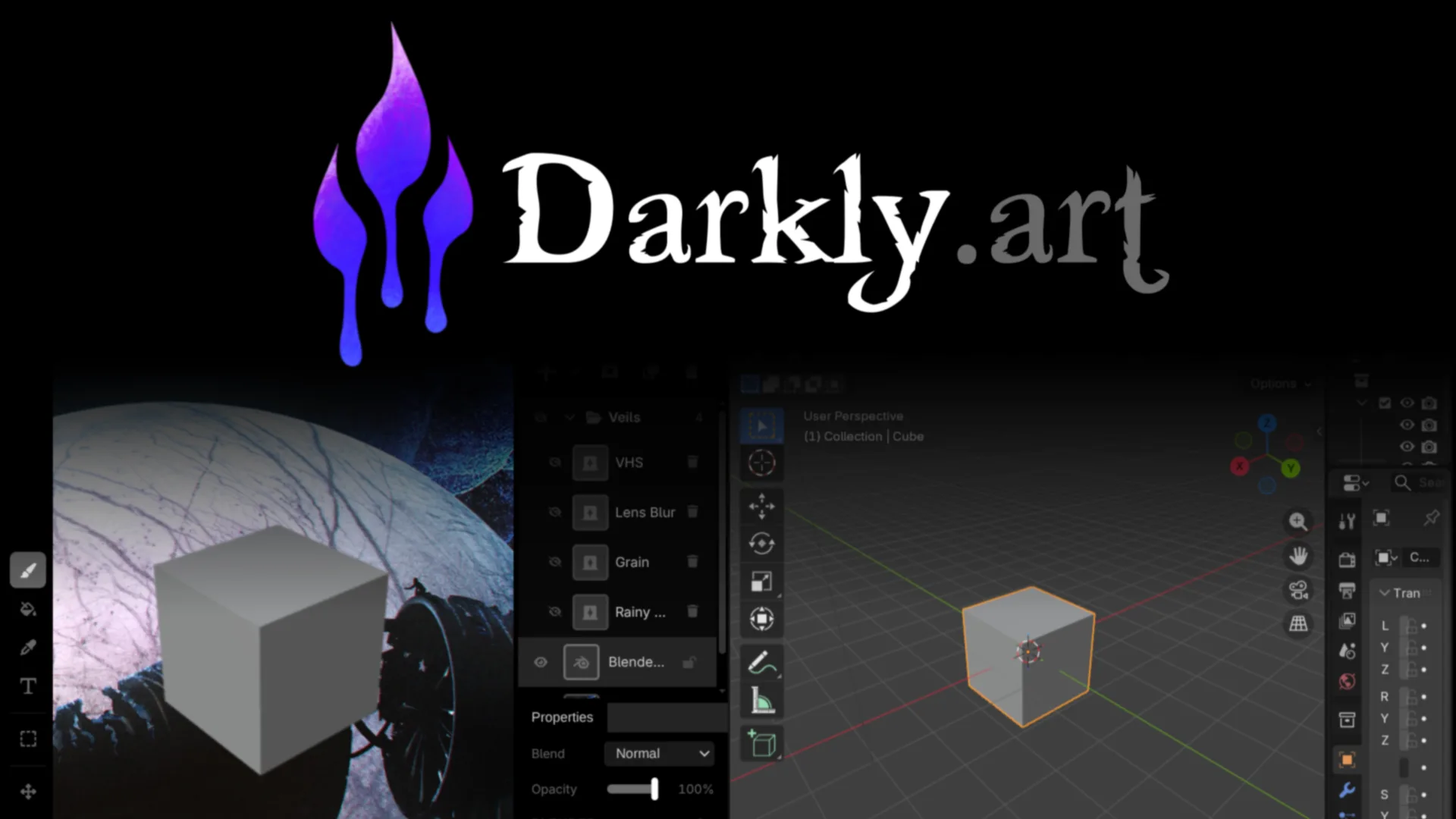
Darkly is a Blender extension that streams a live viewport or camera view into a transparent layer in the Darkly paint program. It helps with hybrid 2D and 3D work: adjust a camera or lighting angle in Blender and see the updated view in Darkly without repeatedly rendering and pasting images.
Version 0.4.1 requires Blender 5.1 or newer. See the Darkly Blender extension listing for current version details and the installable archive.
Choose a viewport or camera source
Viewport is the default source. It streams the view shown in a Blender 3D viewport, reusing pixels Blender has already rendered. Camera streams a selected camera's view even when the viewport is looking elsewhere, with one additional offscreen render per frame.
Both sources stream Blender's viewport shading, which can be Solid, Material Preview, or Rendered. They do not send a final render. Choose the shading mode in Blender before connecting Darkly.
Connect Blender and Darkly
- Install Darkly from Blender's Edit → Preferences → Get Extensions screen by searching for the extension. Alternatively, download a release archive and use Install from Disk, as described in the Blender Extensions manual.
- In Blender's 3D Viewport, press N and open the Darkly tab. Choose the source, then set the port, frame rate, and PNG compression. The default port is 8765. Click Start; the panel displays the stream URL and connected client count.
- In Darkly, choose Add Void → Blender. The layer connects to
http://localhost:8765/stream.
Settings that affect the stream
Keep at least one 3D viewport open while streaming. If several are open, use the Viewport dropdown to select one; Auto selects the first. For a Rendered view with the world background removed, enable Film Transparency in the panel. For Solid shading, disable Object Outline to avoid a dark fringe around antialiased edges.
Frames are sent when the view changes. The extension description says the stream does not capture or send anything while the scene is unchanged or no client is connected. If Blender slows down during streaming, lower the FPS.
Local connection and offline use
Darkly serves the stream on localhost. It does not make internet connections, and Blender's Allow Online Access setting is not required. To connect from another machine, enable All Interfaces and point the Darkly layer to the Blender machine's IP address and port.
A browser may block an HTTPS Darkly page from connecting to the HTTP localhost stream as mixed content. The extension's suggested workaround is to run Darkly from http://localhost.