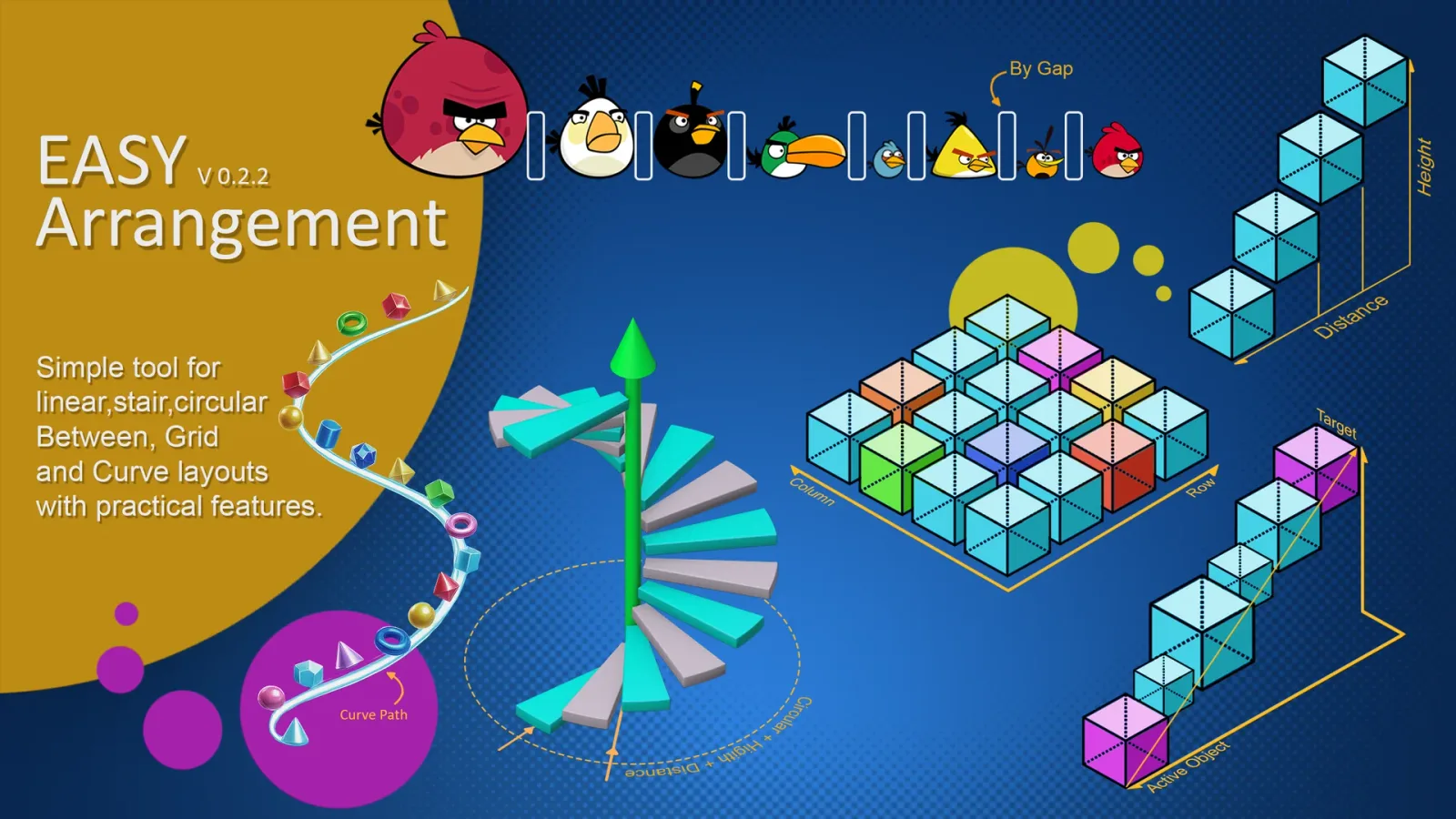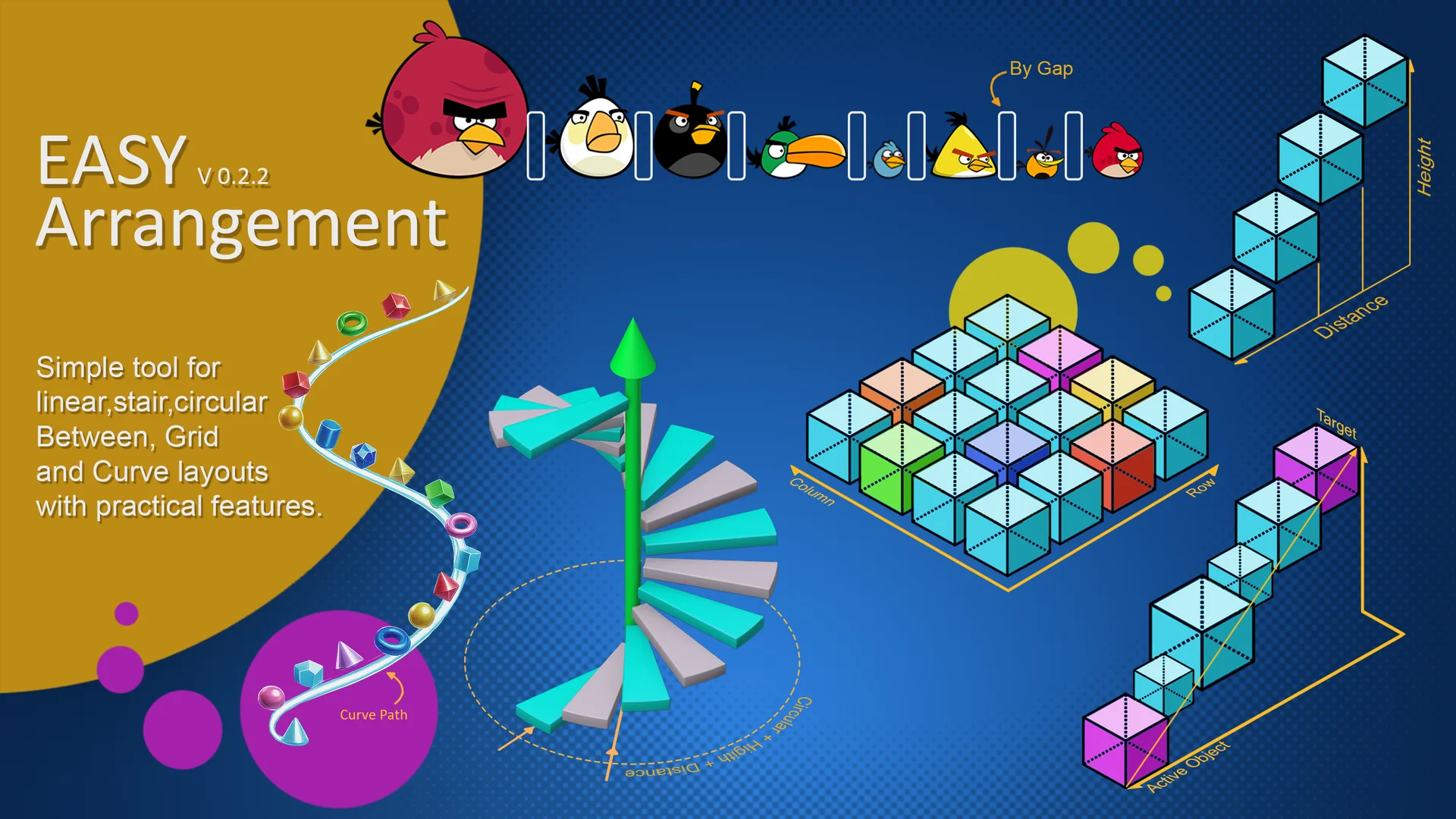
Easy Arrangement is a Blender add-on for positioning multiple selected objects in six patterns: linear, stair-step, circular, between, grid, or along a curve. Its controls live in the 3D Viewport sidebar and change with the selected pattern, covering rows, radial layouts, and object placement along paths.
Open the panel and set a layout
Select at least two objects in the 3D Viewport and press N to open the Sidebar. Choose the Easy Arrang tab, select a layout, and adjust its settings. The panel shows controls for the chosen mode, such as an axis, spacing, center, plane, or curve orientation.
Live Update previews parameter changes in the viewport. Reset restores the currently selected objects to the positions and orientations they had before the arrangement, so you can compare settings and start again.
Choose from six arrangement modes
- Linear: Distribute objects along the X, Y, or Z axis with adjustable spacing. Bounding-box spacing can account for differently sized objects.
- Stair-step: Configure spacing along one axis, then use a separate step axis and height offset to build a staircase-style sequence.
- Circular: Place objects around the 3D Cursor, the active object, or another scene object. Choose an XY, XZ, or YZ plane, then set a uniform, ranged, or stepped radius and a rotation mode.
- Between: Distribute objects between the active object and a chosen target, using Center or Gap spacing.
- Grid: Set row and column counts and spacing on a coordinate plane.
- Curve: Place objects along a drawn curve with Center or Gap distribution. Tangent orientation can align them to the curve.
Rotation Offset adds independent X, Y, and Z angles to an arrangement. Random Arrangement varies object positions proportionally within any of the six layouts.
Match the mode to the layout
Use linear or stair-step placement for rows and stepped sequences. Circular mode puts objects around a chosen center, while Between fills a span between two reference objects. Grid handles row-and-column layouts, and Curve follows a drawn path.
Preview before changing the selection
Live Update is useful while tuning layout settings. If you want to add or remove objects after applying an arrangement, use Reset first; changing the selection without resetting can make Live Update behave unexpectedly.
Compatibility and installation
The Blender Extensions listing identifies version 0.2.2, maintainer mlico, a Blender 4.2.0 minimum, and GPL-3.0-or-later licensing. Check the official Easy Arrangement listing for the current package. Its Install from Disk link points to the Blender manual installation instructions. The listing also links to the developer's GitHub project and issue tracker.