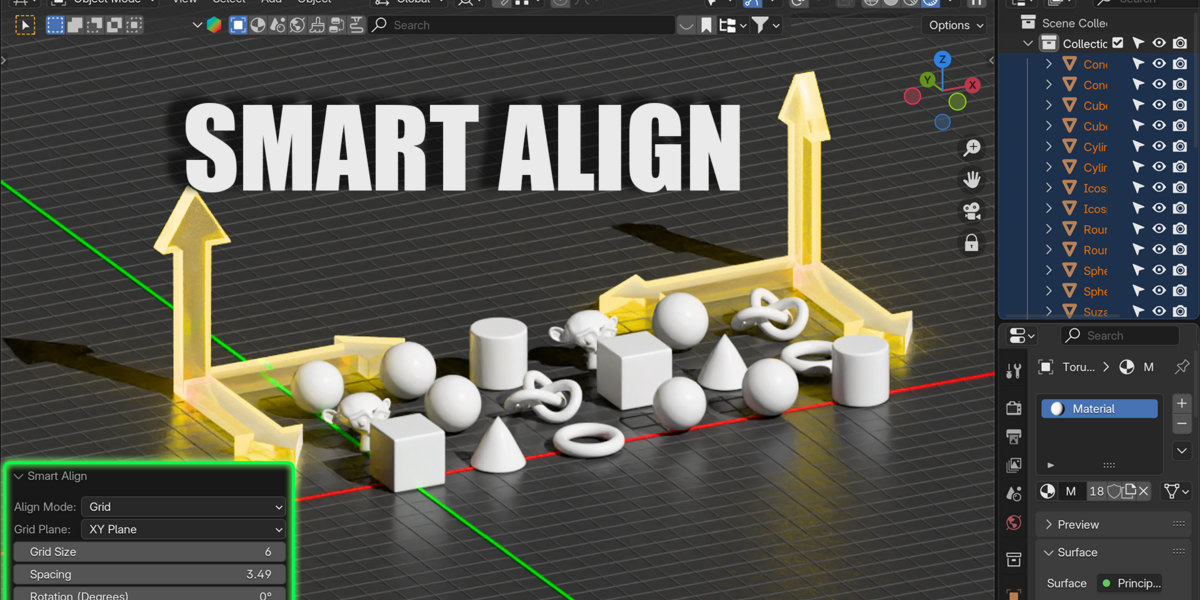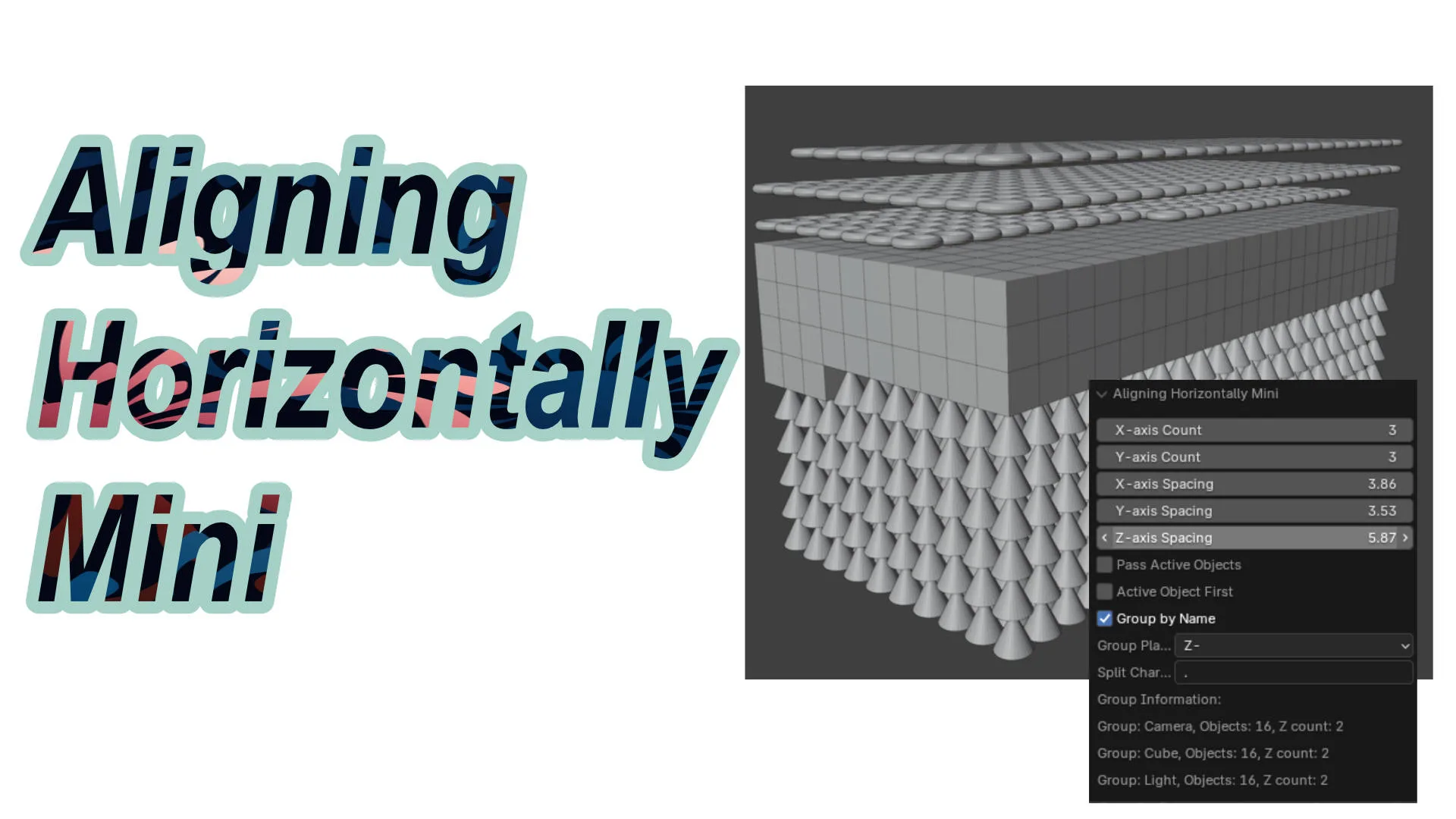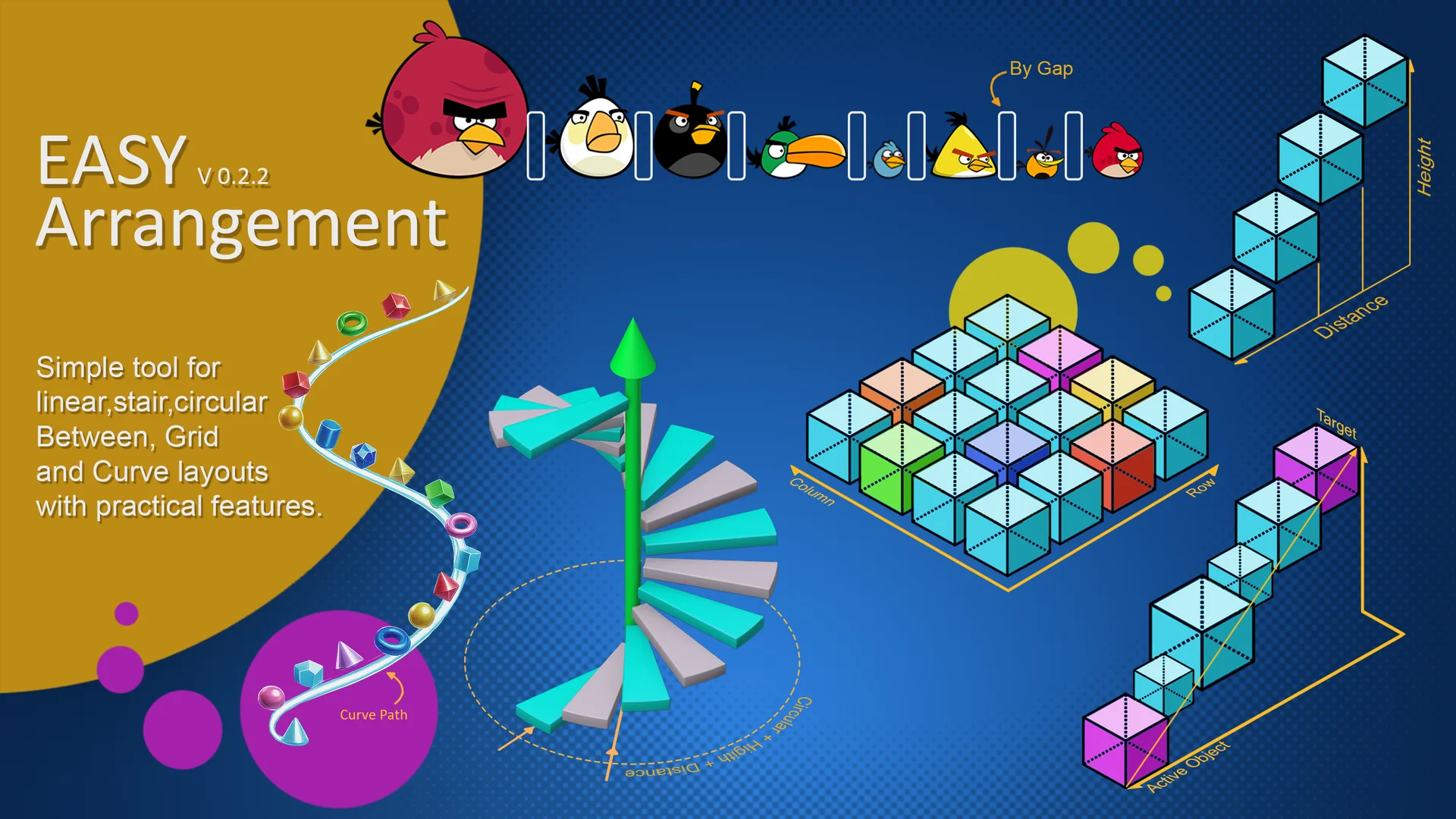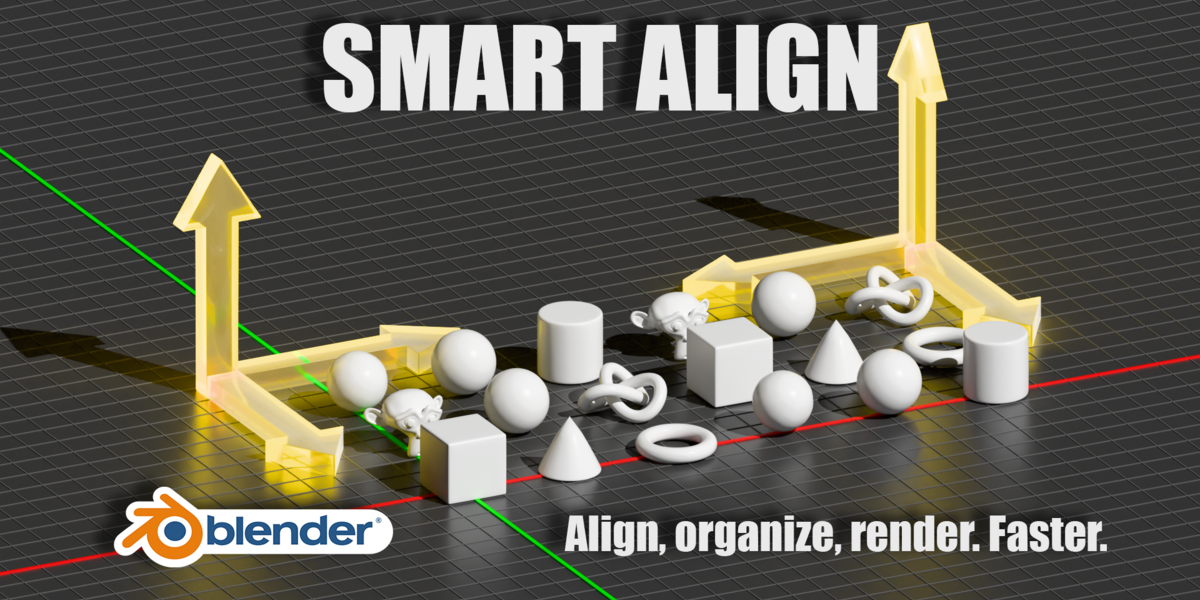
Smart Align is a Blender add-on by Amir for arranging multiple selected objects in lines, grids or diagonal layouts. It uses the 3D cursor as the arrangement origin, which helps when placing groups of assets for scene setup, showcases or portfolio renders. The Superhive listing describes the add-on, and its documentation explains the controls and limits.
Choose an object layout
Align X, Align Y and Align Z place objects in a line along the selected axis. Grid mode arranges them on the XY, XZ or YZ plane, including negative-direction options. Set Grid Size to a positive number to choose the number of objects per row or column. Enter 0 to let Smart Align calculate a roughly square grid from the selection. Diagonal mode lays objects out with even spacing.
You can set the distance between objects and apply a uniform rotation to all selected objects around their individual local Z-axes. The local axis matters: if an object's orientation differs from what you expect, its rotation may look different too.
Align object bounds to the cursor
For vertical placement, choose Top or Bottom bounding-box alignment to bring each object's uppermost or lowermost bound to the 3D cursor's Z-height. This is useful when objects have different shapes or origins and need a shared top or base level. Bounding-box alignment depends on geometry data, so the documentation cautions that empty objects or objects without valid mesh data will not align correctly with these options.
Reset Positions restores saved positions and rotations from the immediately preceding Smart Align operation. It works only for objects whose original transforms were stored for that operation; it is not a general history of earlier layouts.
Install and access Smart Align
Install the downloaded .py file or ZIP through Blender's Edit > Preferences > Add-ons panel, then enable the entry named Object: SmartAlign. Saving preferences is optional and keeps the add-on enabled across sessions. In the 3D Viewport, open the N-Panel and choose the Tool tab, or right-click with objects selected in Object Mode to use the Object Context Menu.
Select the objects and position the 3D cursor before running an arrangement. For grouped models that should move as one unit, the documentation suggests joining their parts or parenting them to an Empty and aligning the Empty.
Compatibility, price and terms
The Superhive listing states compatibility with Blender 4.2 to 4.4, and its documentation identifies version 1.1.0. Check the product listing for current compatibility before installing. The AnyPlugins listing describes Smart Align as free; confirm current availability on the marketplace.
The Superhive listing labels Smart Align GPL, but its product description and documentation state restrictions on sharing, resale and distributing modified versions. Superhive's GPL overview describes freedoms to use, change and share software and changes, but the supplied pages do not identify which terms apply to Smart Align's files. Review the current terms with the author before redistributing the add-on or modified files.