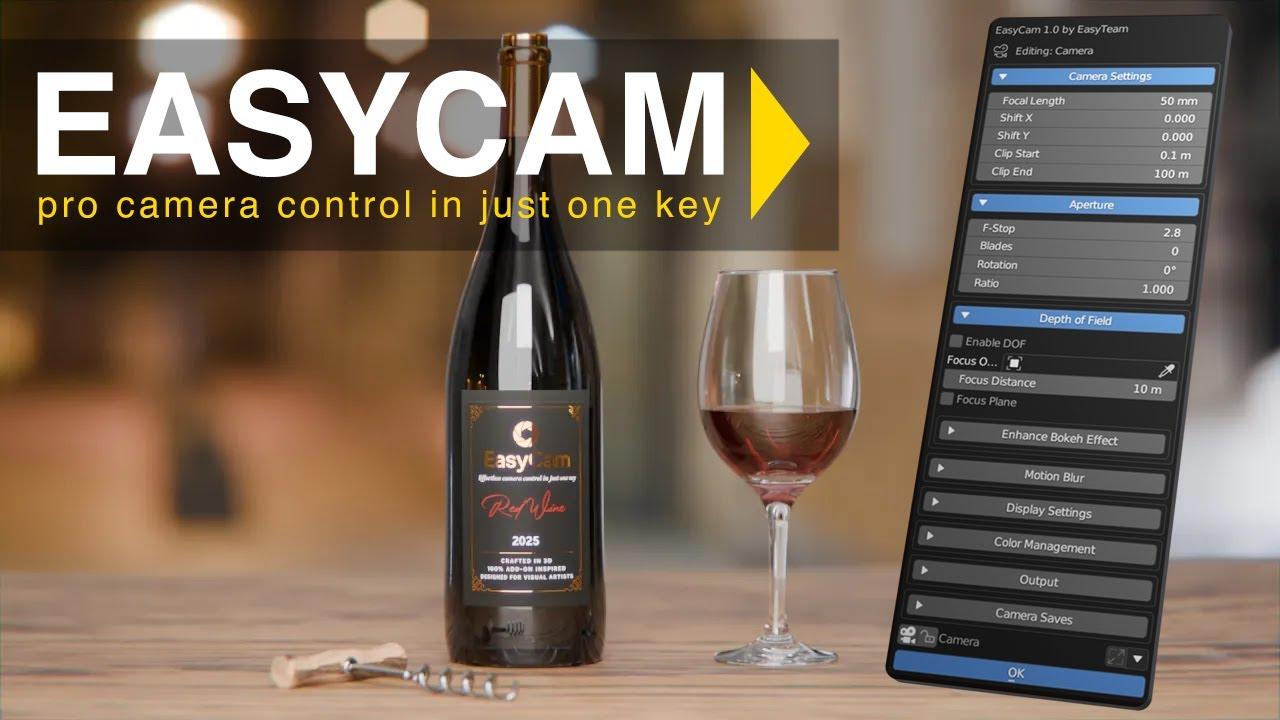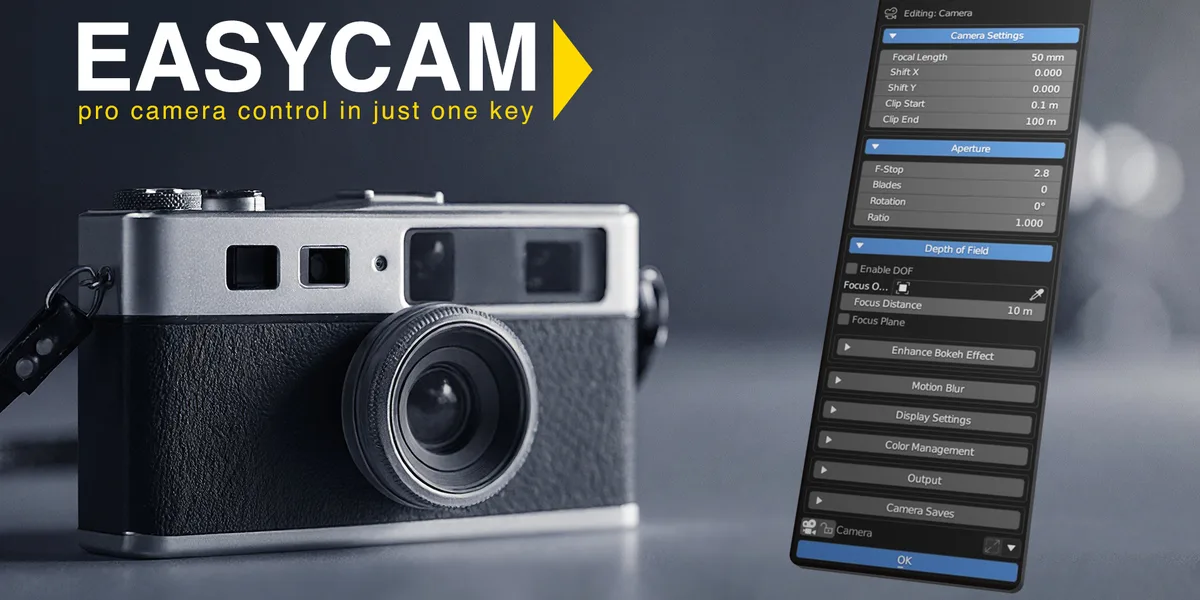
EasyCam is a Blender add-on from Easy Team that gathers camera, depth-of-field, composition, color, and output controls in a popup called the Camera Quick Box. It is aimed at artists and animators who adjust shots often and want those controls close to the active camera. The product listing describes its features, and the documentation covers access and setup.
With a camera selected and active, press W by default to open the box. You can assign W, Shift+W, Ctrl+W, or D in the add-on preferences. Right-clicking a selected camera also exposes EasyCam Menu in the Object Context menu.
Camera, aperture, and focus controls
The Camera Settings section groups focal length, horizontal and vertical lens shift, and near and far clipping distances. Aperture controls include F-stop, diaphragm blade count, blade rotation, and aperture ratio. These settings help when framing a shot, adjusting perspective, or changing the shape of out-of-focus highlights.
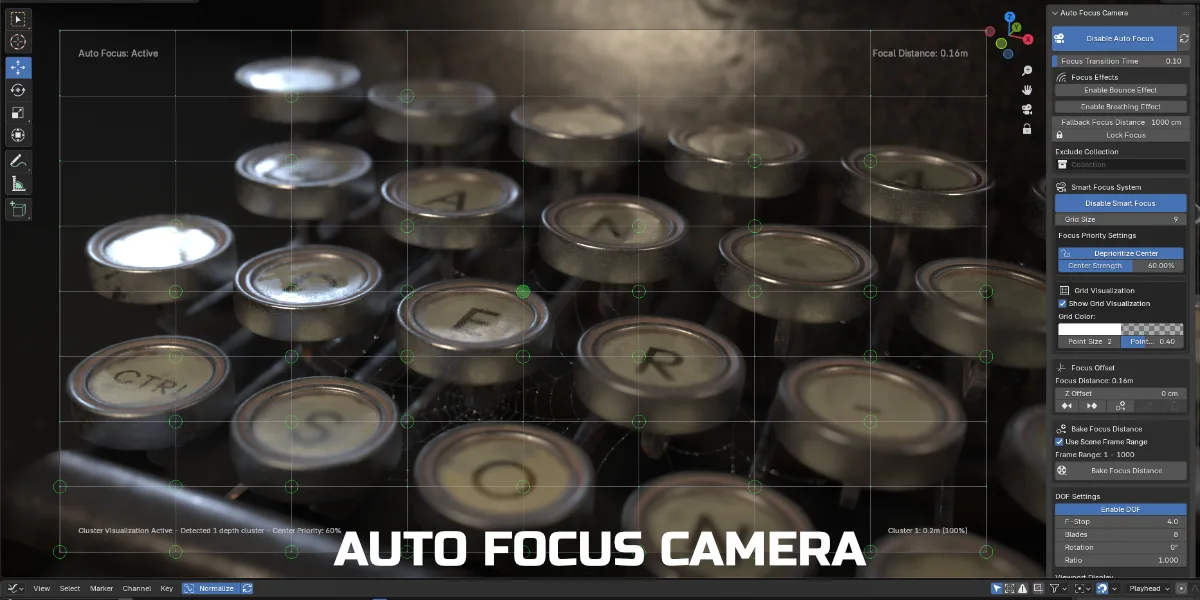
For depth of field, EasyCam can enable the effect, use a focus object, or set the focus distance manually in Blender units. A semi-transparent focus plane shows the focus distance in the viewport and adapts to the camera’s field of view and render aspect ratio. It is a viewport aid and does not appear in renders.
Render engine and bokeh limits
EasyCam’s Enhance Bokeh controls are for Cycles. They include an enable switch, automatic sizing based on focal length across an 8 mm to 500 mm range, intensity from 0 to 1, and manual size when automatic sizing is off. EEVEE supports depth of field, but not EasyCam’s custom bokeh controls. Motion blur settings include steps and shutter duration; the documentation notes that raising the step count increases render time.
Composition and output settings
Composition overlays include safe areas, a center marker or crosshair, thirds, and a golden-ratio guide. Display options cover the camera-view border opacity, sensor fit, and sensor size. Color controls include view transform, look, and exposure. White balance temperature and tint are listed for Blender 4.3 and later.
The Output section brings together resolution and scale, frame range, frame rate, file path and format, color mode, bit depth, and compression. When FFMPEG is selected, its container, video and audio codecs, and bitrate are available there. Buttons can start a still render or a full animation from the popup.
Camera bookmarks and animation
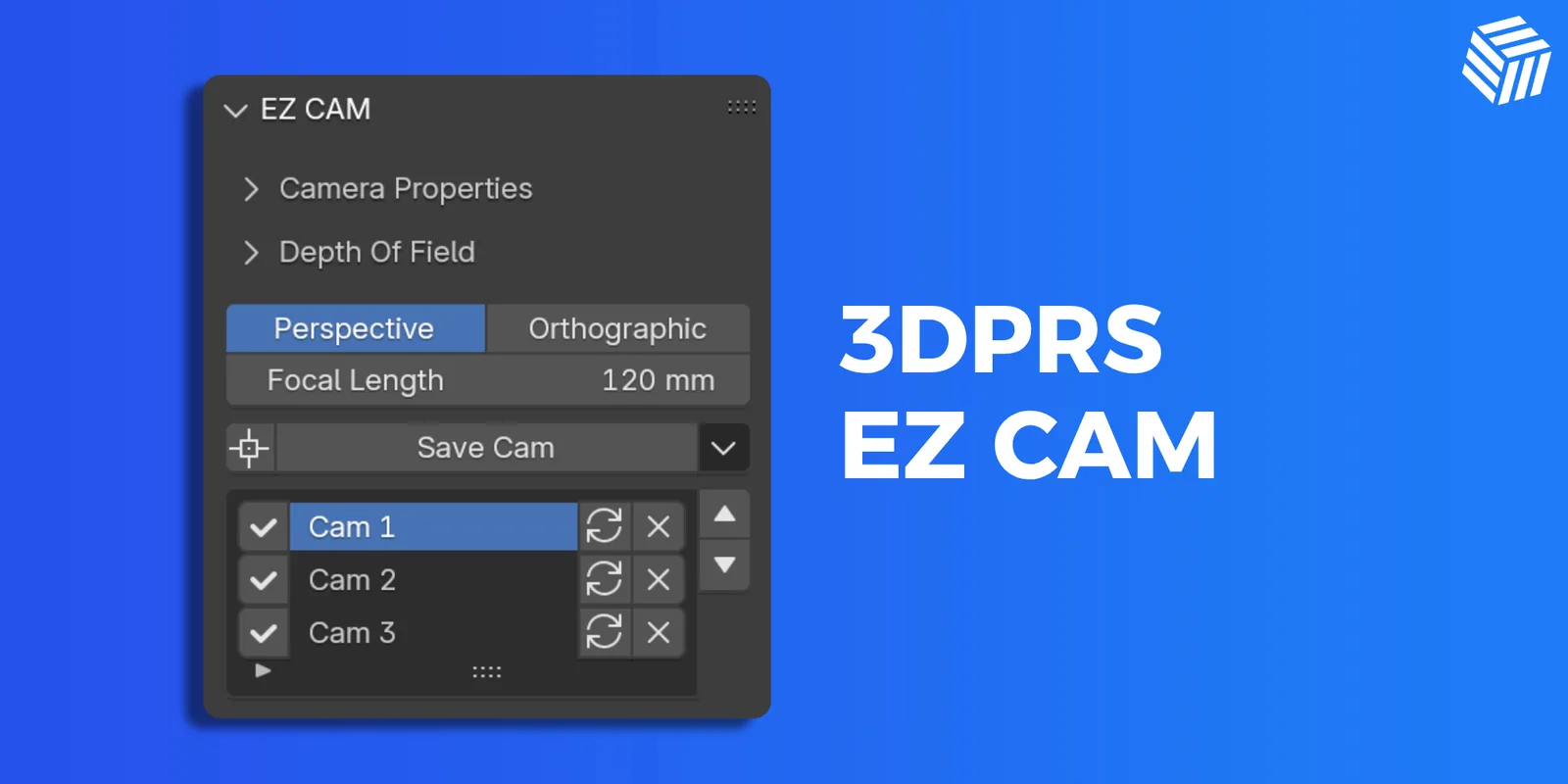
Camera Saves are stored separately for each camera. The list is filtered to the current camera; a single click recalls a position and switches to that camera’s view. You can double-click a save to rename it, refresh it with the current position, or delete it. A separate dropdown switches among scene cameras and marks the active one.
The marketplace changelog dated July 7, 2026, describes direct keyframing for camera location and rotation in a Transform section. Earlier notes also describe keyframe buttons beside animatable settings and resolution presets for common aspect ratios and sizes.
Compatibility and installation
The marketplace listing gives Blender 4.2–5.2 as the supported range. Check the current listing if you use a later release. To install, download the ZIP, open Edit > Preferences > Add-ons in Blender, choose Install, select the ZIP, then search for and enable EasyCam. Save preferences to keep it enabled. If the add-on does not appear, the documentation advises checking that Blender is version 4.2 or later and restarting Blender.
EasyCam uses Blender’s built-in libraries and does not require external packages.