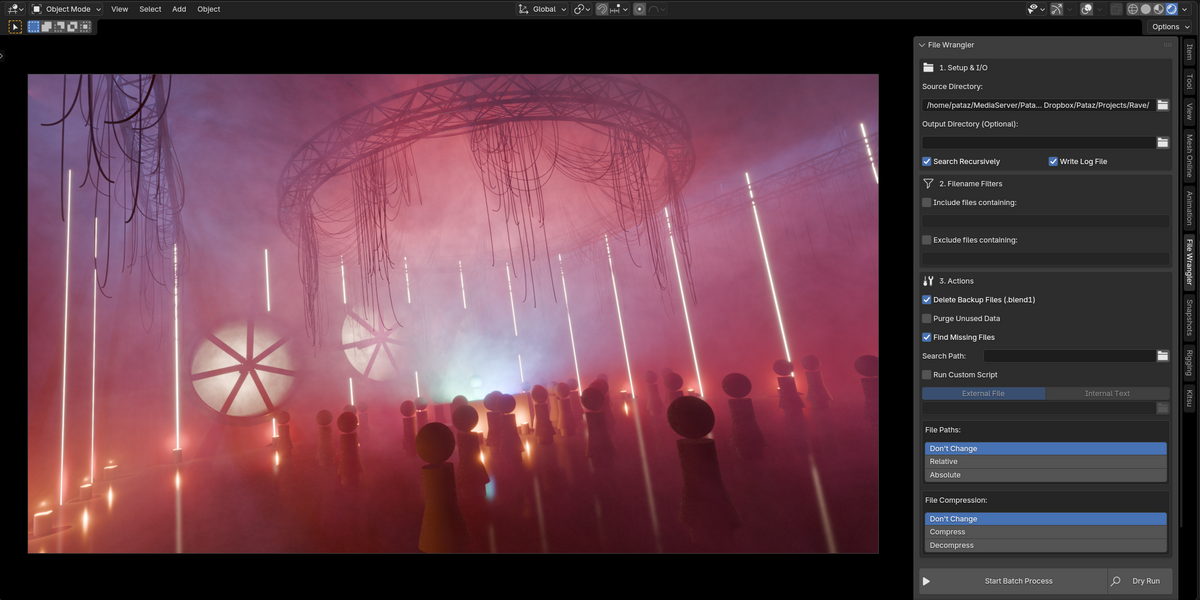
File Wrangler - Batch Processor is a Blender add-on for running the same file operations across a set of .blend projects. It can clean files, find and relink missing assets, change external paths, compress files, or run a custom Python script. Open it from the File Wrangler tab in the 3D View sidebar.
Choose which files to process
Directory Search scans a root folder and its subdirectories recursively. Inclusive and exclusive filename filters help narrow the selection. Custom File List lets you select specific files directly, including files stored across different drives or network locations. It bypasses the folder search and its filters.
Apply cleanup and file actions
Choose actions to run in sequence on each target file. The toolkit can delete Blender backup files such as .blend1, purge unused data, look for missing image textures or other external assets in a specified directory, and convert asset paths between absolute and relative. It can also save files compressed or decompressed, apply your current window layout to processed files, and run a script from an external .py file or an internal text block.
Deleting backup files bypasses the trash, so that action is permanent. Make a backup before running operations that overwrite files.
Preview changes and choose where they go
Dry Run prints the affected file list to the System Console or log without changing files. Set an Output Directory to save modified files there with the original folder structure preserved. If the Output Directory is blank, File Wrangler overwrites the source files in place. The optional log file, file_wrangler_log.txt, records modified files, errors, and custom script output in the output directory.
There is no undo button for a batch. Processing to a separate output directory keeps the originals unchanged, so you can remove that output if you do not want the results.
Run a batch in the background
Start Batch Process runs interactively, with progress visible and an option to cancel. Run in Background starts a separate headless Blender instance, allowing the main Blender interface to remain responsive while processing continues.
Install and check compatibility
The developer describes File Wrangler as a Blender 4.2+ Extension. To install, download the ZIP, open Edit > Preferences > Get Extensions, choose Install from Disk from the menu, select the ZIP, and enable the extension. Check the developer's manual for installation details and the developer's FAQ for script limitations. The product listing shows Blender 4.2 through 5.2 and a GPL license.