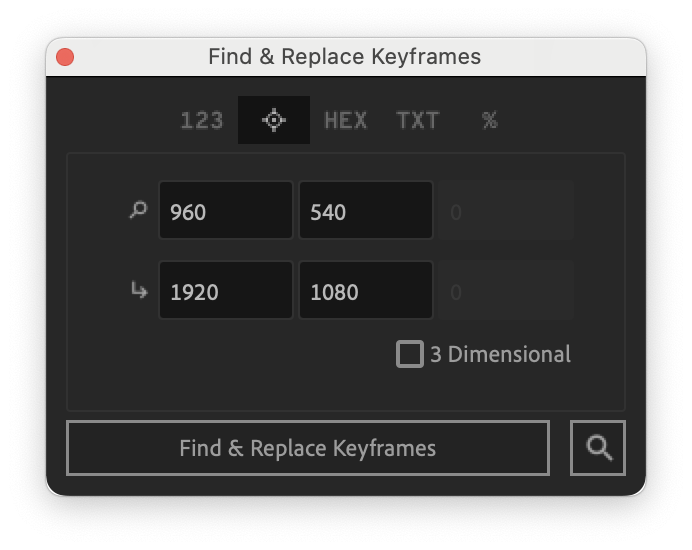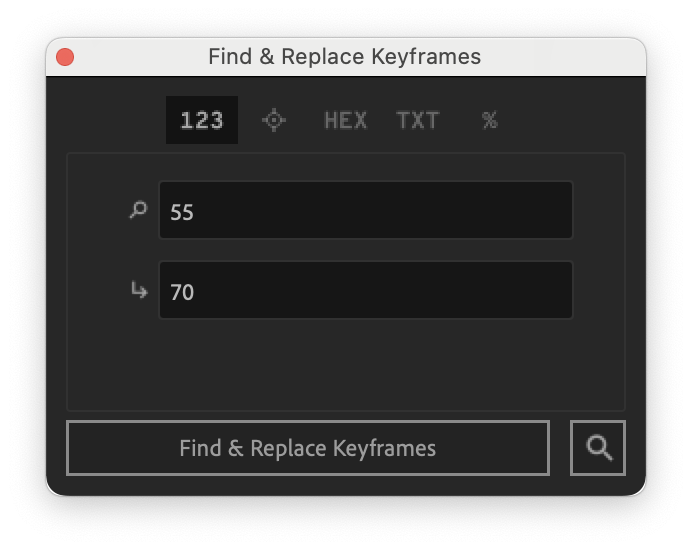
Find & Replace Keyframes searches After Effects properties for matching keyframe values and replaces them. Its five modes handle single values, multidimensional properties, colors, source text, and value scaling. You can work on selected timeline keyframes or search across layers and compositions.
Choose a matching mode
- Value: Find and replace one number, such as an integer, decimal, or percentage.
- Positional: Work with two- or three-dimensional values, including position, scale, and anchor point. Wildcards such as
?or*can leave a dimension unchanged for each match. - Color: Replace color values on selectable timeline properties, including shape layers, color effects, and color expression controls. Native solid and text-layer source colors are excluded.
- Text: Replace a complete source-text string or words within a paragraph. Case-insensitive matching attempts to preserve the matched text's case; with that option off, it finds exact matches.
- Global: Scale selected keyframe values without searching for one specific value. Use 100% or 1x to keep values unchanged, 200% or 2x to double them, and 50% or 0.5x to halve them.
Replace selected keyframes or search more widely
For a targeted edit, choose a mode, enter the value to find and its replacement, select the related keyframes in the After Effects timeline, and run Find and Replace. The value-loading buttons beside the fields can fill them from selected properties or keyframes.
For a broader search, open the magnifying-glass search window. Keep the mode and values set in the main interface, then choose selected layers, the current composition, selected compositions, or all compositions. Turn off Only Keyframes to include matching properties without keyframes. Searches across many compositions can take a while; press Escape to stop one.
Compatibility and limits
The published compatibility list includes After Effects 2024, 2023, 2022, 2021, and 2020, plus CC 2019, CC 2018, CC 2017, CC 2015.3, CC 2015, and CC 2014. The script cannot process plugins or effects that use custom keyframe values, such as Levels Histogram or Hue/Saturation Channel Range.
The product uses Name Your Own Price terms: individual users may pay any amount, while businesses and teams must pay the displayed suggested amount for a valid license.