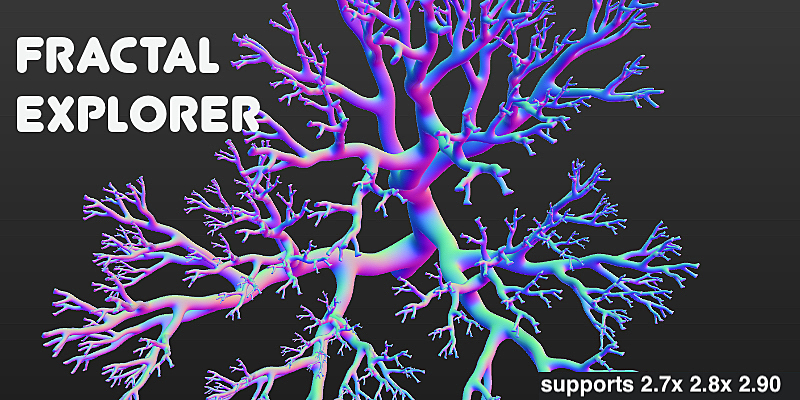
Fractal Explorer is a Blender add-on for building 3D fractals from a base object. It creates a nested, branching tree of copies that you shape with Blender’s move, rotate, and scale tools. You can experiment with the form without working out the fractal’s geometry by hand.
How Fractal Explorer builds a fractal
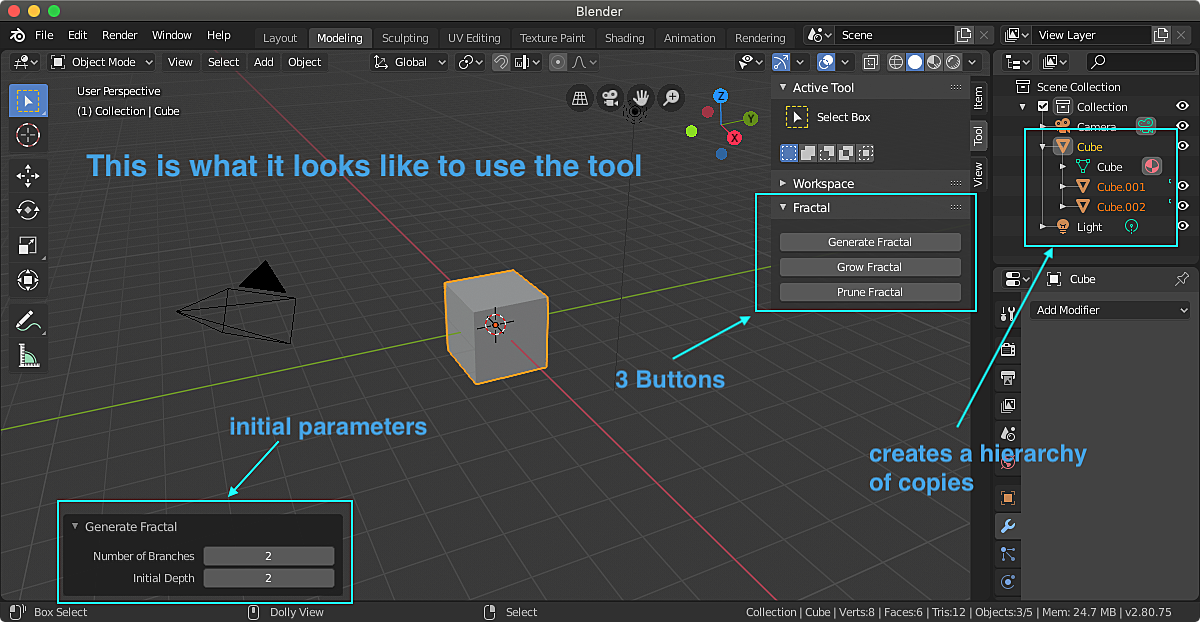
Choose a base object and run Generate Fractal. The add-on makes copies in a nested hierarchy, with parenting and transform constraints linking them. Blender objects such as meshes, curves, metaballs, cameras, and lamps can be used as the starting object.
Set the number of branches and an initial depth. The copies may appear to overlap at first, so check the Outliner to find them. Move, rotate, or scale the first generation of copies to set the form; those changes carry through the linked tree. The fractal can also be animated.
Shape branching structures with Blender’s tools
The add-on can model branching patterns and fractal-like forms such as trees, corals, veins, and clouds. Once the first copies are arranged, use Grow Fractal or Prune Fractal to add or remove levels.
The product documentation describes the controls and workflow in detail, including how to find the generated hierarchy in the Outliner.
How it differs from Blender’s Array modifier
Blender’s Array modifier creates a chain of copies. With an Empty in its Object Offset field, it can make spiral fractals. Fractal Explorer builds a branching tree instead, so you can set the number of branches per copy as well as the tree depth. The documentation says Fractal Explorer has no equivalent to the Array modifier’s Start Cap and End Cap fields.
Manage depth and modifiers
Each added level can multiply the number of copies, and Blender must track their objects and constraints. Deep trees can slow the scene down. Start with a low depth, shape the first copies, then increase the depth when you are ready for a final render or export.
Fractal Explorer is an add-on, not a modifier. A modifier applied to the base object after the tree is generated will not automatically affect every copy. The documentation recommends applying modifiers before generating the tree. To adjust modifier settings across existing copies, it describes selecting them all and Alt-clicking the setting. It also explains how to select the base object’s children and join the copies into one mesh.
Relationship lines between copies can make the viewport busy. The documentation shows how to hide them through the 3D View’s Properties panel, under Display and Relationship Lines.
Blender compatibility
The product listing names Blender 2.7x, 2.8, 2.81, 2.82, 2.83, and 3.1. Its FAQ separately says that, as of July 9, 2020, a new 2.8x zip had been tested and verified with Blender 2.80 through 2.83 and 2.90, and that Blender 3.1.2 was supported as of June 1, 2022. Check the developer’s listing for compatibility with later Blender releases.