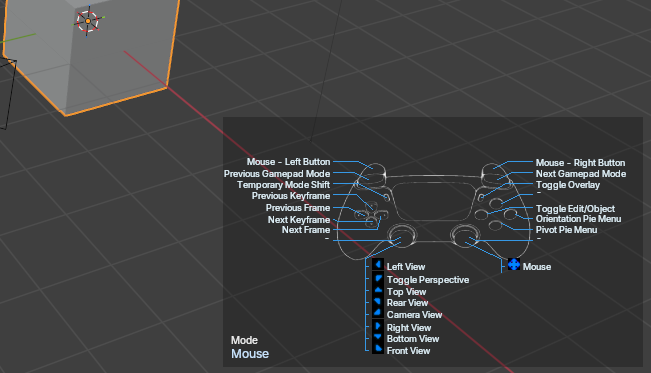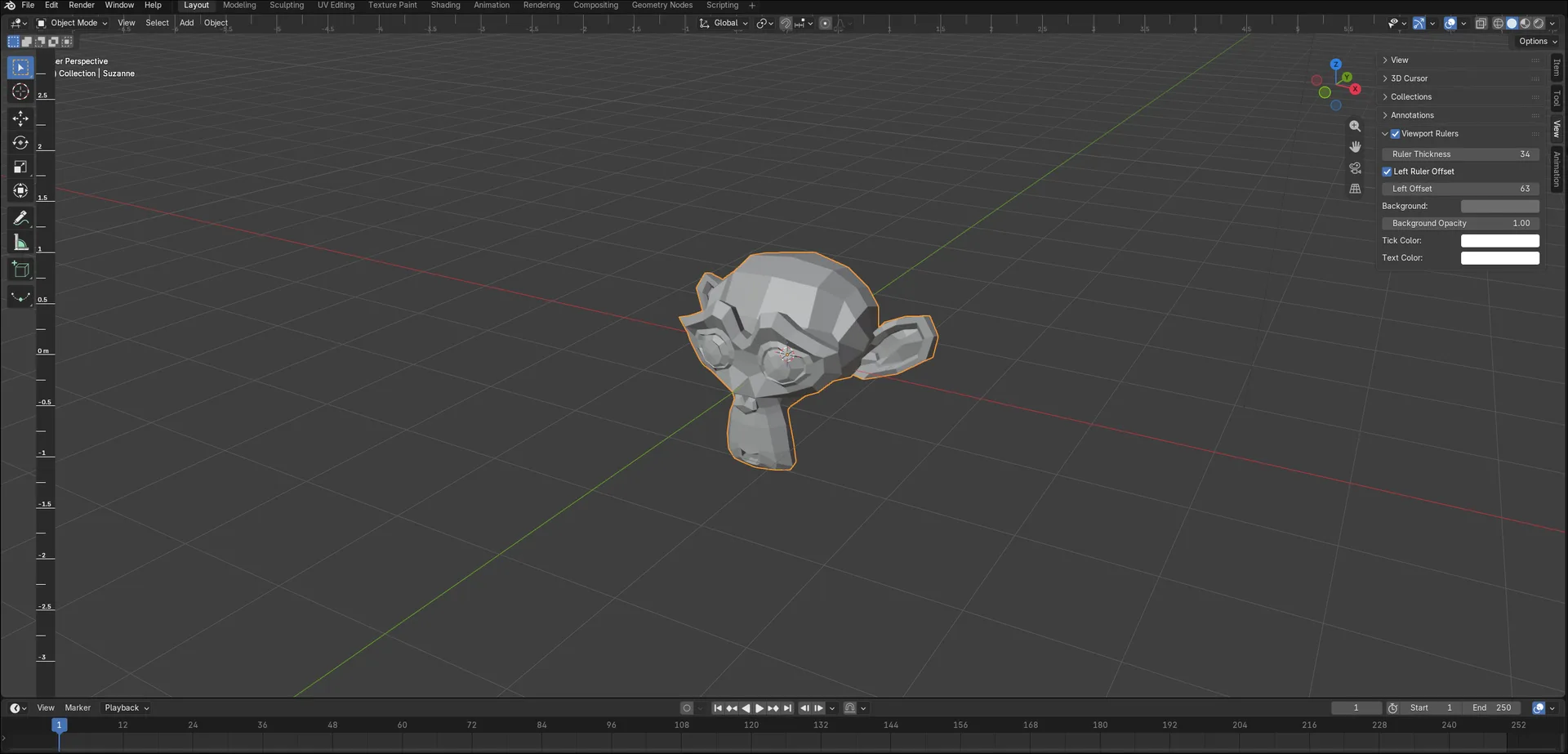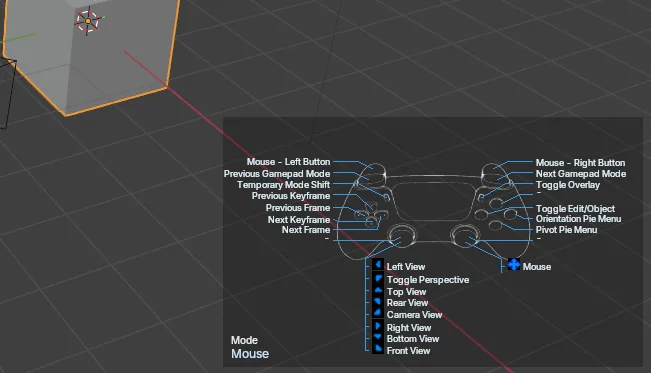
Gamepad Control lets you navigate Blender's 3D Viewport with a PlayStation, Xbox, or compatible controller. It supports several control modes, including orbit, pan, dolly, zoom, and direct view switching. You can configure button and axis mappings in Blender's preferences and see the active mode in the viewport.
Viewport modes and controller mappings
Create multiple gamepad modes for different control schemes, then adjust their button and axis mappings and sensitivity in Preferences > Input > Gamepad. The add-on provides a gamepad icon in the 3D Viewport header for its mode controls. Turn on the overlay to see the current controller mappings in the viewport; a header indicator shows which mode is active.
You can export and import settings to back up a configuration or share it with someone else. Blender Extensions lists file access for importing and exporting settings and controller modes.
Install and configure the add-on
- Use the package for your platform from the Blender Extensions listing.
- In Blender, open Edit > Preferences > Add-ons, choose Install, and select the downloaded ZIP. Enable Gamepad Control.
- Connect a controller. Open Preferences > Input > Gamepad to create a mode and configure its buttons, axes, sensitivity, and display options.
- Use the gamepad icon in the 3D Viewport header to reach the mode controls. Enable the overlay if you want to see the current mappings while you work.
The 3D Viewport's View menu includes options to toggle the overlay and mode indicator .
Blender version, platforms, and a known issue
Gamepad Control requires Blender 5.0 or newer. The Extension listing has separate packages for Windows-x64, macOS Intel, and Linux-x64. The developer reports testing the add-on on Windows-x64 with a PS5 controller; that is the stated test setup, not a full compatibility matrix for every controller and operating system.
The developer also documents a window-control issue when a gamepad trigger is mapped to a mouse button. Clicking Blender's title bar or window controls, or dragging the window, can freeze script execution. If this happens, physically click and release the left mouse button to reset the state. Avoid dragging the Blender window while the mapped trigger is pressed.