Gamepad Navigation lets you fly through Blender's 3D viewport with a PlayStation, Xbox, or Switch controller, without extra drivers or software. The add-on supports Blender 5.2 and later. See the Gamepad Navigation listing on Blender Extensions for its current details.
Gamepad controls in Blender
- The left stick moves forward and back, and strafes left and right.
- The right stick changes the view direction.
- The bumpers move up and down.
- The more you press the right trigger, the faster you move; the more you press the left trigger, the slower you move.
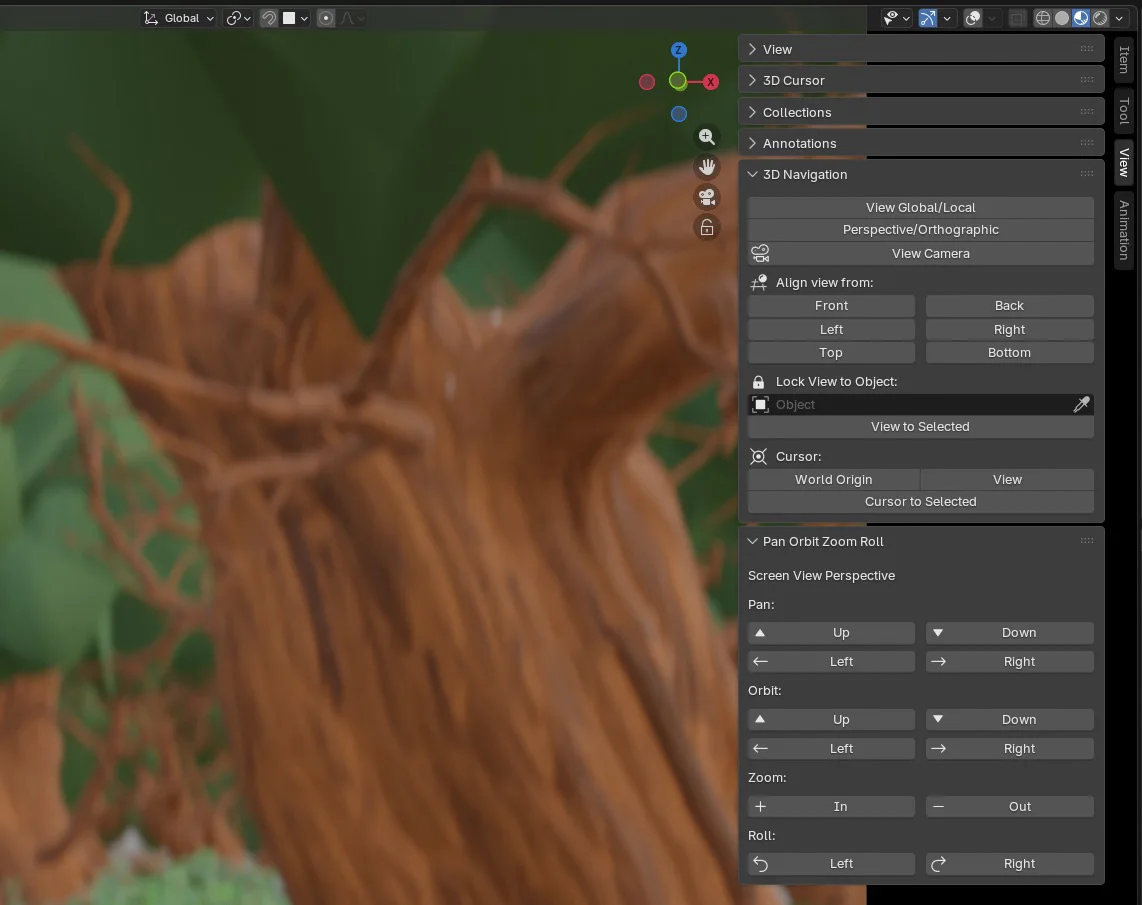
- Triangle / Y switches between perspective and orthographic views.
In an orthographic view, the left stick zooms instead of moving through the scene. When you look through the scene camera with Numpad 0, the gamepad moves the camera itself.
Adjust speeds and button actions
Open Edit > Preferences > Add-ons > Gamepad Navigation to set movement and look speed, sprint and crawl strength, the stick dead zone, and inverted look. You can assign a ready-made action to each button or enter a Blender operator, such as view3d.view_axis(type='TOP'), to switch to a top view.
Installation and background behavior
Get the add-on from its Blender Extensions page, which offers a download and links to Blender's Install from Disk instructions. Gamepad Navigation starts with Blender and detects a controller when you plug it in. It polls once per second until it detects a gamepad, then polls at 60 Hz.
The add-on reads the controller through the SDL3 library that ships with Blender, using Python's ctypes. The listing says it bundles no binaries, downloads nothing, and never connects to the internet. On Windows, it can ignore controller input while another app is in front; you can turn off that check in the settings.