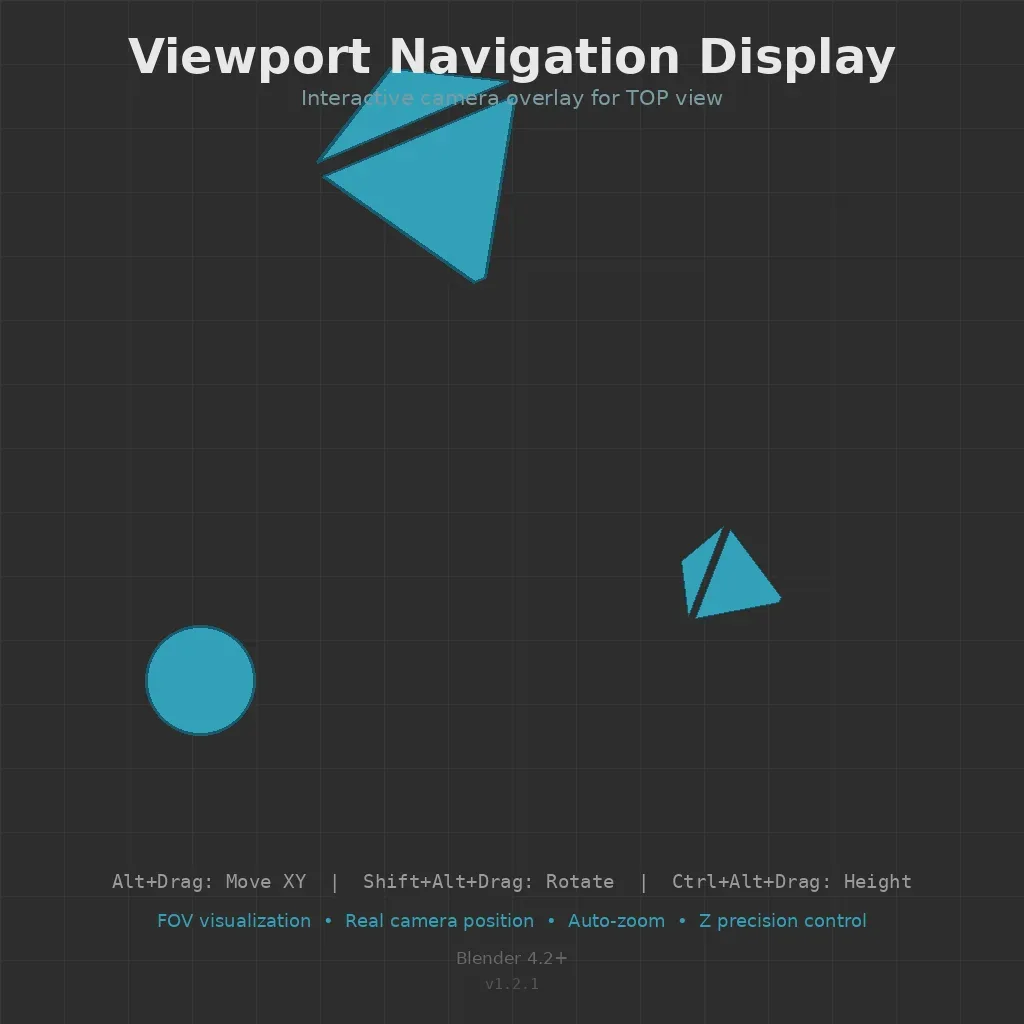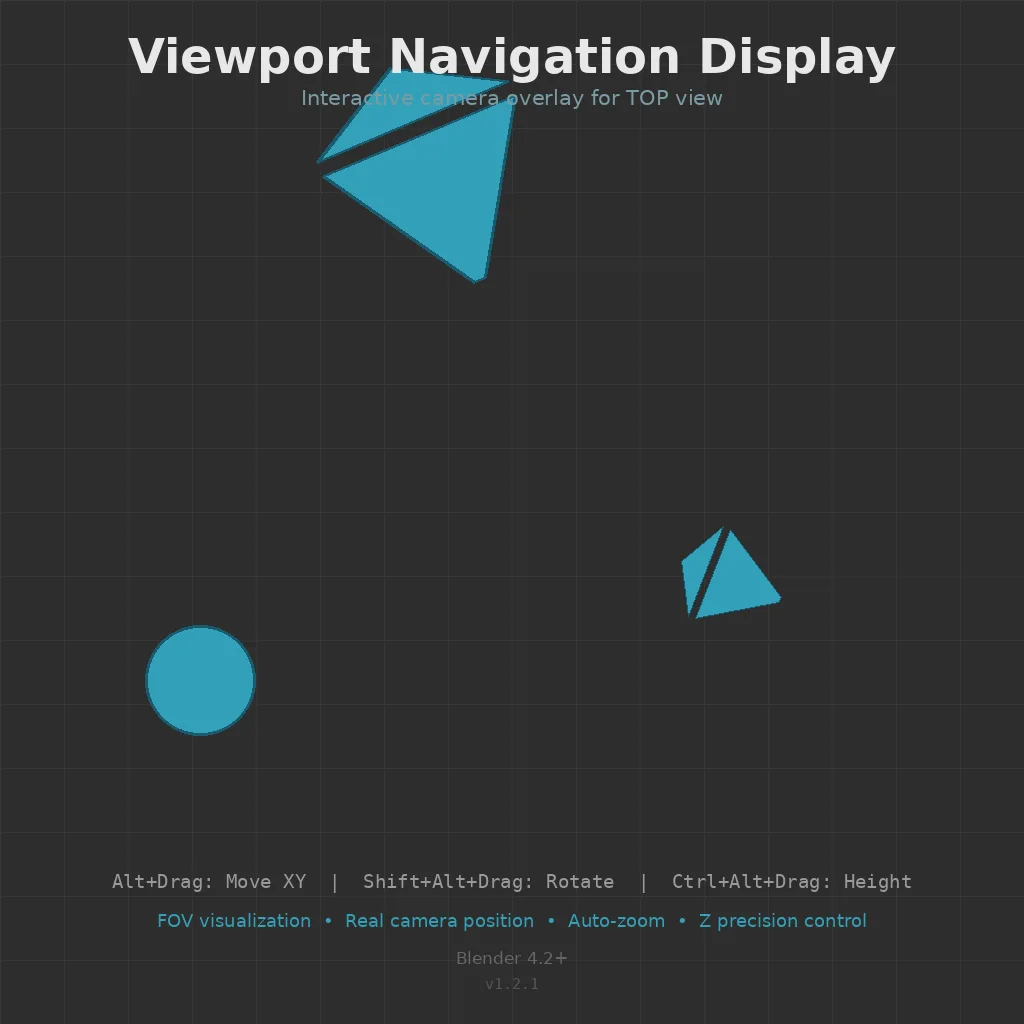
Viewport Navigation Display shows where another 3D viewport is positioned and pointed while you work in a TOP orthographic view. Its camera-style overlay represents the other viewport's position, direction, and field of view, and lets you adjust its view with modifier-key drags. It works with other 3D viewports in the same Blender session; it does not control scene cameras.
The Blender Extensions listing and catalog API identify version 1.4.0, with Blender 4.2.0 or later required. See the official extension listing and its catalog record for release and compatibility details.
What the viewport overlay shows
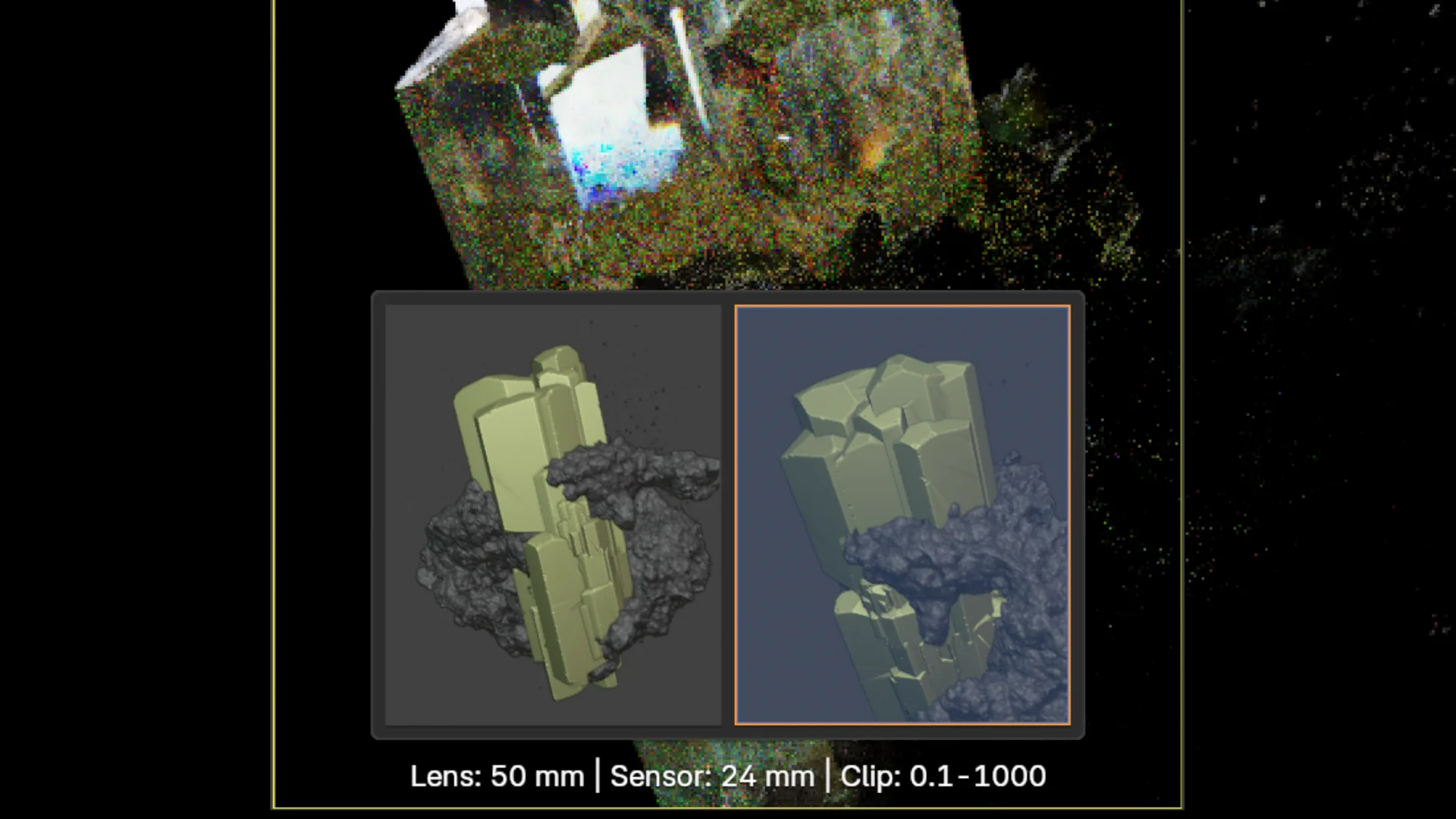
The overlay draws a camera-style icon for the other viewport. Its converging lines show the field of view based on that viewport's lens settings, while a separate arrow indicates its view direction. The icon tracks the viewport's actual eye position rather than its orbit pivot. A translucent fill and dark edges keep the shape visible over the scene.
The display is intended for a plan-view workflow: use the TOP view to see and position another viewport, such as a perspective view, without moving a scene camera.
Move and rotate the other viewport
- Move on the XY plane: Alt + left-click and drag the camera icon.
- Rotate around Z: Shift + Alt + left-click and drag, or drag the ring around the icon.
- Raise or lower the view: Ctrl + Alt + left-click and drag vertically. On macOS, use Cmd + Alt.
- Cancel a drag: Press Esc or right-click.
The TOP view automatically zooms out when you drag the icon toward its edges. The overlay also scales within set limits as you zoom. Its Z label shows the other viewport's eye height.
Set it up in Blender
- Install the extension ZIP from Blender's extension page using Edit > Preferences > Get Extensions > Install from Disk, then enable Viewport Navigation Display. See Blender's extension installation instructions.
- Split the Blender window so it contains two 3D viewports.
- Set one viewport to TOP orthographic view with Numpad 7.
- Enable the overlay with the camera icon in that viewport's header, or open the sidebar's View tab and use the Viewport Navigation panel.
The header button is visible only in TOP view. The sidebar panel lets you change the overlay's scale and color, adjust Z Move Precision, and edit the other viewport's position and rotation.
Scope and limits
The overlay is meaningful in orthographic TOP view; other angles can produce misleading displays. It shows other 3D viewports in the same Blender session and does not move scene cameras. Height adjustment is relative to the viewport's eye position, with no snapping to scene geometry. The panel's Copy View to Selected command copies the other viewport's location and rotation to the active object.
The extension is licensed under GPL-3.0-or-later, and its listing says it requires no special permissions.