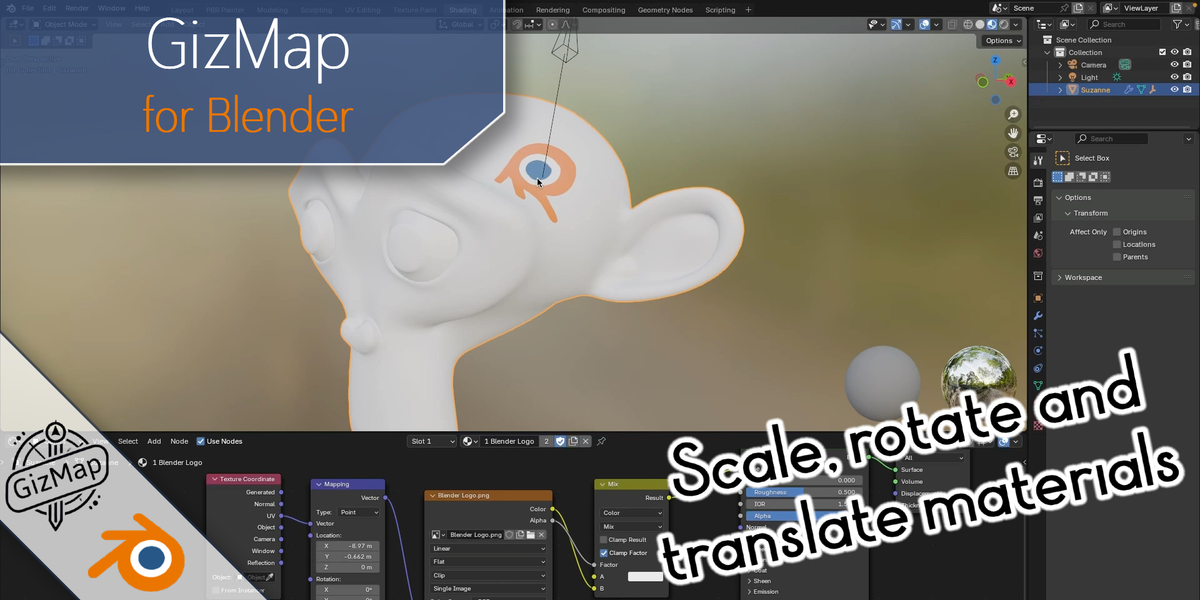
GizMap is a Blender add-on for adjusting a material’s mapping directly in the 3D Viewport. Move the cursor on a mesh to control translation, rotation, or scale, so you can position decals and PBR textures by interacting with the surface.
How GizMap controls material mapping
GizMap links cursor movement on a mesh to a vector Gizmo, which controls a mapping node. You can select the node yourself or let GizMap find one automatically. The node’s inputs then respond to movement in the viewport, so you can adjust the material without making each change in the node editor.
The add-on supports UV and Object mapping. With UV mapping, rotation and scaling are centered on the Gizmo’s location on the mesh. GizMap also includes a special type of Object mapping for decals, which can help when UV mapping is not a good fit.
Materials, decals, and PBR Painter
If a mesh has multiple material slots, GizMap can adjust the mapping across its materials without requiring you to switch between them. It also integrates with PBR Painter, where it can control the mapping of layers, masks, and custom node groups. The GizMap product page describes these features and links to videos about the add-on.
Gizmos automatically hide in renders, according to the product changelog. For a walkthrough of the controls, see the official introductory video.
Blender compatibility and installation
GizMap 1.4.0 is listed for Blender 2.9 through 5.0, and the product page notes compatibility with Blender 5. For Blender 4.2 or newer, the page recommends gizmap-1.4.0.zip. Earlier Blender versions need __legacy__gizmap-1.4.0.zip. Otherwise, the other archive will not install. Check the product FAQ for installation steps before choosing a file.
If mapping moves unexpectedly
The product FAQ identifies unapplied object transforms as a common cause when translation, scale, or rotation does not follow the Gizmo correctly. In Object Mode in the 3D Viewport, press Ctrl+A and choose All Transforms. If the problem continues, contact the developer through the product page. The documentation page also links to the introductory video and videos covering features added in versions 1.1 and 1.2.