Build a layout from selected layers
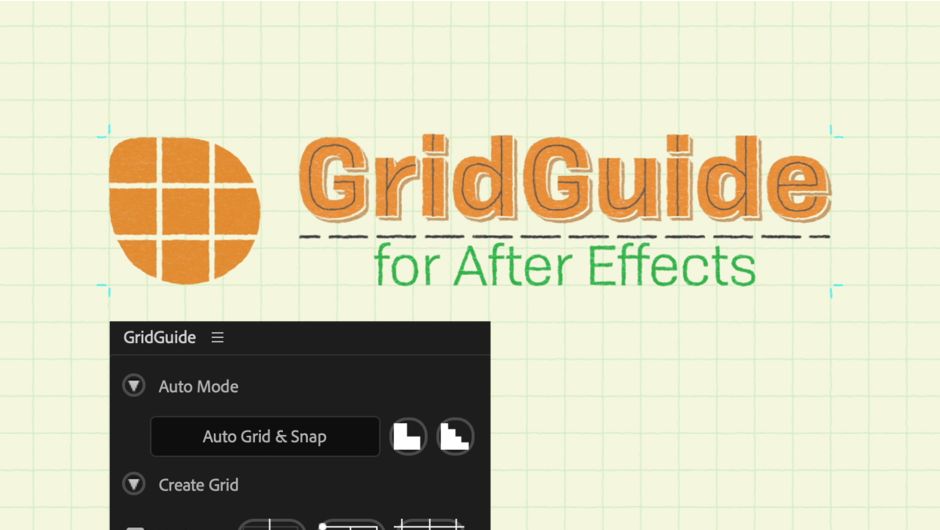
Place layers roughly where you want them, select them, then click Auto Grid & Snap. GridGuide chooses a grid to fit the selected content and adjusts layer placement and size according to its layout rules. You can then use the alignment tools to align, scale, or stretch layers against the grid. Clicking an alignment control repeatedly moves a layer from one grid line to the next.
Adjust grids as the composition changes
GridGuide builds its grids from shape layers. You can move, rotate, scale, parent, and keyframe them, so the grid can follow changes in a composition. Grid settings include gutters, margins, stroke color, and stroke width. Choose a bounded or infinite grid, use horizontal or vertical lines only, or add single lines and crosshairs.
Convert grids to snappable guides
Convert Grids to Guides turns shape layer grids into native After Effects guides for interactive snapping. In After Effects 16.0 or earlier, this conversion requires Photoshop to be installed. GridGuide launches Photoshop if needed and creates the guides automatically, though the conversion can take a few seconds. Newer After Effects versions do not need this workaround.
Compatibility and license
The compatibility list includes After Effects 2026 down through CS4. The product EULA grants use of one copy on one computer at a time; multiple copies or users require an appropriate license.