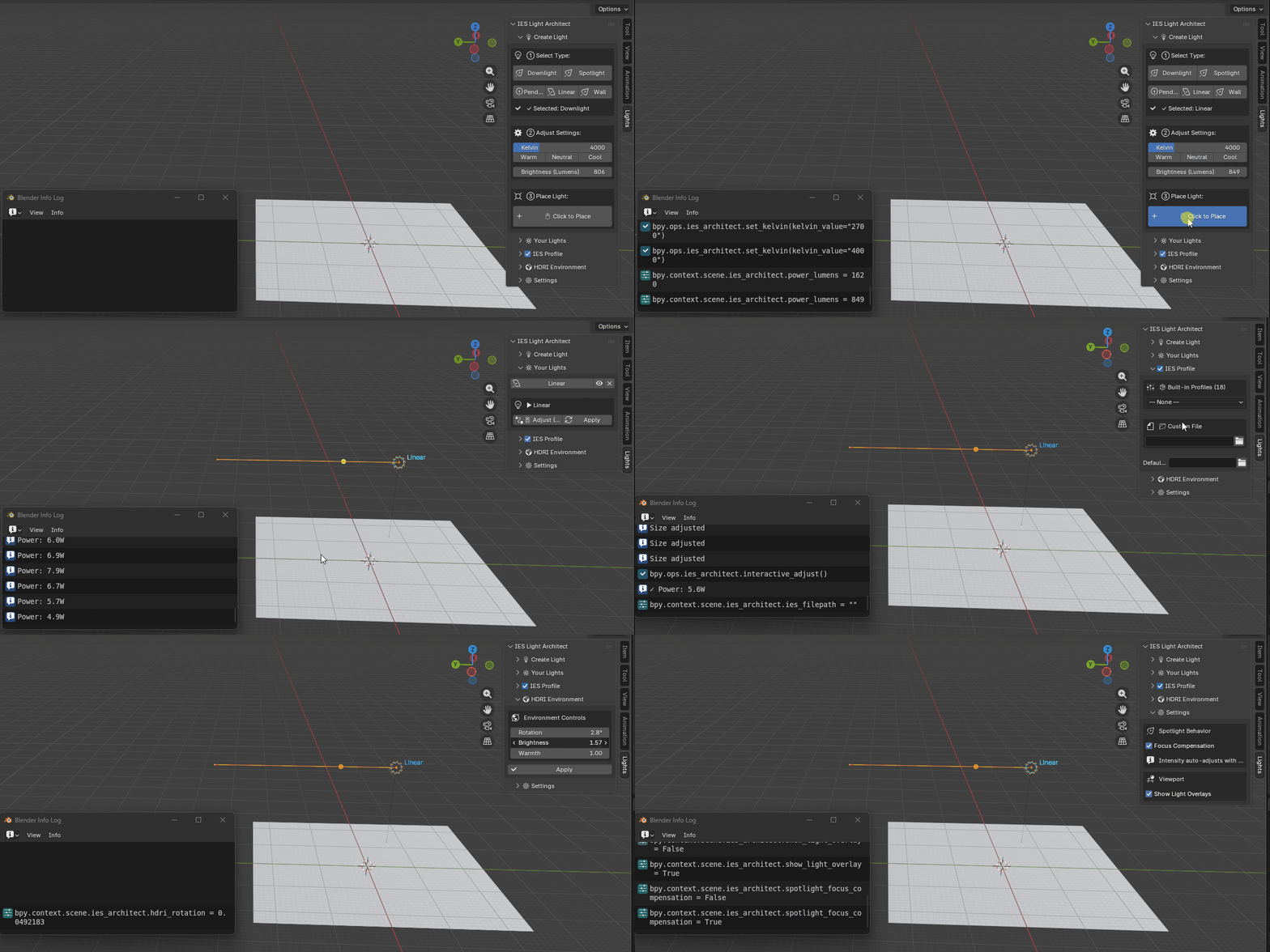
IES Light Architect Pro is a Blender add-on for creating IES-style architectural lighting setups. It is aimed at architectural visualization, interior design, product renders, and staged scenes. From its panel, you choose an available light profile or lighting option, add the setup to the scene, then adjust settings such as intensity, color temperature, and placement.
A panel-based lighting workflow
The add-on is designed to reduce repetitive manual lighting setup work. It gives you a starting point inside Blender, with scene adjustments left in your hands. The documentation recommends refining the lights for your scene scale and camera angle. Materials, exposure, and render engine settings can also affect the final result.
Install and add a light setup
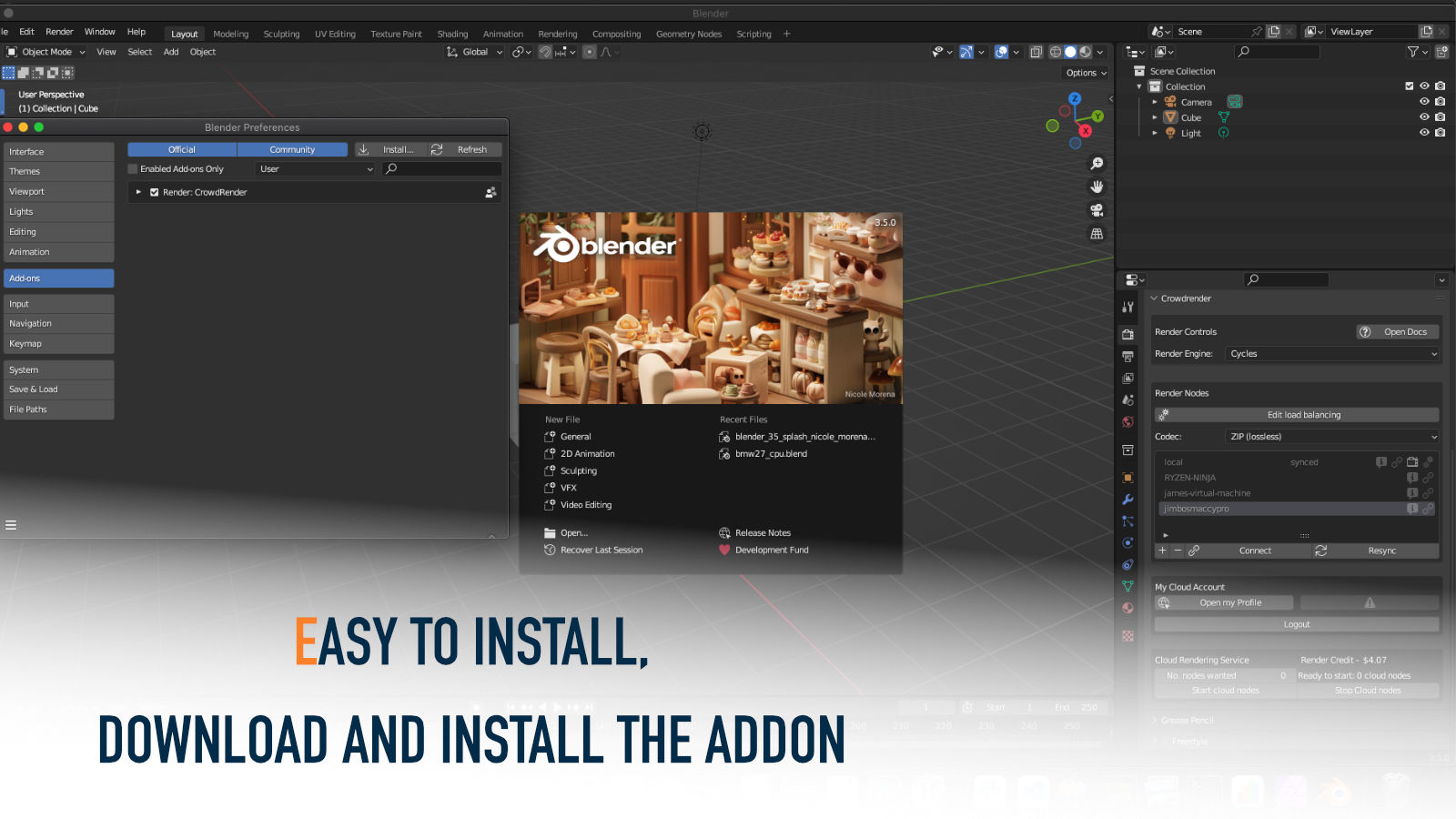
- In Blender, open Edit > Preferences > Add-ons and choose Install.
- Select the downloaded ZIP file, then enable the add-on.
- In the 3D Viewport, press N to open the sidebar and select the IES Light Architect Pro panel.
- Choose an available profile or lighting option and add it to the scene.
- Adjust intensity, color temperature, position, and other available settings for the render.
The product documentation provides the installation sequence and usage notes.
Compatibility and render engines
The product listing says the add-on was tested with Blender 4.2 through Blender 5.0 and marks it as Blender Extension Compatible. It names Cycles and Eevee as render engines used. The available documentation does not state compatibility outside the tested Blender range, so check the current product listing if you use another version.
License and creator support
The listing identifies the license as GPL and names ramazan sarı as the creator. For questions or issues, it directs users to contact the creator through Superhive messages. The product page describes development as AI-assisted and human-led, with the creator reviewing and completing the final workflow, testing, bug fixing, and packaging.