CrowdRender's Distributed Rendering Addon shares Blender rendering work across networked computers. It supports Cycles and Eevee, still frames and animations. CrowdRender says it produces the same result as a standard Blender render and supports the compositor and all render passes. See the product listing for the published details.
How it shares rendering work
For a still image, the addon divides the frame into tasks. For an animation, connected computers can render different frames. It synchronizes the blend file to the other machines and returns their results to Blender. CrowdRender gives rough examples of two computers taking about half the time, three about a third, and four about a quarter. Network overhead reduces the speedup, and the estimates assume similar hardware. Results can vary when computers have different capabilities.
Requirements and setup
- At least two computers connected to a network. Each needs a 64-bit processor and must be able to run Blender.
- The Superhive listing names Blender versions from 2.93 through 4.2. Check the CrowdRender release notes for current addon and Blender compatibility.
- CrowdRender recommends at least 16 GB of RAM and 10 GB of free storage on each computer.
- Supported operating systems include 64-bit Windows 10 or 11, macOS and Linux. Mixed operating systems are supported, though external assets can take more care to manage across them.
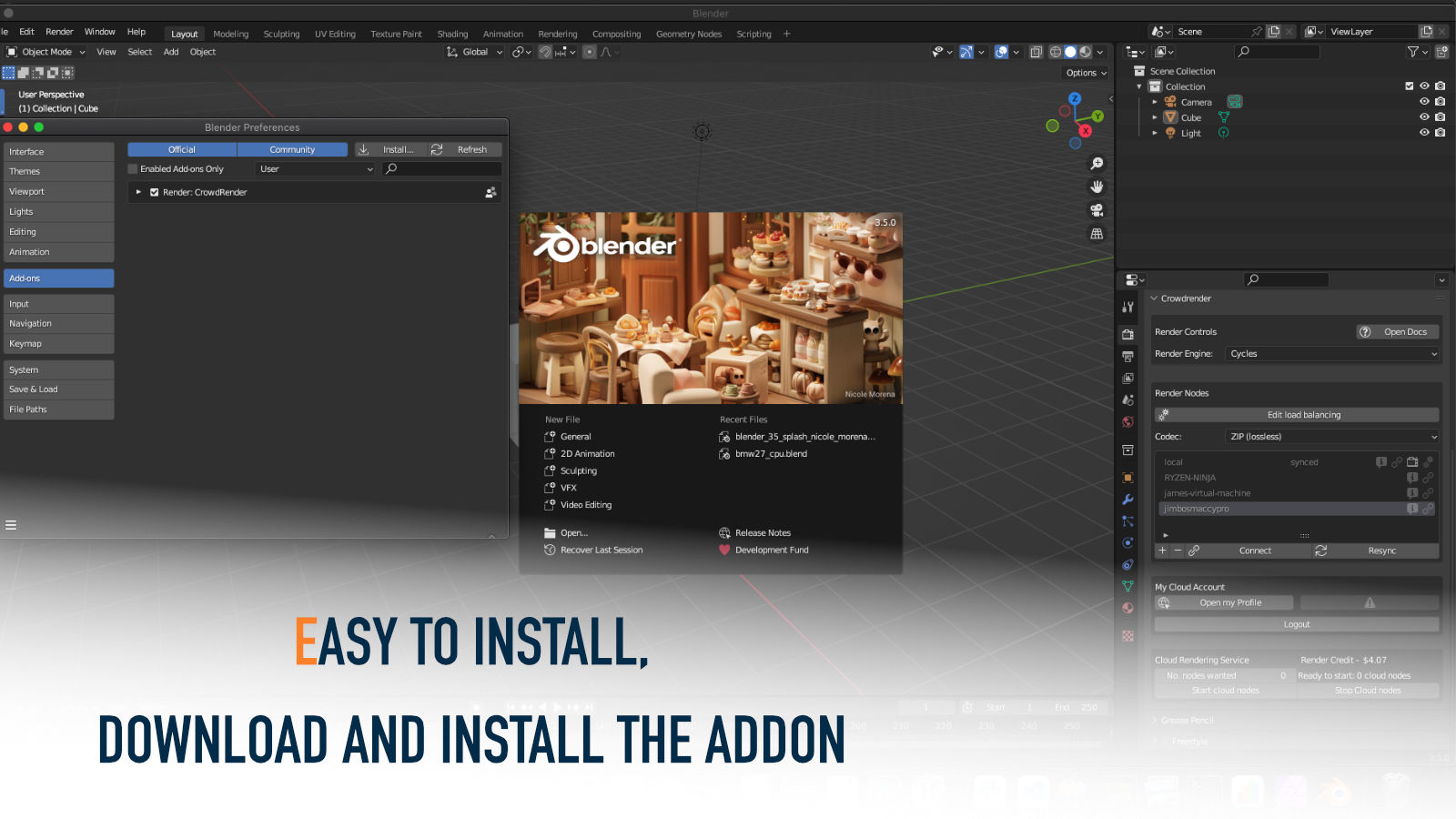
Install and enable the addon on every computer you plan to use. Choose one as the master or client, add the other computers by name, connect to them and wait for the blend file to synchronize before rendering. The CrowdRender documentation has further setup details.
Files, connections and troubleshooting
The addon copies the blend file to connected computers, but external textures, HDRIs, meshes and animation caches also need to be available wherever they are used. Pack them into the blend file or place them in a shared folder and make sure the scene points to those shared files. CrowdRender advises against storing its working files in cloud-synchronized folders because two synchronization tools may conflict.
If a computer will not connect, check that the addon is enabled on each machine and that they can reach each other on the network. Firewalls or antivirus software may prevent Blender from accepting TCP connections; rules may need updating for the Blender version in use. Also check disk space and folder permissions. CrowdRender's FAQ explains why a Sync Fail warning can persist when Blender preferences differ between computers, such as when only one machine supports OptiX denoising. In that case, a low-resolution test render can help confirm the result.