Image Blur Node is a Peakz add-on for Blender's Shader Editor that blurs a saved image texture and routes the result through a new Image Texture node. It is useful for softening material maps such as roughness or displacement textures, and for blurring environment textures in the World shader. The original image file remains unchanged.
Blur an image texture in the Shader Editor
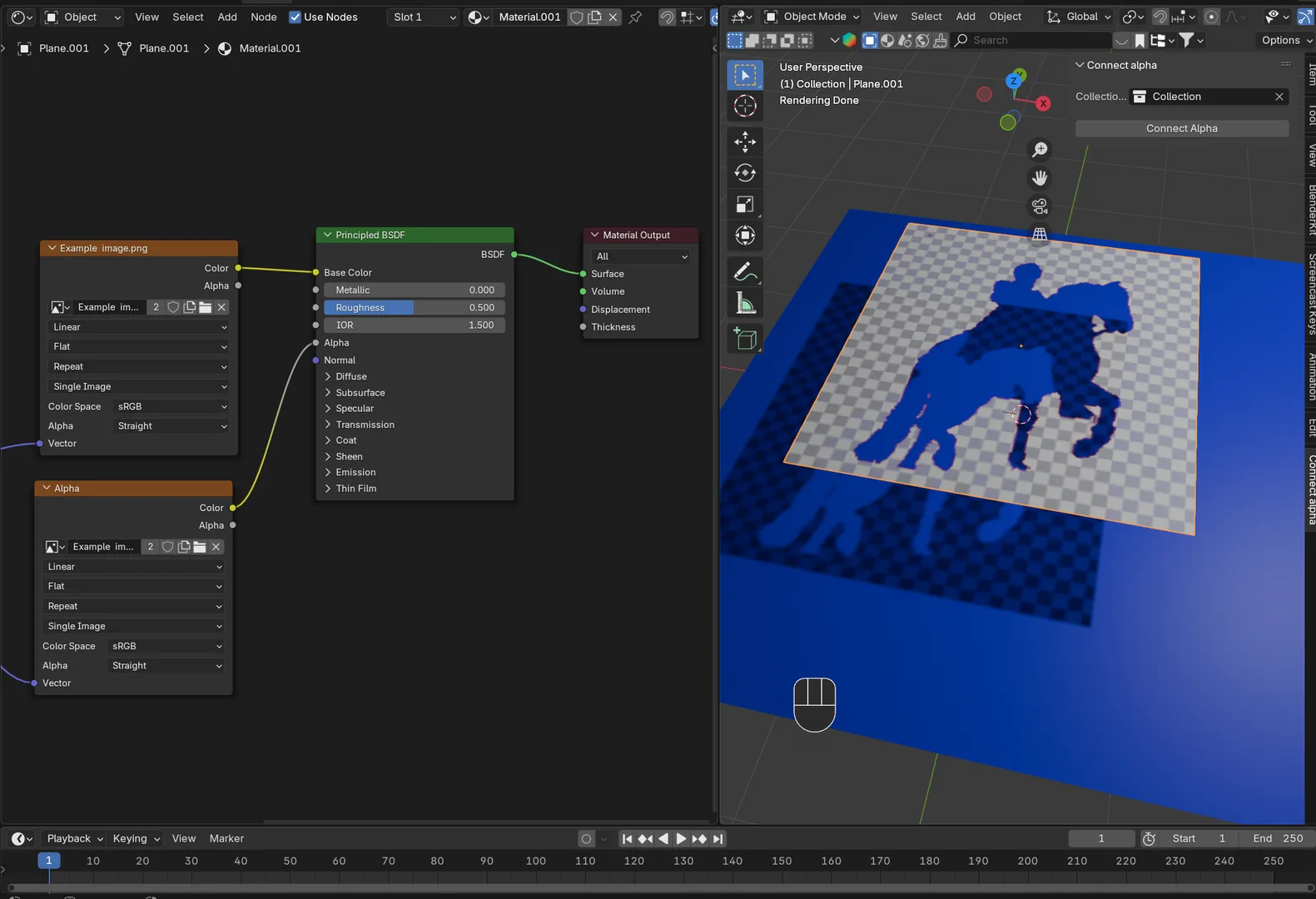
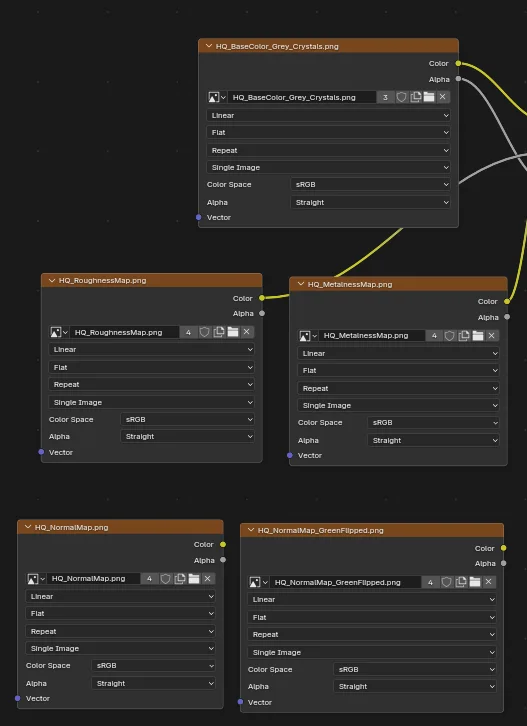
In the Shader Editor, choose Add > Image Blur. Connect the Color or Alpha output of an Image Texture or Environment Texture node to the blur node's Image input, then connect its output where you want the blurred image, such as Base Color. The add-on creates a new texture node for the blurred file and wires it into the material. It copies settings such as interpolation, projection, extension, color space, alpha mode, and the Vector input used for mapping or UVs.
The node works in object materials, the World, pinned materials, and shader node groups. Transparent PNGs can be blurred without the dark fringe common to simple blurs; connect Color to blur color and transparency together, or connect Alpha to blur only the alpha channel.
Blur strength and output files
Blur Scale changes in steps of 0.1, and 0 means no blur. At 1.0, the blur spreads across about 21 pixels. Because the setting is measured in pixels, the same value looks stronger relative to a 1K texture than a 4K texture. Adjust it for each image. Live Update refreshes the texture while you drag; on 4K and larger images, turning it off runs the blur when you release the slider.
The add-on saves a separate image with _Blurred appended to the source filename, either beside the original or in the Export Path folder. It overwrites that blurred copy when the setting changes. Blur nodes using the same source image share one blurred file, so duplicate the source under another filename if you need two blur strengths. The source image itself is not modified.
Supported images and limits
Supported formats are PNG, JPEG, TIFF, EXR, HDR, BMP, and WebP at 8, 16, or 32 bits. Half-float EXR files stay half-float. The source must be saved to disk: unpack a packed image or save a generated or painted image before using it. Movies, image sequences, and UDIM tiles are not supported. Convert TGA, PSD, or DDS files to PNG first.
The blur is baked into an image file when you change Blur Scale, so animating the setting does not create an animated blur. Image Blur Node is for the Shader Editor; it does not add blur processing to Geometry Nodes or the Compositor.
Blender versions and sharing scenes
The add-on supports Blender 3.0 and newer. For Blender 4.2 and later, install the system-specific extension ZIP from Edit > Preferences > Get Extensions > Install from Disk. For Blender 3.0 through 4.1, use the legacy ZIP through Edit > Preferences > Add-ons > Install. The required OpenCV library is included, so installation does not require internet access or administrator rights.
The blurred result is a regular image texture, so it works with Cycles and Eevee. To share a scene or use a render farm, include the blurred image file with the .blend file or pack it through Blender's External Data menu. The recipient does not need the add-on to render the existing result. See the developer's installation and usage documentation for platform-specific steps and error messages.