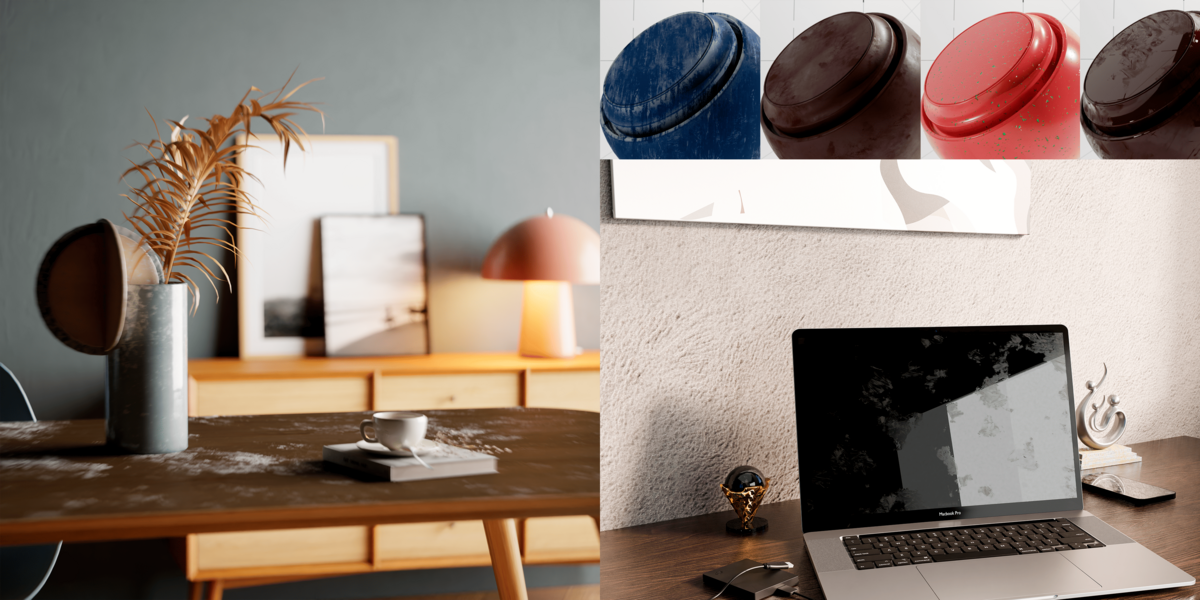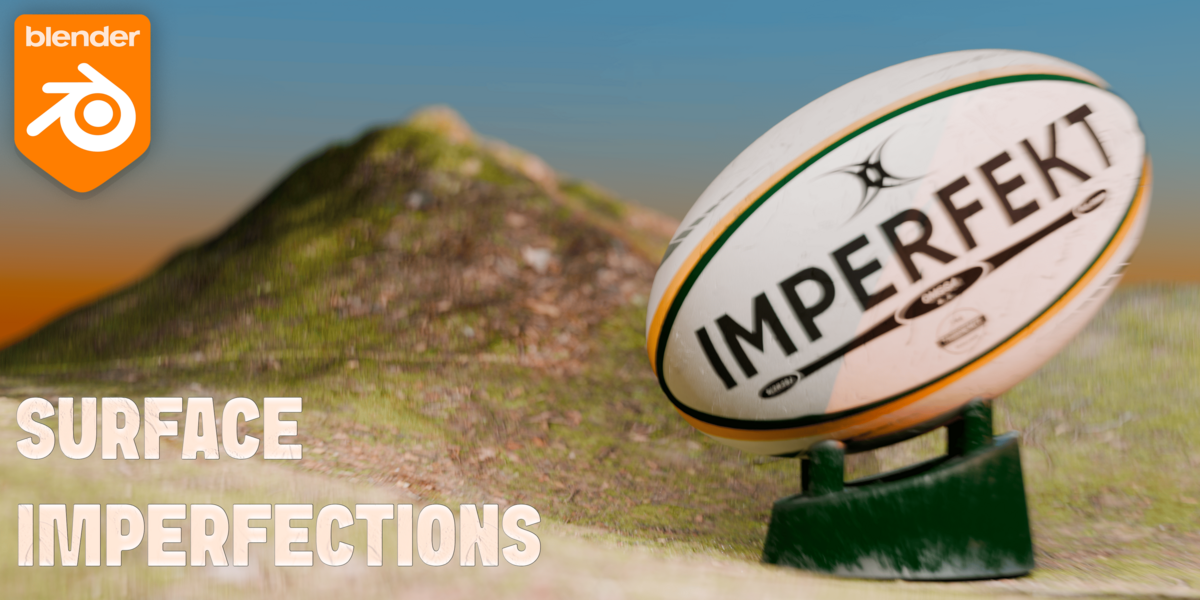
Imperfekt is a Blender add-on for adding procedural surface imperfections to materials. Its library contains 65+ effects, including dust, edge wear, grunge, scratches, smudges, spatters, fingerprints and other specialized marks. A dedicated panel in the 3D View lets you browse the effects and apply one to a material. The effects remain customizable, and the add-on applies them non-destructively so the original material is preserved. The Superhive product listing describes the add-on's features; the Imperfekt documentation explains installation and node setup.
Browse surface effects by type
The library groups effects into categories such as dust, edge wear, grunge, scratches, smudges, spatters and fingerprints. A search function helps locate an effect by name, and you can mark frequently used items as favorites. Imperfekt is intended for product visualization, architectural visualization, game assets, character art and VFX props or environments.
Apply an effect, then tune its nodes
The basic workflow starts in the 3D View:
- Select the object and open Imperfekt's panel in the 3D View sidebar. Press N if the sidebar is hidden.
- Choose an effect from the library and click Apply.
- Open the Shader Editor to inspect the added node group and manually adjust its connections to the base material.
- Adjust the scale and the mix factor or strength to suit the material and object.
Check UVs and scale
Proper UV mapping is recommended. The documentation notes that many effects use image textures that rely on UV coordinates, so missing or unsuitable UVs can distort their placement and scale. The default scale may also need adjustment for the object's dimensions. The guide gives values from 2.0 to 10 for smaller models and 0.1 to 0.5 for larger ones as examples; inspect the result and adjust from there.
Fingerprint generation and compatibility
Imperfekt includes a fingerprint generator with 1K, 2K, 4K and 8K resolution options. This is separate from the fingerprint effects in the main library. Choose a resolution, then click "Generate Fingerprint" to create the fingerprint scene. Render it with F12 or the render button, save the image, add it to the material as an image texture, and connect it in the Shader Editor.
Superhive lists Blender 4.2 to 4.5 compatibility and a GPL license. The documentation describes extension installation for Blender 4.2 and newer. Check the product listing for the latest supported version before installing, especially if you use a version later than 4.5.