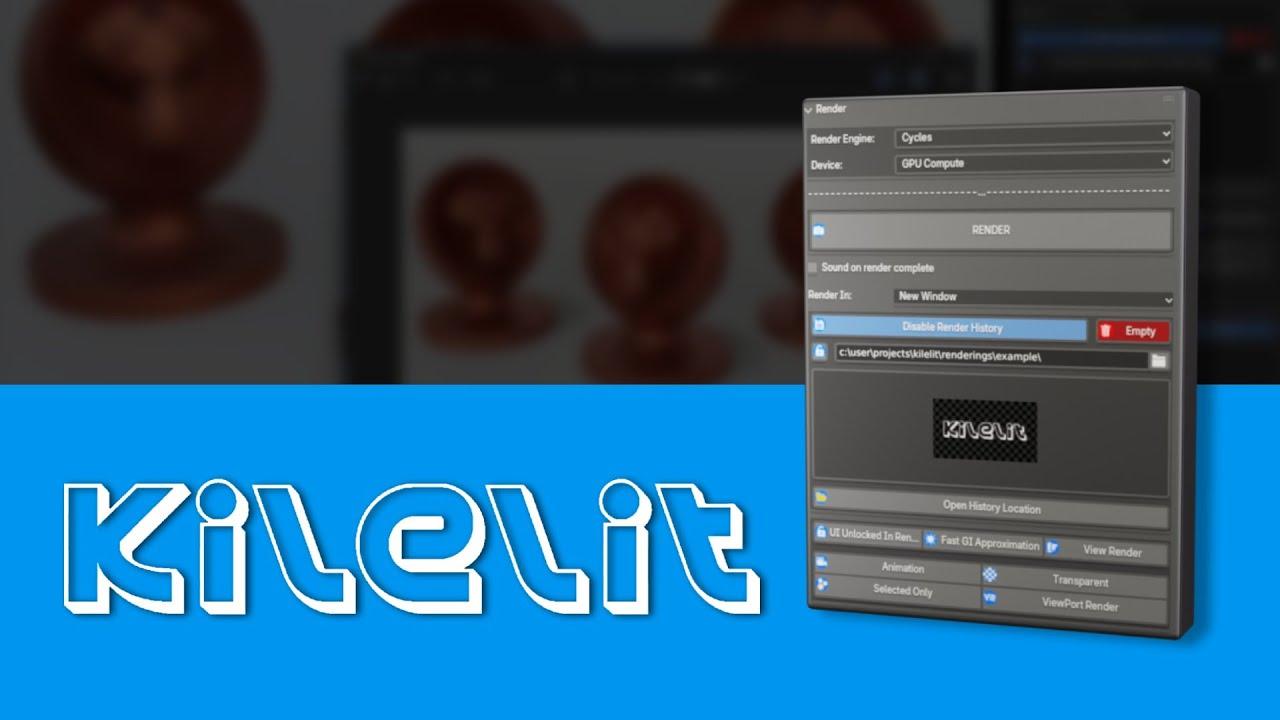
Kilelit, also called Ki, is a Blender add-on by KB Shop 3D that organizes render execution and related settings in a Render Panel. It uses Blender’s built-in rendering features and is intended for Cycles, Eevee, and viewport use. With a save directory set, its Render History previewer displays finished and work-in-progress renders for comparing iterations.
Keep render iterations in a history previewer
When Render History is enabled, Kilelit updates its previewer after renders and handles the files in the background. Choose a directory for those images; if no directory is set, the previewer will not display. Existing kilelit_preview files in the selected directory also populate the previewer. Use Open History Location below the previewer to find the folder. The Empty control asks for confirmation before clearing the history collection.
Before installing an update, back up any history images you want to keep. The Kilelit product listing says to open the history location, copy the images elsewhere, remove the previous add-on version, install the update, and restart Blender.
Render only selected objects
Render Selected Only provides two ways to exclude unselected meshes:
- Holdout Unselected enables Holdout visibility on unselected meshes to cut them out of the render.
- Invisible Unselected disables their Camera visibility so they are invisible to the camera.
For a selected object rendered as a shadow catcher, enable Render Shadow Catcher. Kilelit also enables Blender’s Fast GI approximation for this mode.
Use selected-only rendering for animation and passes
Animation mode works with Render Selected Only, so you can render separate passes for compositing. When Animation is enabled, Kilelit ignores Render History, even if history is turned on. Set the animation’s output path, then use the frame controls in the output panel to choose the range.
A separate Render Passes panel provides access to Data, Light, and Cryptomatte passes. These are Blender features presented within Kilelit’s interface.
Access render settings in one panel
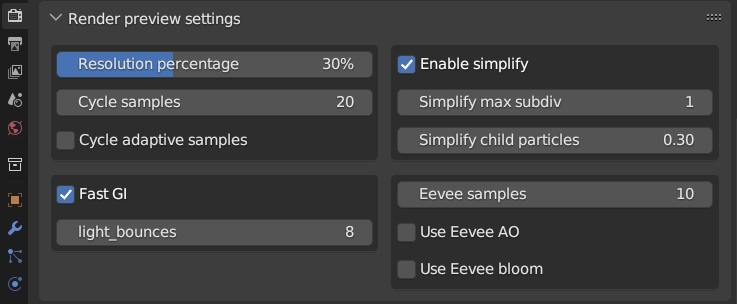
The Render Sampling panel brings render parameters into Kilelit and changes with the selected engine. The version 1.5.7 update notes describe access to Cycles settings such as Sampling, Light Paths, Volumes, Subdivision, Curves, Simplify, Motion Blur, and Film. They also list Eevee controls for Sampling, Clamping, Raytracing, Volumes, Curves, Simplify, Depth of Field, Motion Blur, and Film. Kilelit provides a different place to reach Blender’s settings; it does not replace the built-in rendering features.
The Superhive listing identifies Blender 5.0 and Cycles and Eevee. Check the documentation for version-specific changes and bug fixes before updating.