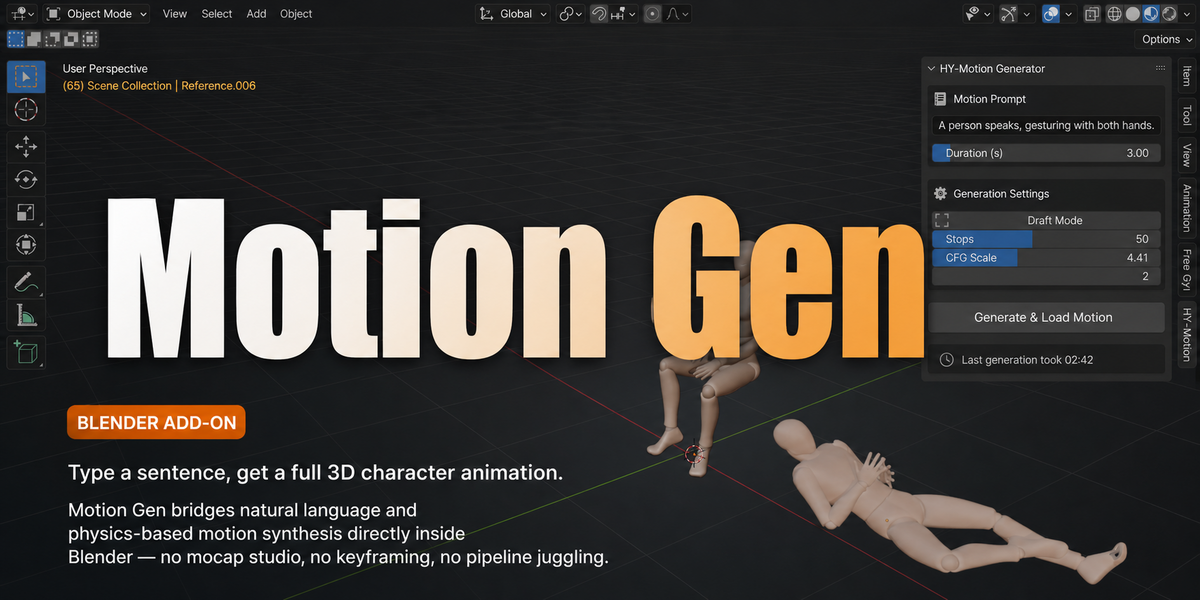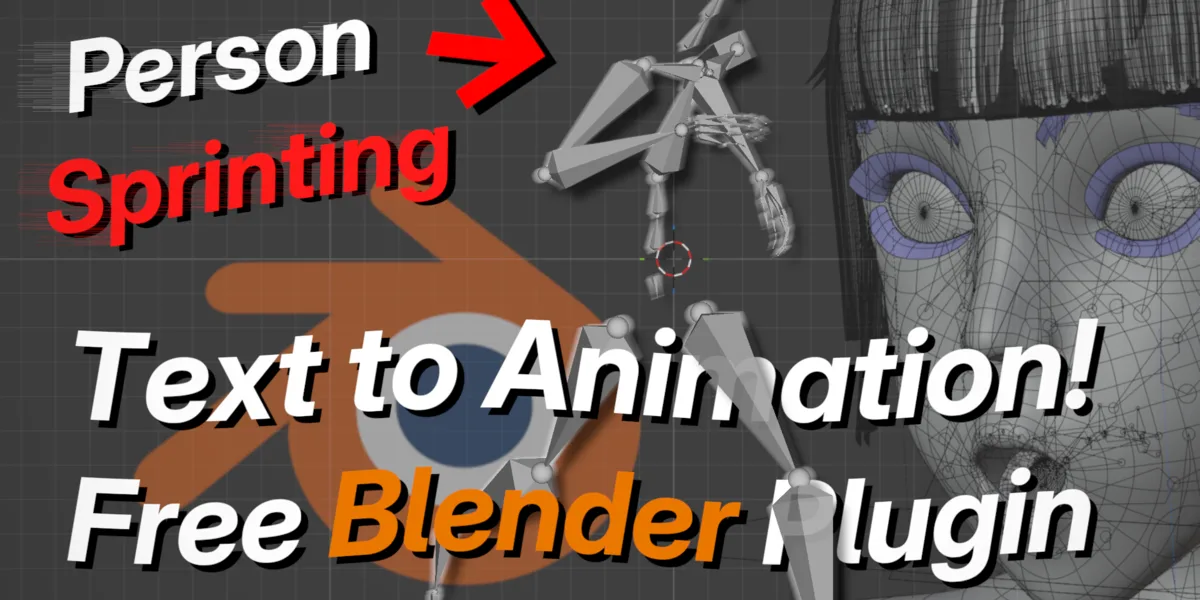
Kimodo Blender Bridge runs NVIDIA Kimodo text-to-motion inside Blender. Enter a prompt, generate a take, and apply the result to a Kimodo_Source armature or an armature you select. The motion arrives in your scene without a separate terminal workflow or manual BVH import.
Generate motion and build a longer take
The Connection panel’s Install Kimodo (Auto) button creates a managed Python environment, installs PyTorch and downloads the model weights and text encoder. After installation, start Kimodo from the panel and enter a prompt such as a person jogging in a circle. The model stays loaded in a background process for later requests, and Blender remains responsive while a generation runs.
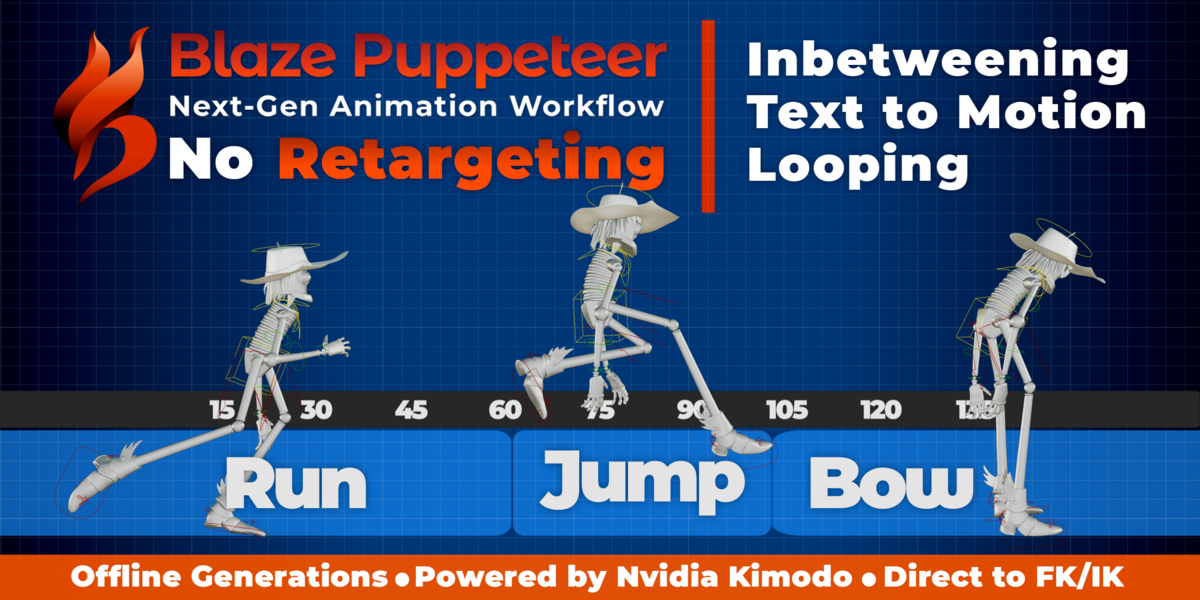
Version 1.5.8 combines Quick Generate and Motion Segments in the Generate panel, with a Single Clip / Timeline switch. In Timeline mode, prompts are chained across frame ranges. The add-on links adjacent ranges and provides a Transition Frames control for adjusting how segments crossfade. Generate N Variations creates two to five random-seed takes from the same prompt. History keeps the last 20 generations, recording each prompt, seed, duration and timestamp, with an option to re-import a previous take.
Guide motion with spatial constraints
You can guide a take with root XZ waypoints, hand and foot targets, or a full-body pose constraint at a chosen frame. To map a route, select a Bezier or NURBS curve and sample it into root waypoints across a frame range. Auto-Origin shifts constraint positions so the earliest waypoint lands at Kimodo’s world origin.
Retarget the result to a character rig
In the Retarget panel, select the generated source and your character rig, then run Auto-Match Bones. Its fuzzy matcher maps the Kimodo SOMA skeleton to target bone names, including Mixamo rigs and common biped naming conventions. Review the pairs, choose Child Of, Copy Rotation or Copy Transforms for each bone, and apply the constraints. Bake the result to keyframes and remove the constraints for a self-contained animation. You can save a bone mapping as a preset or export it as JSON for another project.
Check hardware and Blender compatibility
The add-on requires an NVIDIA GPU with at least 8 GB of VRAM; the listing recommends 16 GB or more. Plan for about 10 GB of disk space for the managed environment, model weights and text encoder. The installer selects a CUDA build for the detected GPU and Python setup. A system Python version from 3.10 through 3.13 is listed as a requirement.
The listing says Windows and Linux are supported and macOS is not, because the workflow requires NVIDIA CUDA. Its compatibility notes differ: the description says Blender 4.0 or newer and reports testing on 4.4 and 5.1, while the product details list Blender 4.2–5.1. Check the current listing for the version you use. Kimodo outputs at 30 FPS; the add-on flags a scene frame-rate mismatch and provides a button to set the scene to 30 FPS.
Internet, price and license
The first installation needs internet access to download dependencies and model files. With the managed environment, the model runs offline after setup without API calls, subscriptions or usage limits. AnyPlugins lists the add-on as free, and Superhive lists its license as GPL. Review the developer listing for current download and license terms. The developer also links the source code on GitHub.