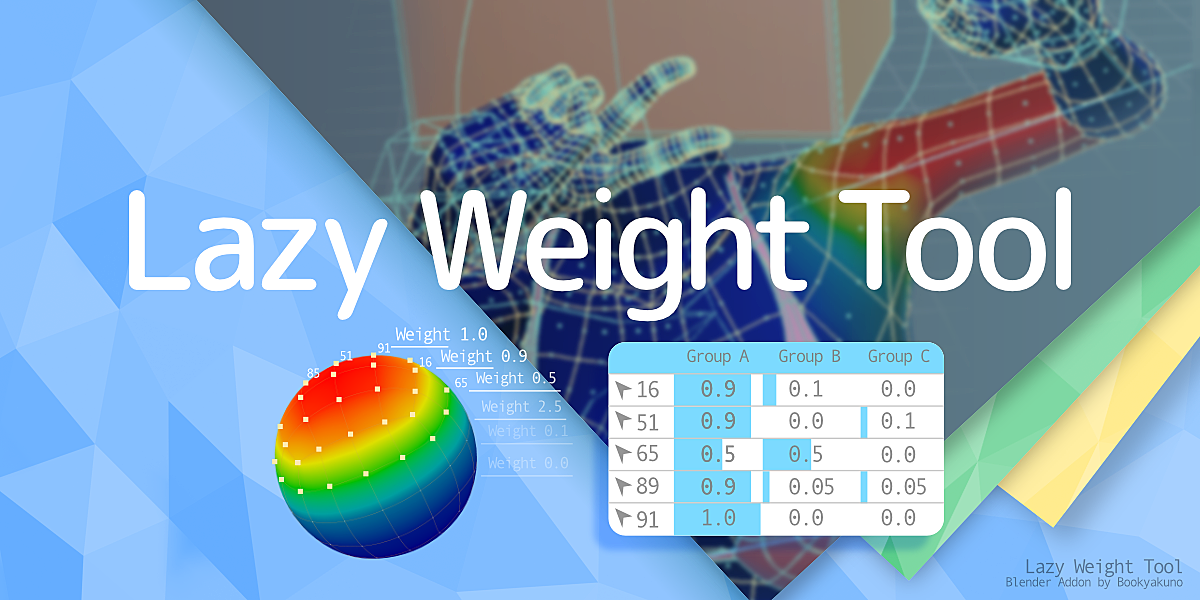
Lazy Weight Tool is a Blender add-on for editing vertex weights in Weight Paint mode. Its table shows vertex weights and groups; other tools assign numeric values, select mesh elements and copy weights between objects.
View and assign vertex weights
The Weight Table displays vertex weights and their assigned vertex groups, and lets you edit the values. You can highlight values that match a number or are greater or less than it, and display vertex indices on the mesh. Changing a value in the Weight Table does not automatically normalize weights.
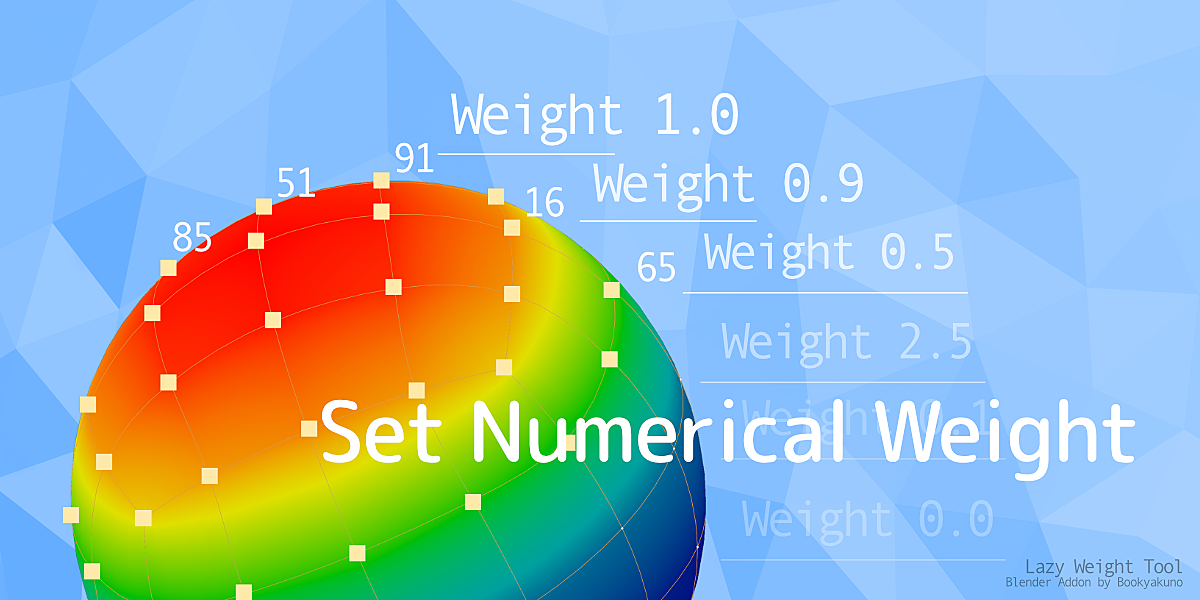
Set Weight and Flood Weight assign values using the current brush settings or fixed values. The presets are 1.0, 0.9, 0.75, 0.5, 0.25, 0.1 and 0.0; both operations normalize weights at runtime. Adjust Weight Gesture changes a weight by moving the mouse with Shift + Alt + F.
Select and transfer weights in Blender
Selection tools work in Weight Paint mode. The add-on supports loop and shortest-path selection by clicking as in mesh editing, along with multi-loop selection, edge-loop selection, Select Link, and commands to select more or less. The documented shortcuts include Ctrl + Numpad + for Select More, Ctrl + Numpad - for Select Less, Alt + left double-click for an edge loop, and L for Select Link.
Weight Copy/Paste copies weights from selected vertices to the clipboard so you can paste them onto another mesh or object. This helps match weights across separate meshes. The add-on also includes a Weight Transfer menu with a button for its default weight function, a mini brush-settings menu and a three-column vertex-group view with regular expressions.
Compatibility and editing notes
The Superhive listing reports compatibility with Blender 2.79 through 5.1. The documentation says Blender 2.79 is supported through add-on version 1.2.1. Check the listing for the range that applies to your installation.
The product documentation notes a change to table editing in Blender 4.1 and later: dragging the mouse to change values does not work, so enter values with the keyboard. In Blender 4.0, the documentation describes an “Allow editing by mouse dragging” option; in earlier versions, dragging works without that setting.
Install the add-on from Blender's Preferences by choosing Install and selecting its .py file, or copy the add-on folder into the add-ons location for your Blender installation.