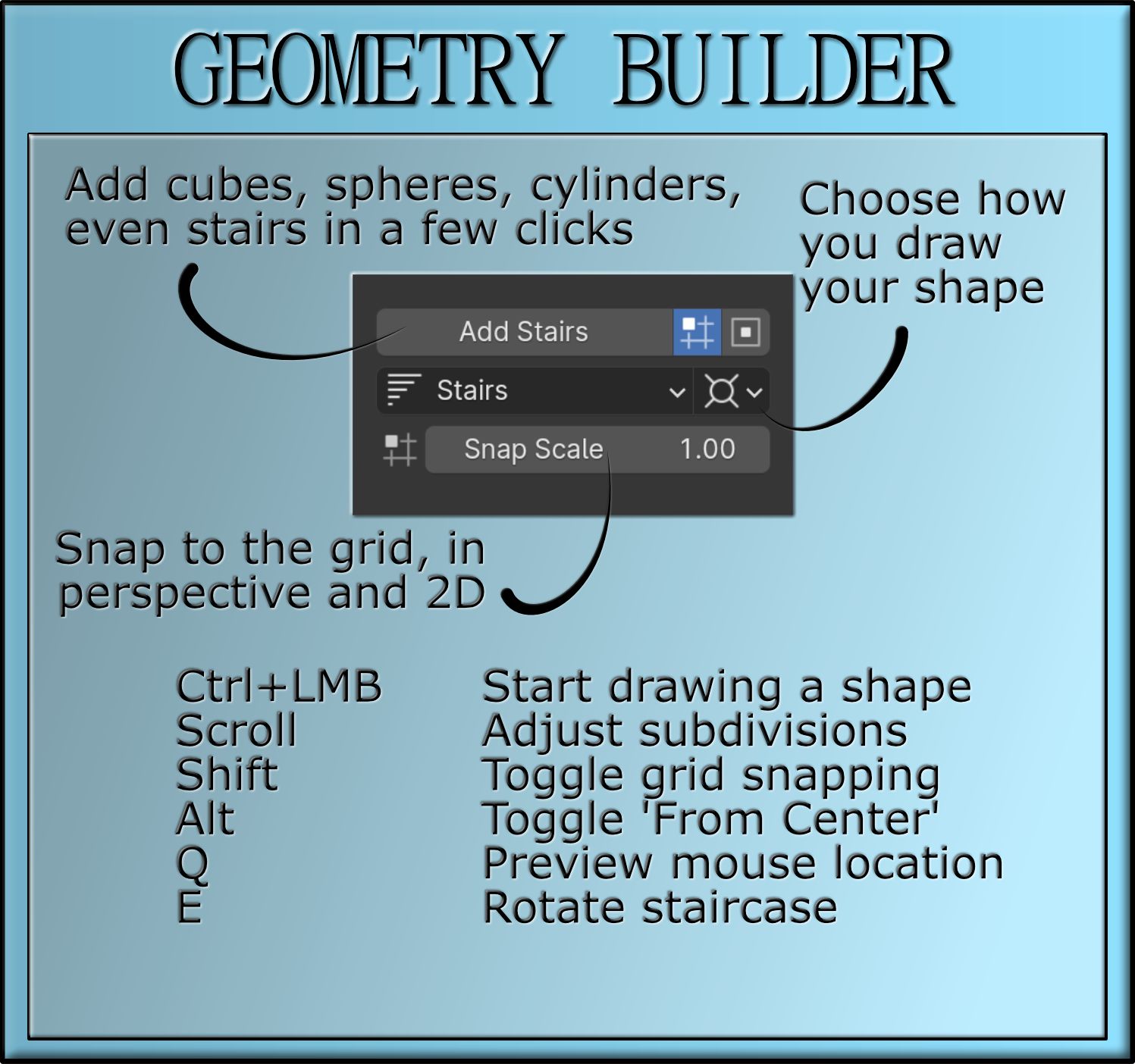
Mallet: Geometry Builder for Map Creation is a Blender add-on for laying out map geometry from the 3D Viewport. It creates cubes, spheres, cylinders, and stairs by drawing in perspective or quad views. The workflow suits game level blockouts, architectural visualization, and hard-surface modeling where you want to establish forms directly in a scene.
Create forms in the viewport
Choose a shape and draw it in the viewport to set its width and height. Mallet can use Blender's 3D view or quad views, and stairs can be adjusted with the mouse wheel to change the number of steps. You can also set an object's height from a selected object, which helps keep repeated forms at a consistent height.
The Mallet documentation places the panel in the 3D Viewport sidebar under Mallet. The Add Object action enters Object Making mode, shown by a red button. Hold Ctrl and left-click to begin drawing, then use mouse movement and left-click to define the width and height. Press Enter or click the button again to confirm.
Drawing controls and snapping
- Hold Shift to toggle snapping while drawing.
- Hold Alt to draw from the center of the shape instead of from an edge.
- Press Q to show a temporary preview of the cursor position in 3D space.
- Use the mouse wheel to change an object's subdivisions or a staircase's number of steps.
- Press E while drawing a staircase to rotate the direction of its steps.
Snapping has a specific limitation: Mallet rounds the mouse-derived location using the Snap Scale setting; it does not snap to Blender's actual grid. A larger Snap Scale creates larger jumps between positions. If you need predictable spacing, set the scale deliberately and check the resulting placement in the viewport.
Offsets and quad-view setup
Drawing in two dimensions leaves a third position value to determine. The Offset Type setting controls that value. Face, the default, uses a face found along the drawing path and falls back to zero when it finds none. Cursor uses the 3D cursor, Origin uses the selected object's origin, and Value uses a distance you specify from the axis zero point.
Quad views may need Mouse Multiplier adjustments because Blender's API does not provide an accurate mouse position in 3D without them. With the tool active, press Q to show the temporary cursor, then adjust the X and Y values until its position matches the pointer. These values depend on monitor resolution and the viewport's size, so a layout change can make them inaccurate.
Compatibility and practical limits
The product listing reports Blender compatibility from 2.93 through 4.5 and a GPL license. Check the listing and documentation for current details before installing. The documentation also notes that you must stop and restart the Add Object action for a changed shape type to take effect. The listing cautions that interaction can feel twitchy, so check the drawing and snapping behavior in your own viewport layout.