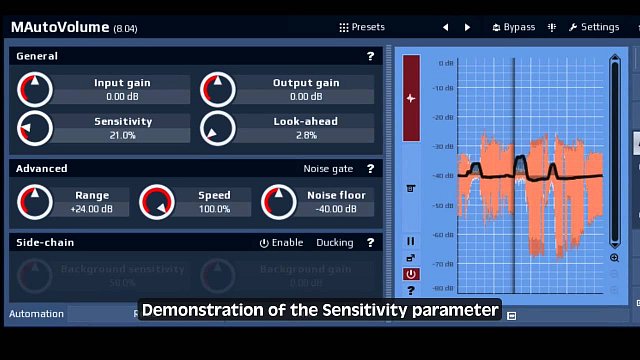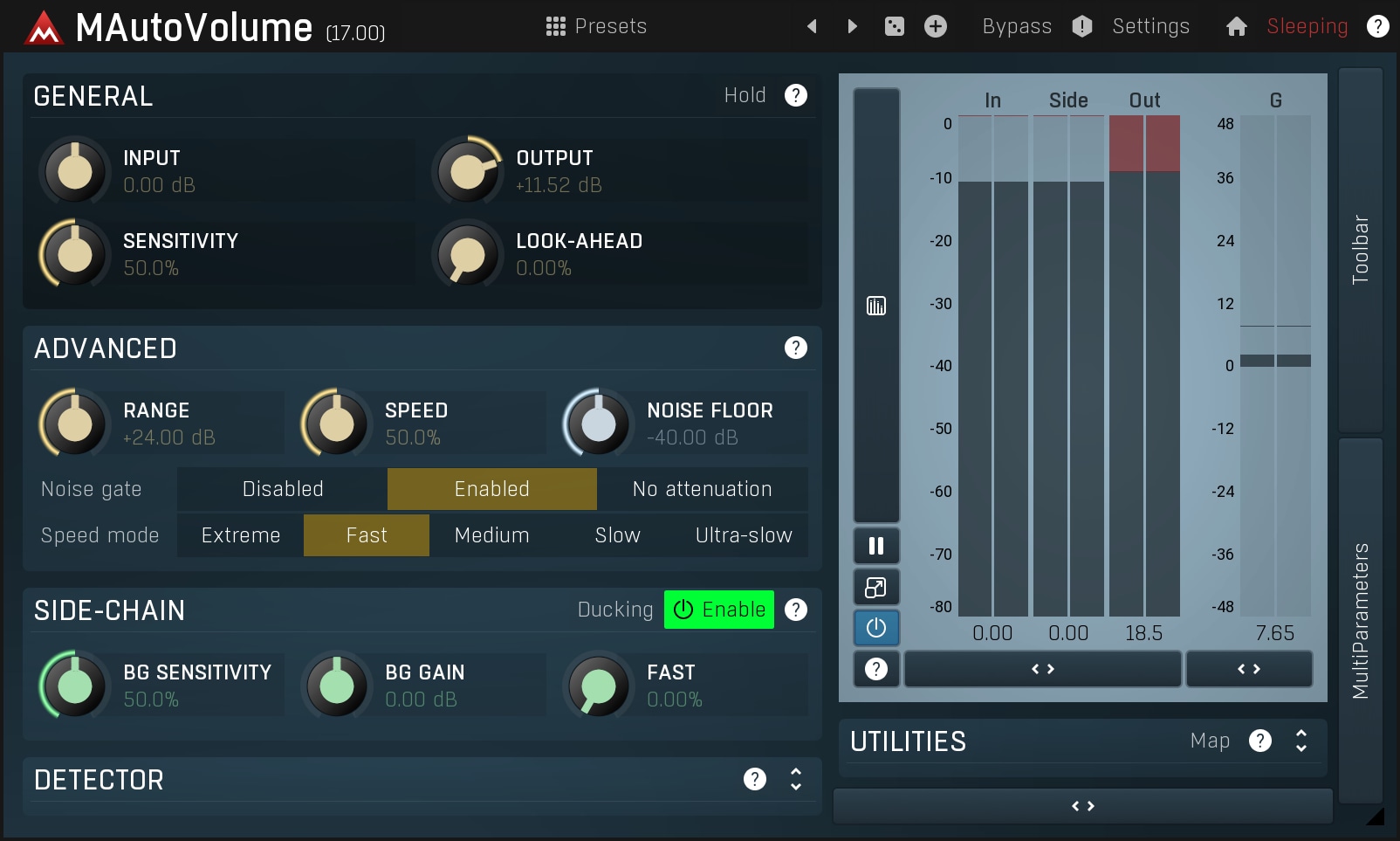
MAutoVolume automatically adjusts track gain to reduce loudness swings. It can level vocals, bass, solo guitar and saxophone. For a standard setup, insert it on the track, preferably last in the chain, then set the output level with Output gain or your DAW’s fader. The MAutoVolume quick-start guide describes this workflow.
Keep a lead above the mix
With side-chain input enabled, MAutoVolume uses the background mix as a changing reference for the main track. To try this on a vocal, route the other mix tracks to a bus, keep that bus routed to the master, and send it to the plugin’s side-chain input. Adjust Output gain to place the vocal against the backing as the arrangement changes.
The side-chain panel also has a ducking mode. It attenuates the main input as the background level rises, and ignores the main input’s loudness for that calculation. You may need to adjust Background gain to suit the side-chain signal.
Set the leveling behavior
- Input gain helps when the source level is very high or low. Watch the G meter: if the applied gain regularly reaches the Range limit, adjust the input level. The default Range allows up to 24 dB of gain in either direction.
- Sensitivity sets how much leveling is applied. At 100%, the level is maximally stable, but the effect may sound unnatural and reduce performance dynamics.
- Speed controls how quickly gain changes. A low setting may miss some fluctuations; a high setting can cause distortion.
- Noise floor marks the level treated as silence. Noise gate is enabled by default; when the level drops quickly below the floor, its response resembles gating. In Disabled mode, gain holds at its current value below the floor until the level rises above it. No attenuation lets gain fall to 0 dB but not lower; if gain is already below 0 dB, it stays unchanged.
- Look-ahead can improve dynamic response, but it adds latency and may produce artifacts; the manual suggests setting release considerably longer than attack to reduce them.
Channel handling and compatibility
MAutoVolume supports mono, stereo, mid/side, separate left and right, surround up to 8 channels, and ambisonics up to 64 channels. For surround, VST2 requires enabling MeldaProduction’s global surround setting and restarting the host; VST3, AU and AAX do not require that activation. Ambisonics requires enabling MeldaProduction’s separate global Activate ambisonics setting and restarting the host; the manual describes DAW support for that mode as rare.
On Windows, the listed requirements are Windows 10 or 11 (64-bit), an Intel or AMD processor with SSE2, and a 64-bit VST, VST3 or AAX host. On macOS, they are macOS 10.14 Mojave or newer (64-bit), an Intel, AMD or Apple Silicon CPU, and a 64-bit VST, VST3, AU or AAX host. Linux is not directly supported; MeldaProduction says running the plugins through Wine may be possible with Microsoft TrueType fonts installed. Check the system requirements for host-specific notes.
MeldaProduction uses personal license files for activation. A license holder can use the software on all of their own computers as long as they are the user; activation requires neither a dongle nor an internet connection. The MAutoVolume feature page has the licensing details.