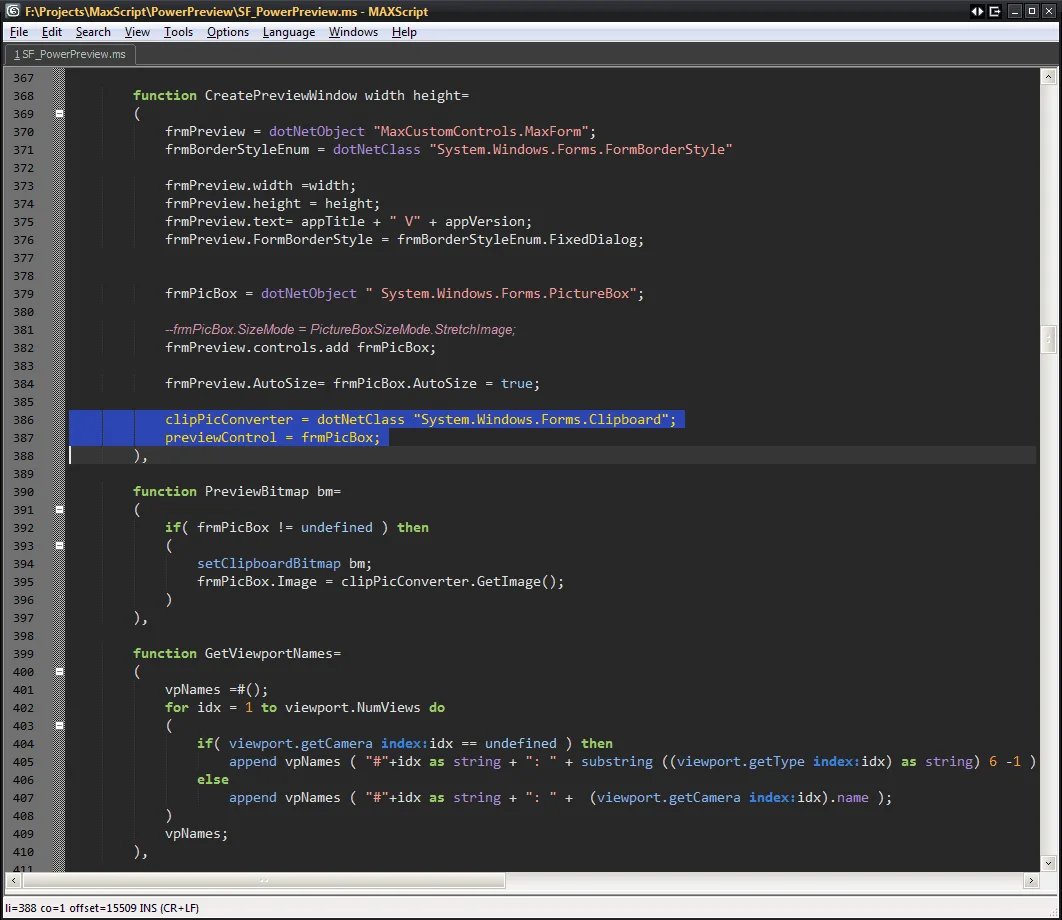
MaxPyDarkTheme applies a dark color scheme to the Python (PyMXS) scripting editor in 3ds Max. Its palette distinguishes Python from MaxScript: the ScriptSpot listing describes Python in blue and MaxScript in black, with DarkScintilla as the separate companion theme for MaxScript.
You can adjust the colors to suit your preference. The listing links to a guide for changing the palette.
Compatibility
The listing identifies the release as version 1.0. It says the theme was tested in 3ds Max 2023 and recommends 3ds Max 2022.3 or newer. It does not provide testing details for earlier releases.
Install the theme
Installation runs from the 3ds Max scripting editor. Close all open 3ds Max sessions first, then follow these steps:
- Start a new 3ds Max session as an administrator.
- Choose
Scripting > Run Scriptfrom the top menu. - Select the
DarkPyTheme_by_ManniiCode_x.xx.mzpinstaller and open it. - Close 3ds Max after installation, then start it normally.
Administrator access is needed because the installer writes to python.properties inside the 3ds Max installation folder, known as maxroot. The listing notes that drag and drop into the viewport is unavailable during the administrator run, so use the menu command.
Restore the previous settings
During installation, the script creates a backup named python_backup.properties. To restore the earlier settings, delete the theme's python.properties file and rename the backup to python.properties. The listing gives C:\Program Files\Autodesk\3ds Max 2023\python.properties as an example path for 3ds Max 2023; use the corresponding installation folder for your version.
Read the ScriptSpot listing for the installation notes, compatibility details, and links to the download and color-adjustment guide.