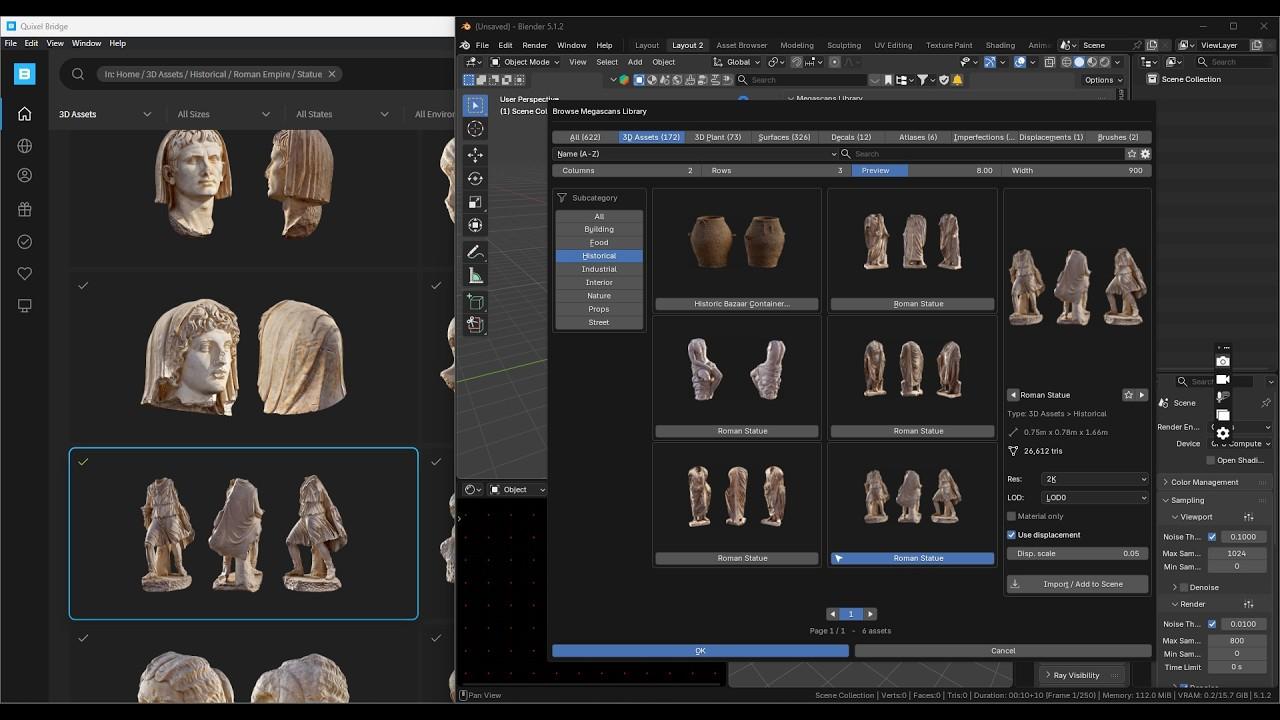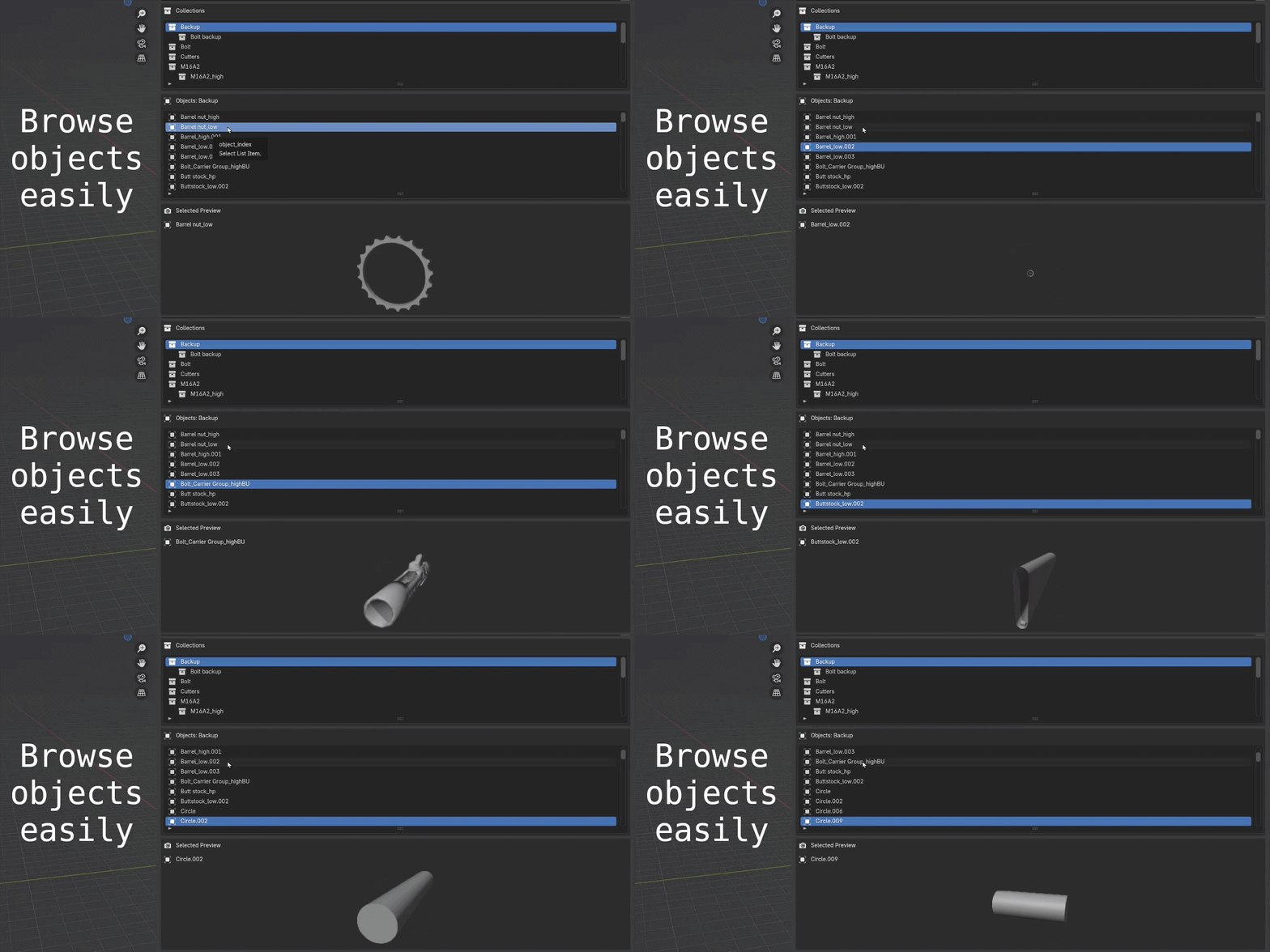
Megascans Library Importer is a Blender add-on for browsing and importing a Megascans library already stored on your computer. It scans the local folder, then opens a window with thumbnails, filters, search, asset details, and import controls. It does not connect to an online service or download assets. See the product listing and product documentation for current details.
Browse and filter a local library
The importer covers eight asset types: 3D Assets, 3D Plants, Surfaces, Decals, Atlases, Imperfections, Displacements, and Brushes. You can filter nested subcategories, adjust their depth, and narrow results by size, environment, or color. Search checks names and tags, so a term such as “woven” can find an asset even when that word is not in its name.
Each asset can show details such as size, tileability, texel density, and color. You can choose its resolution and level of detail (LOD); the importer matches textures to the selected LOD. For multi-object assets, the displayed triangle count is summed across the objects.
Import with PBR material setup
On import, the add-on can set up a PBR material using available albedo, normal, roughness, metalness, displacement, and opacity maps. Material-only mode is available when you need the material without importing the full asset. Favorites persist between sessions.
Set up the library in Blender
The documentation lists Blender 4.2 or newer as a requirement. The Superhive listing gives a Blender version range of 4.2 to 5.2. You also need a locally downloaded Megascans or Bridge library with its original folder structure and the JSON metadata supplied with each asset.
- Install the downloaded
.pyfile from Blender’s add-on preferences, then enable it. - In the 3D Viewport, press N to open the sidebar and select the Megascans tab.
- Set the library path to the
Downloadedfolder that directly contains the asset folders. Selecting its parent folder will not work. - Choose Scan Library to build the index, then open the browser to search, filter, and import assets.
Run another scan after adding assets or changing the library folder. If assets do not appear, check that the path points to the correct Downloaded folder and that the assets have finished downloading with their metadata intact. The product FAQ covers these setup questions.
Compatibility and licensing
The Superhive listing identifies the add-on as GPL-licensed and states that it is not affiliated with or endorsed by Epic Games or Quixel. Check the listing and license details for current terms before installing.