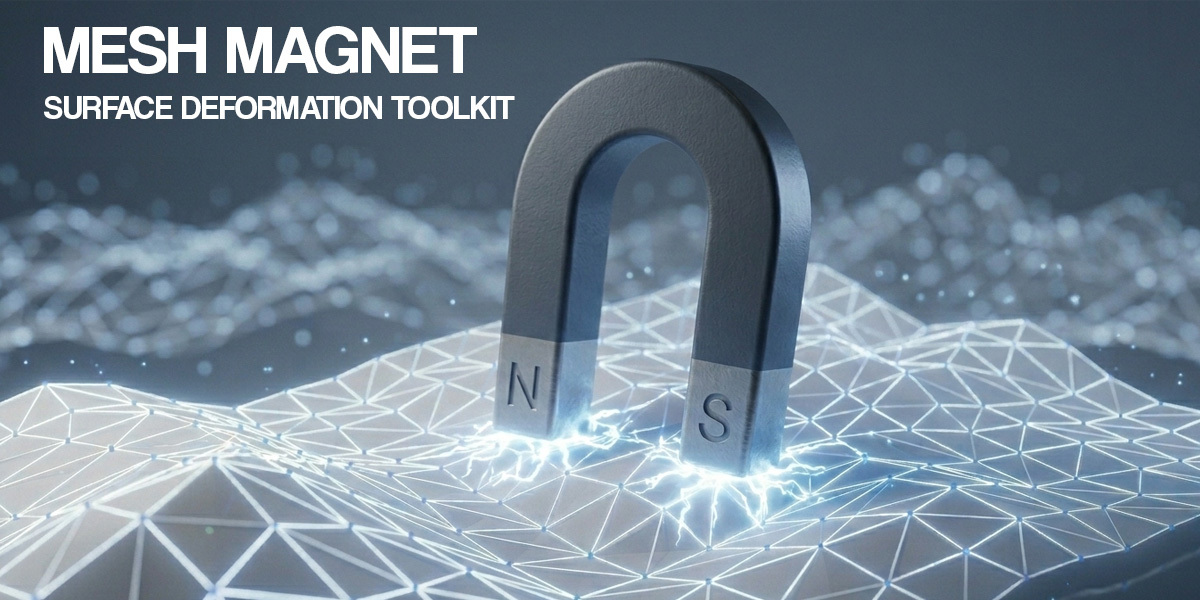
Mesh Magnet - Surface Deform Toolkit extends Blender’s surface-binding workflow with Geometry Nodes and custom attributes. Its four modes cover deforming meshes and curves, pinning objects to a surface, transferring groom guides, and keeping procedural scatter attached to a deforming target.
The Superhive product listing identifies it as a Blender extension-compatible add-on by hodgson3d, lists GPL as its license, and specifies Blender versions 5.0–5.3. Check the listing for current compatibility details.
Four ways to bind objects to a surface
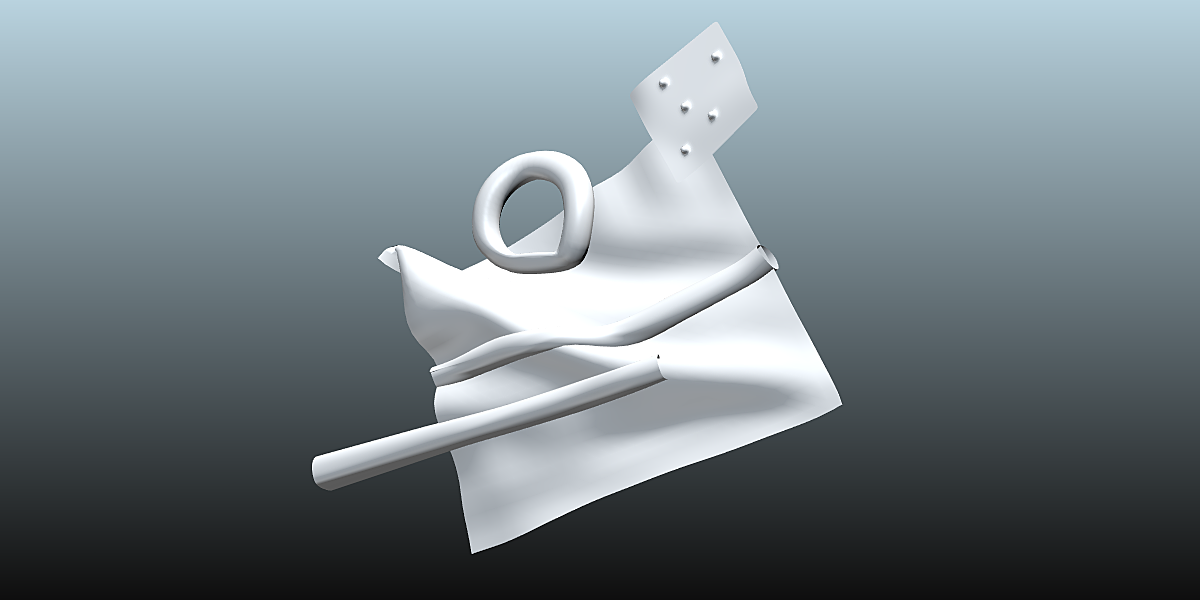
- Mesh/Curve Elastic lets objects stretch and bend with the target. The listing gives fitting clothing to different character bodies as an example.
- Mesh/Curve Rigid keeps an object’s scale and shape while pinning it to the surface. It suits details such as buttons, rivets, or armor plates. Its origin should be near the surface where it will anchor; it does not need to match the deform mesh’s origin.
- Groom Curve is tuned for hair and fur guides, including transferring a groom from one character to another.
- Procedural (Scatter) keeps instances such as grass, rocks, or debris attached to the surface without distorting their individual shapes.
Choose how to set the bind pose
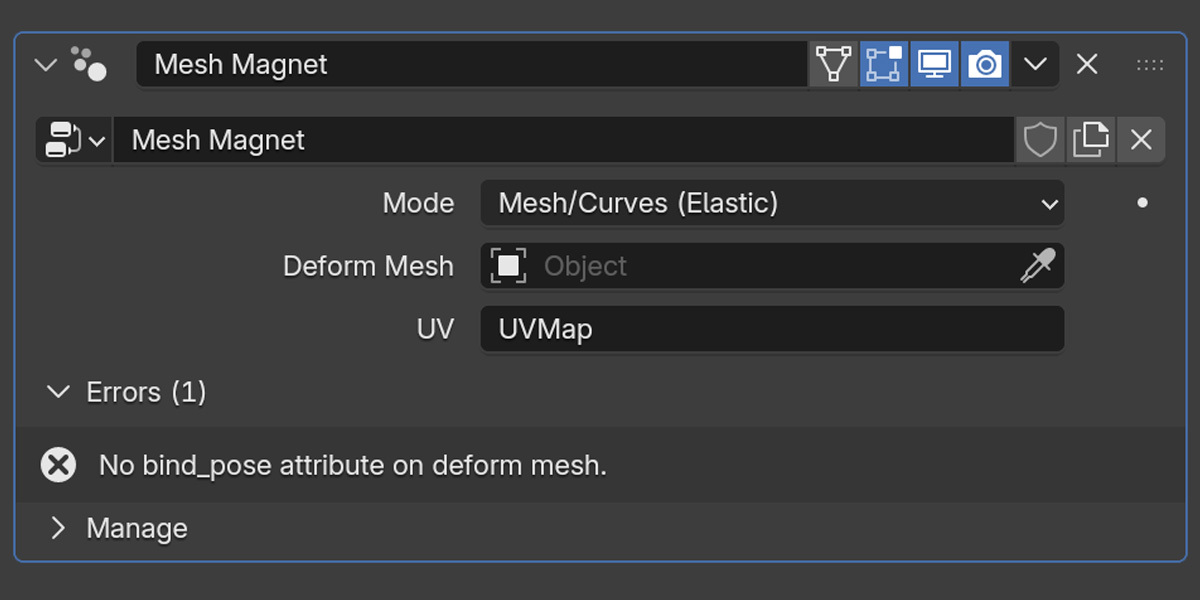
Mesh Magnet creates a bind_pose attribute on the deform mesh. This records the reference position used to calculate the difference between the original position and the current deformation.
For a non-destructive setup, disable “Apply Bind Pose” in the operator popup. The bind pose remains a modifier, so the target can be changed with modifiers, simulations, or armatures. To edit the target directly, apply the bind pose as an attribute; the documentation describes this method for Edit Mode changes such as proportional editing, sculpting, or shape keys.
Set up a Mesh Magnet binding
- Apply the deform mesh’s rotation and scale before binding.
- Select the object or objects that should follow the surface, then Shift-select the target deform mesh so it is active.
- After meeting the mode-specific origin and transform requirements in the next step, run Mesh Magnet from
View3D > Object > Mesh Magnetand choose that mode and a bind-pose method. - For Elastic, Groom, and Procedural modes, match the relevant origins and transforms to the target. In Rigid mode, objects can keep their local transforms; place their origins near the target surface where they should anchor.
The product documentation also notes that changing the deform mesh origin after binding can make objects jump. Refresh the bind pose to recalibrate after a change. If objects still have Mesh Magnet modifiers that reference the deform mesh, apply those modifiers before refreshing.
Manage existing bindings
Select by Deform Mesh selects objects bound to a chosen target, which is useful when a scene has many attached details. Clean removes Mesh Magnet attributes and modifiers from the deform mesh and referencing objects. Refresh Bind Pose recalibrates the reference position when you need a new default pose.