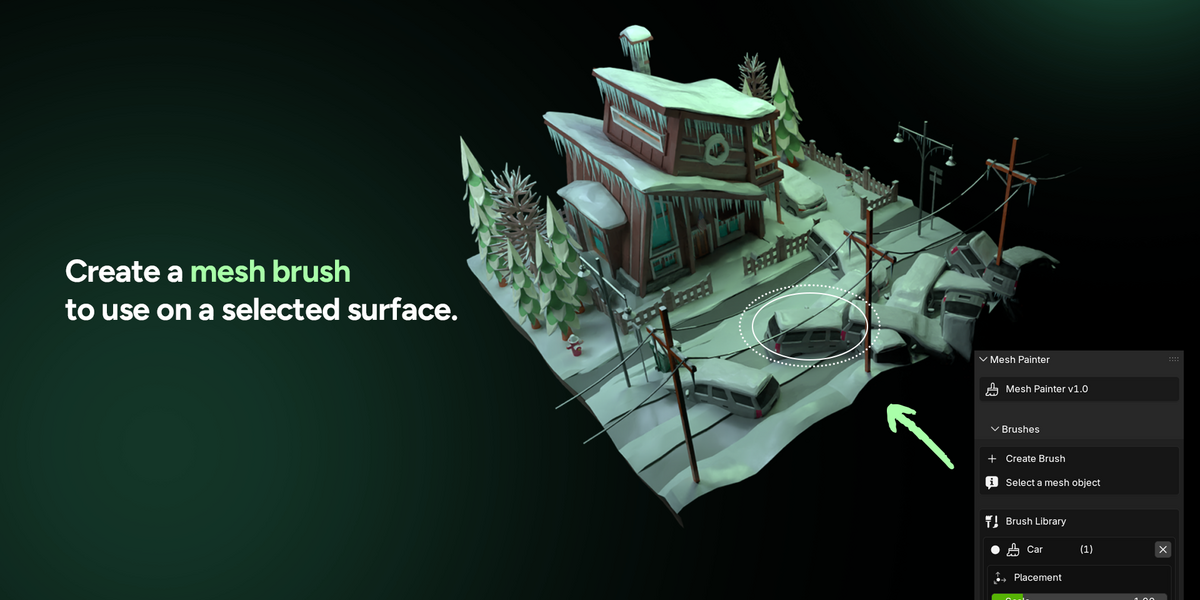
Mesh Painter is a Blender add-on from Egret Studios LLC for placing mesh objects in the 3D viewport. Select a mesh to use as a brush, create the brush, then paint across a visible surface to place copies along a stroke. The documentation covers the controls, and the marketplace listing has the product details.
Paint strokes and control spacing
Create a brush from a mesh in the scene or Outliner, then start Paint Mode from the Mesh Painter panel in the 3D View sidebar. The brush radius changes the size of the cursor; spacing sets the minimum world-space distance between placed objects. Density controls how many objects a stroke places. These settings let you adjust coverage for a scene, from spaced-out props to closer scatter.
Brush settings also include scale, position offsets, surface-normal alignment, and alignment to the stroke direction. Rotation and scale variation can add differences between objects, with a random seed to change the result.
Place individual objects with snapping
Use Precision Placer when you need to position objects one at a time. Start precision mode and click to place a brush object. Ctrl with a click applies rotation snapping; Shift applies scale snapping; use both modifiers to snap rotation and scale together. The rotation snap options are 15°, 30°, 45°, and 90°. Scale snap options range from 0.25× to 2×.
Edit or remove placed objects
Stroke Editing works on selected painted objects after placement. Randomize applies new rotation or scale variation, while Uniform Adjust sets the selected objects to the same scale and rotation. The documentation notes that each Randomize application generates a fresh result rather than stacking on the previous one. You can undo an edit with Ctrl+Z.
Erase Mode removes painted objects as you click or drag over them. Its radius sets the area of the erase cursor. The Mass Erase control removes all painted objects after a confirmation. For cursor-based erasing, objects must be in a MeshPainter collection and must have been painted with Mesh Painter for the tool to detect them.
Install Mesh Painter in Blender
Download the add-on ZIP, open Edit > Preferences > Add-ons, choose Install, and select the ZIP file. Enable Mesh Painter; its panel then appears in the 3D View sidebar under the Mesh Painter tab. The marketplace lists Blender 4.0–5.1, Cycles and Eevee, GPL licensing, and compatibility with the Blender extension system. Check with the developer about support for Blender versions outside the listed range.