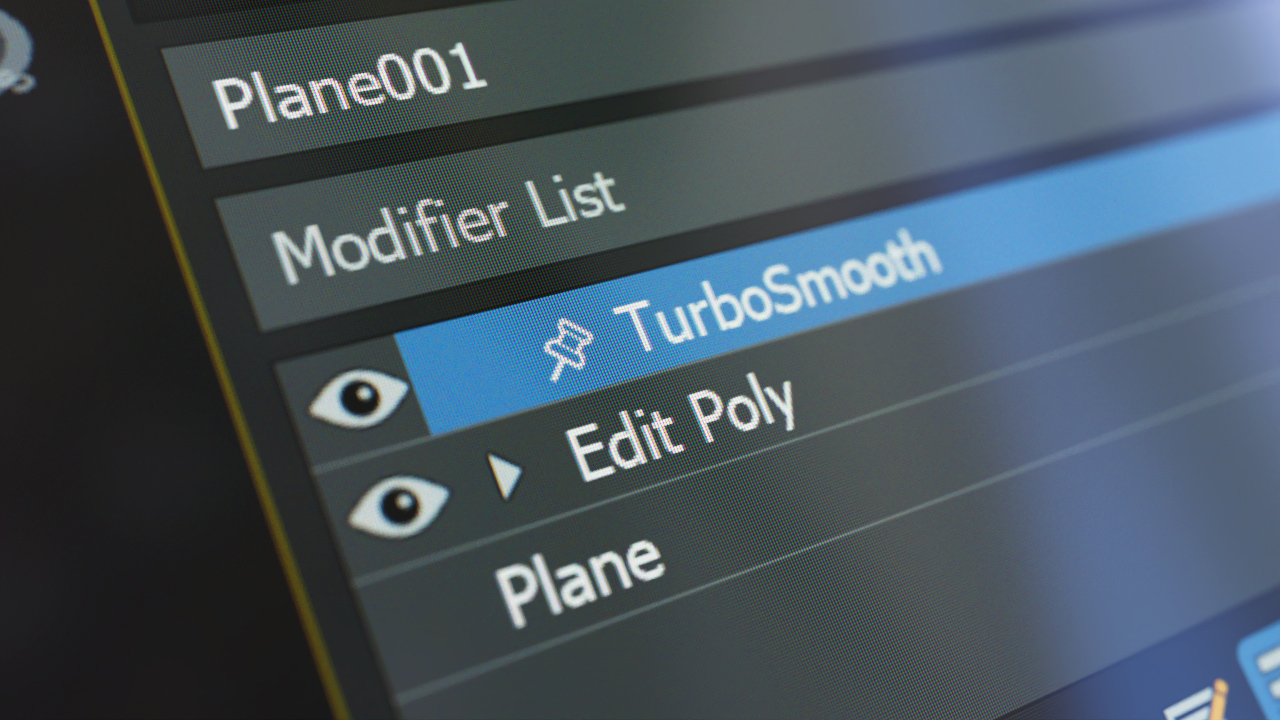
Mod Pinner is a macro script for 3ds Max that moves a selected modifier to the top of an object's modifier stack. You can keep working with modifiers below it while the pinned modifier stays easy to find. The developer documents the setup and controls in the Mod Pinner user guide.
Pin or release a modifier
Select an object, open the Modify panel, and click the modifier you want to pin. Run the Mod Pinner Toggle macro; the modifier moves to the top of the stack. To release it, select the pinned modifier and run the same macro again. The developer says Mod Pinner works with any modifier type, including modifiers such as TurboSmooth and Shell.
Labels and Lite limits
The guide describes a Mod Pinner Settings macro for adding a prefix and suffix to pinned modifier names. The fields support emoji and other characters, and saved settings persist between sessions. The developer lists the Lite version separately: it allows one pinned modifier per object and uses a fixed bullet label (●) without customizable prefix or suffix fields.
Pinning an instanced modifier on one object also pins it on other objects that share that instance.
Installation and compatibility
Mod Pinner supports 3ds Max 2021 through 2027. To install it, unzip ModPinner.zip, then drag ModPinner.mzp into a 3ds Max viewport. If drag-and-drop is unavailable, use Scripting > Run Script to open the file. Click Install, then find the macro under Customize > Customize User Interface, in Group: Main UI and Category: BodyulCG. From there, assign it to a hotkey or add it to a toolbar.
For current edition details, see the developer's Mod Pinner page.