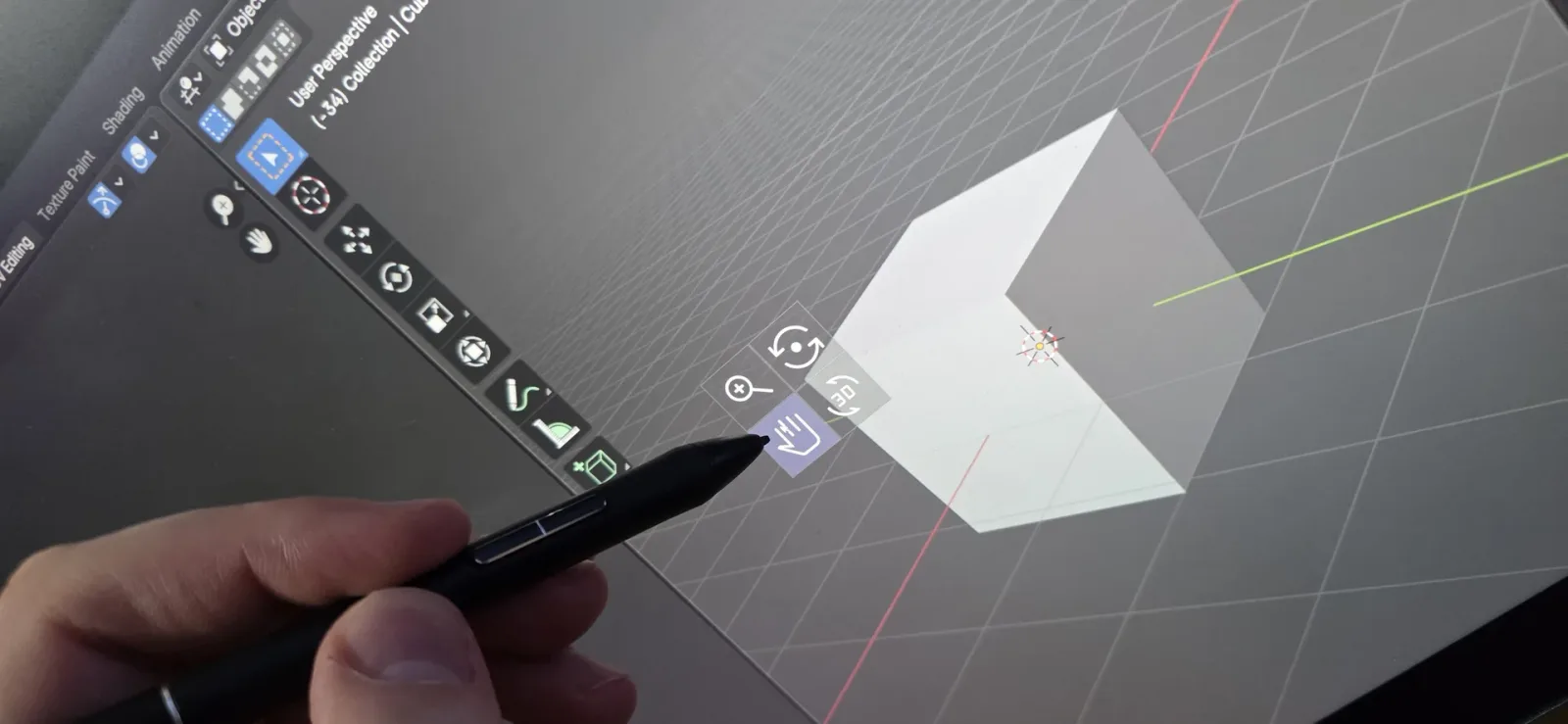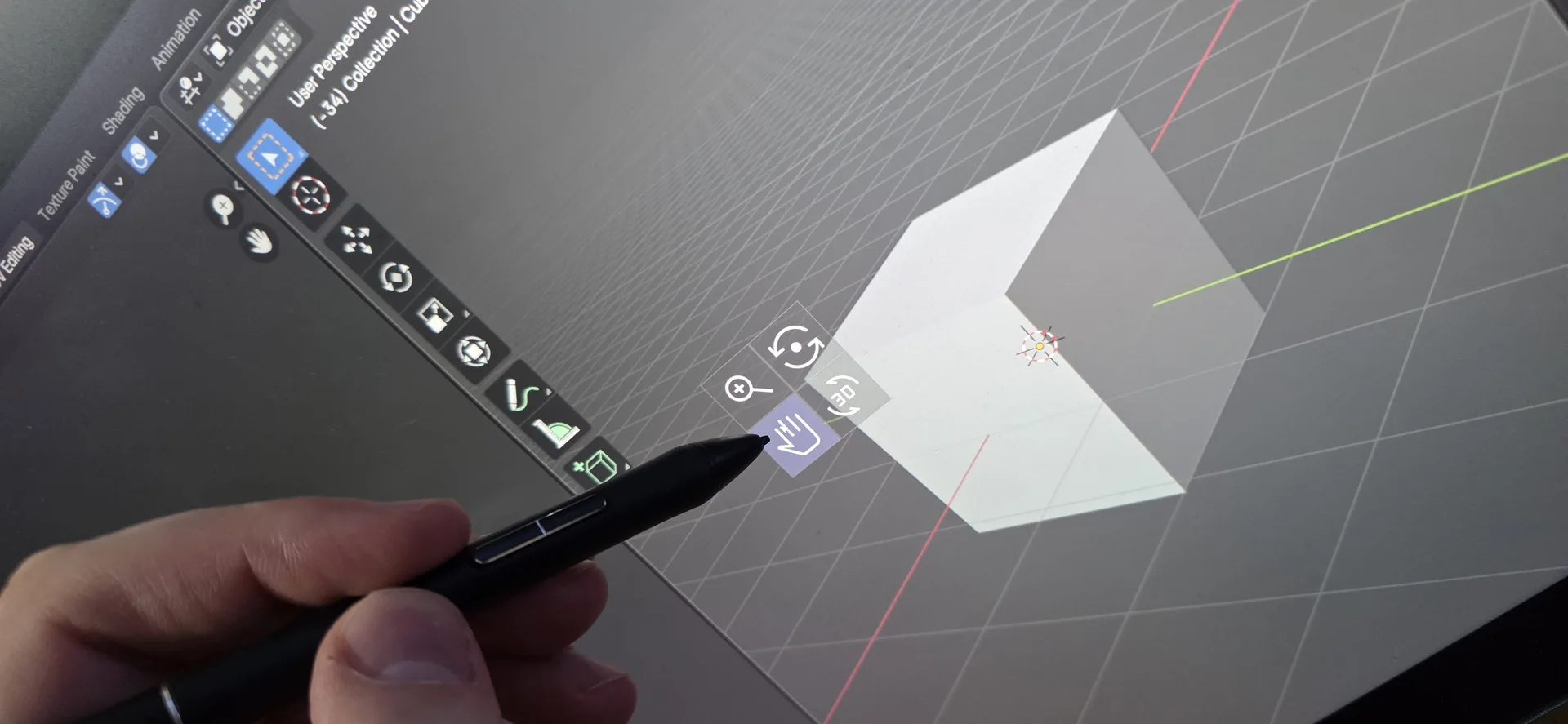
Navigation Puck Addon adds a compact viewport menu to Blender, inspired by Sketchbook Pro's navigation puck. From the current editor context, it provides quick access to orbit, pan, zoom, camera flip, and related view actions. Open it with a held hotkey or choose one of two cursor-based activation modes.
Choose how to open the puck
Hotkey is the default mode. Press and hold V to open the menu, drag toward an action, then release. You can change the hotkey in the add-on preferences.
- Shortcut Button shows a small shortcut icon near the cursor. The icon fades in as the pointer approaches it.
- Menu Near Cursor opens the full puck menu near the cursor without the small shortcut button.
The two cursor modes offer different ways to bring up the same navigation menu: a small shortcut icon or the full menu. Hotkey mode keeps the interaction on a press, drag, and release.
Adjust the interface
Preferences include controls for shortcut placement, button sizes, menu sizes, the drag-select threshold, and debug bounds.
Install the add-on
Use Blender 4.2 or newer. Download the release ZIP, then install it from Blender's Extensions preferences:
- Open Edit > Preferences > Get Extensions.
- Select Install from Disk and choose the downloaded ZIP file.
- Enable Navigation Puck Addon.
The 2.0.1 release notes say standard Blender keymap registration for the hotkey was restored and the default was set back to V. The extension listing says it requires no special permissions and is licensed under the GNU General Public License v3.0 or later. See the Blender Extensions listing for the release and compatibility details.