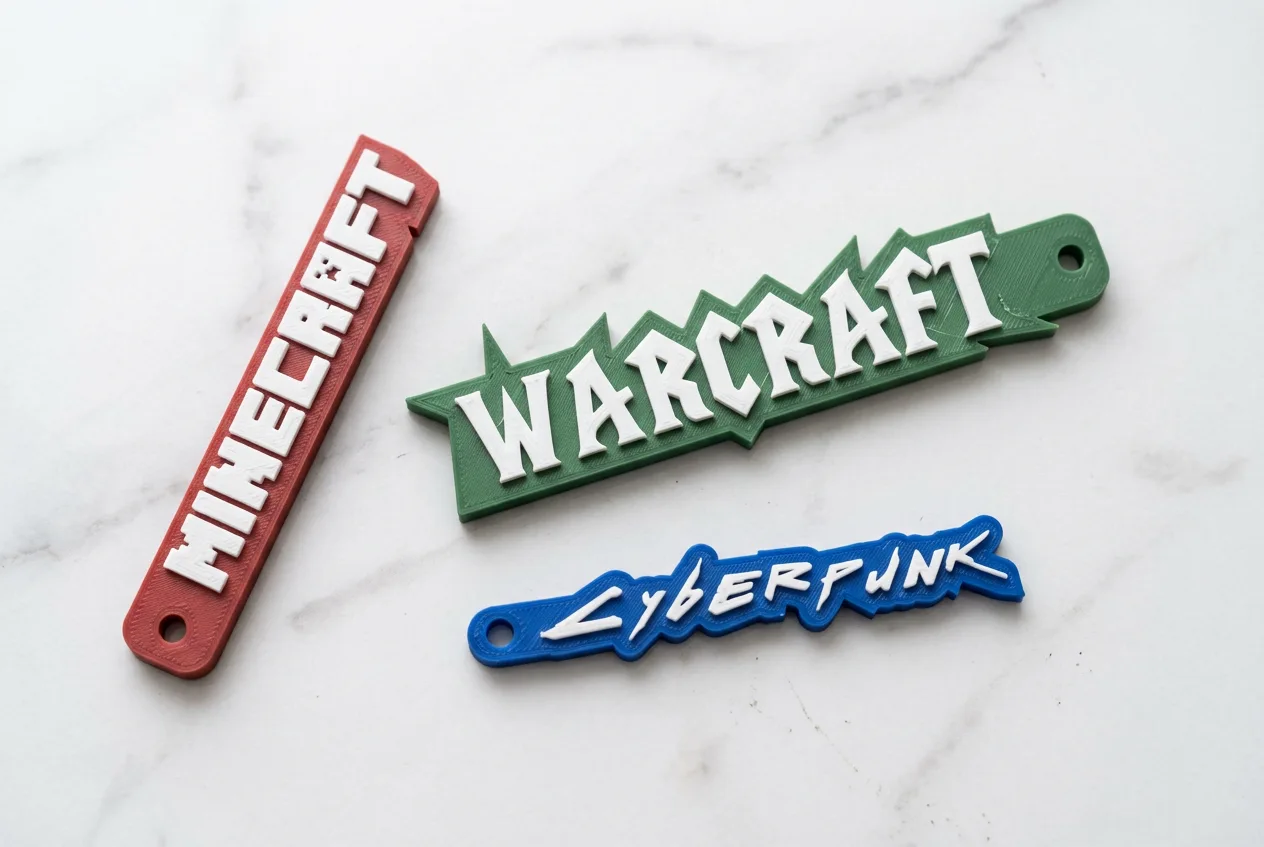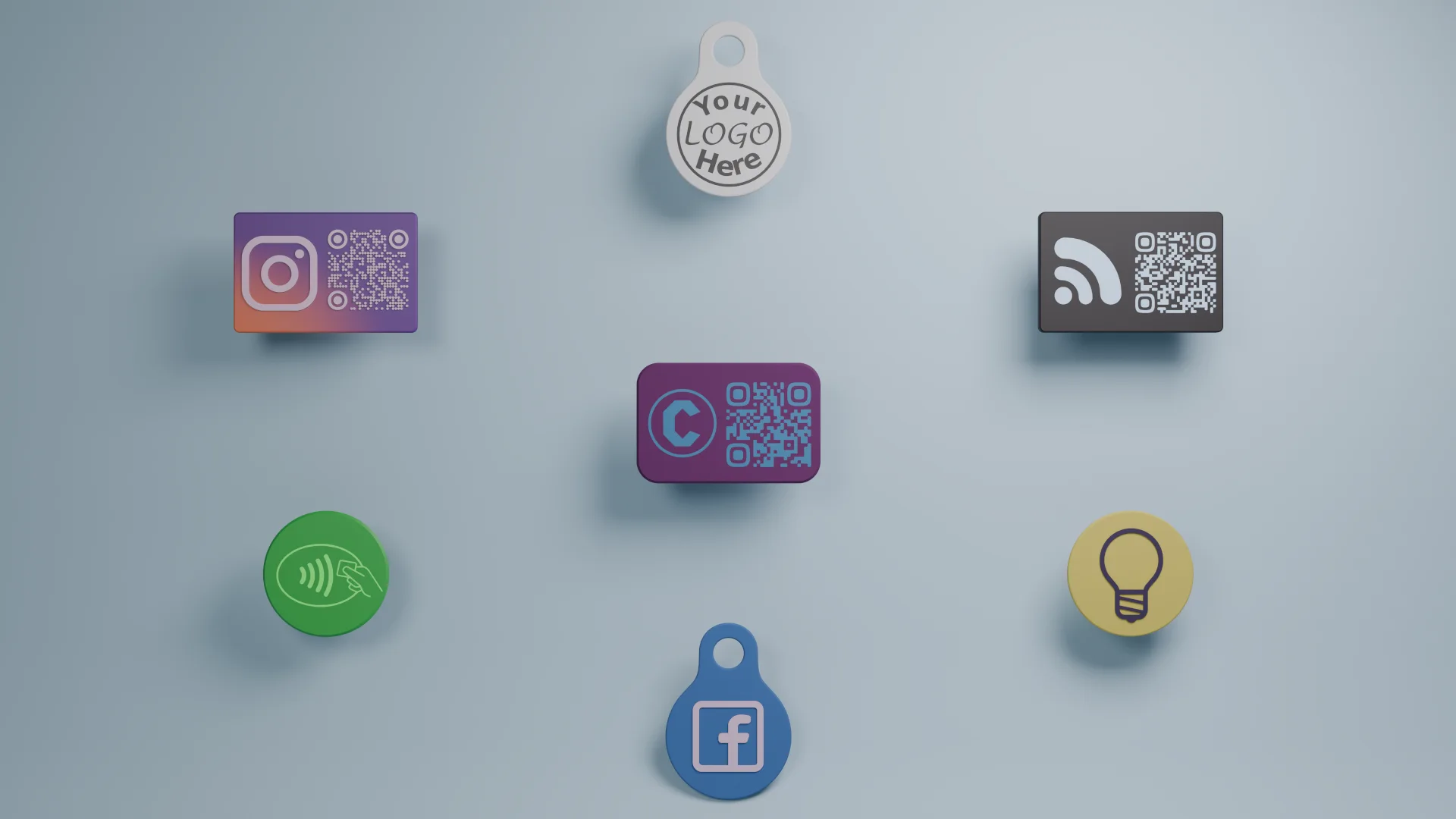
NFC Card and Keychain Generator is a Blender add-on for designing 3D-printable housings for NFC chips. Make a card, dot, or keychain, then add a logo or a QR code that can share a link, vCard, Wi-Fi details, or plain text.
Choose a shape and cutouts
Adjust the housing height, bevels, and rounded corners for each design. NFC cavities are optional, so you can make a solid card or keychain. Magnet slots can be circular or hexagonal, with adjustable width and height; the add-on can adjust the housing height to accommodate them.
Add an SVG logo or QR code
Import an SVG logo and turn it into an object on the housing. An inset option supports flush multi-color designs. The built-in QR generator makes codes for links, vCards, Wi-Fi details, or plain text, and you can position and scale the code like a logo.
Prepare the model for printing
- Enable the add-on and open the NFC Cards tab in the 3D Viewport sidebar by pressing N.
- Click Prep Scene to generate the base card and clear any interfering objects, then choose the shape, dimensions, and optional NFC or magnet cutouts.
- Import an SVG or create a QR code, then adjust its scale and position.
- Export the housing as an STL for your slicer.
Version 1.2.3 removed the add-on’s 3MF export option. The Blender Extensions listing says that 3MF export must be done manually. For the documented Orca Slicer multi-color workflow, import the STL and choose Split > to Parts. Set object 2 to Negative Object, assign a second filament to objects 3 and up, then add a pause just before the layer that covers the NFC cavity. For an inset design, the listing suggests flipping the STL 180 degrees for a cleaner top surface.
Install and check compatibility
Version 1.2.3 is listed for Blender 4.5 LTS and newer; its package metadata sets a 4.5.0 minimum. Version history lists v1.2.0 for Blender 4.2 LTS and newer, while a separate installation note says Blender 4.2.0 or later. Choose a release listed for your Blender version before installing. Install nfcCardGen.zip by dragging it into Blender and enabling the extension, or go to Edit > Preferences > Add-ons > Install from Disk, select the ZIP, and enable it. The Blender Extensions listing links to the version history. See Blender’s extension installation instructions for the Install from Disk workflow.