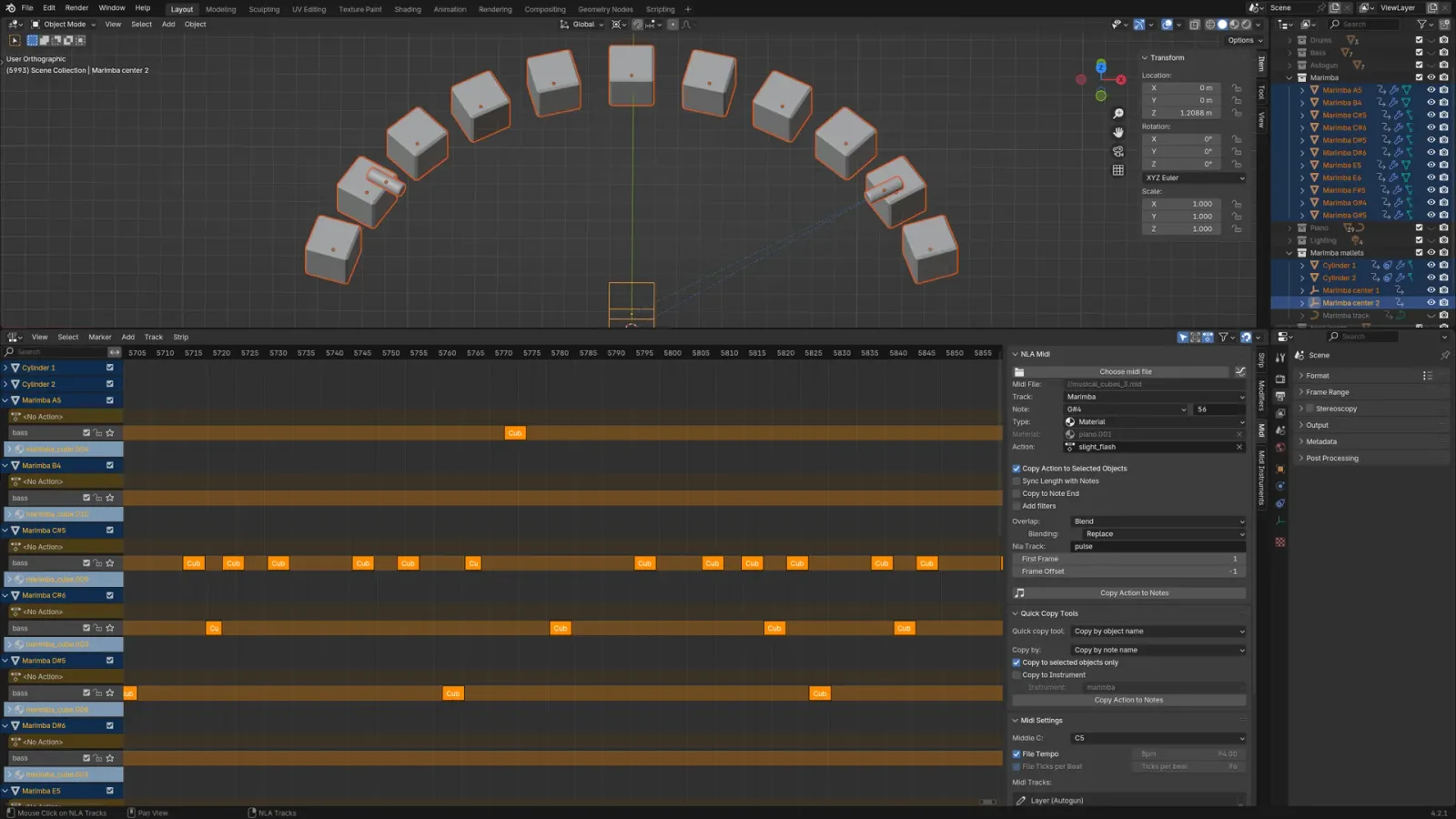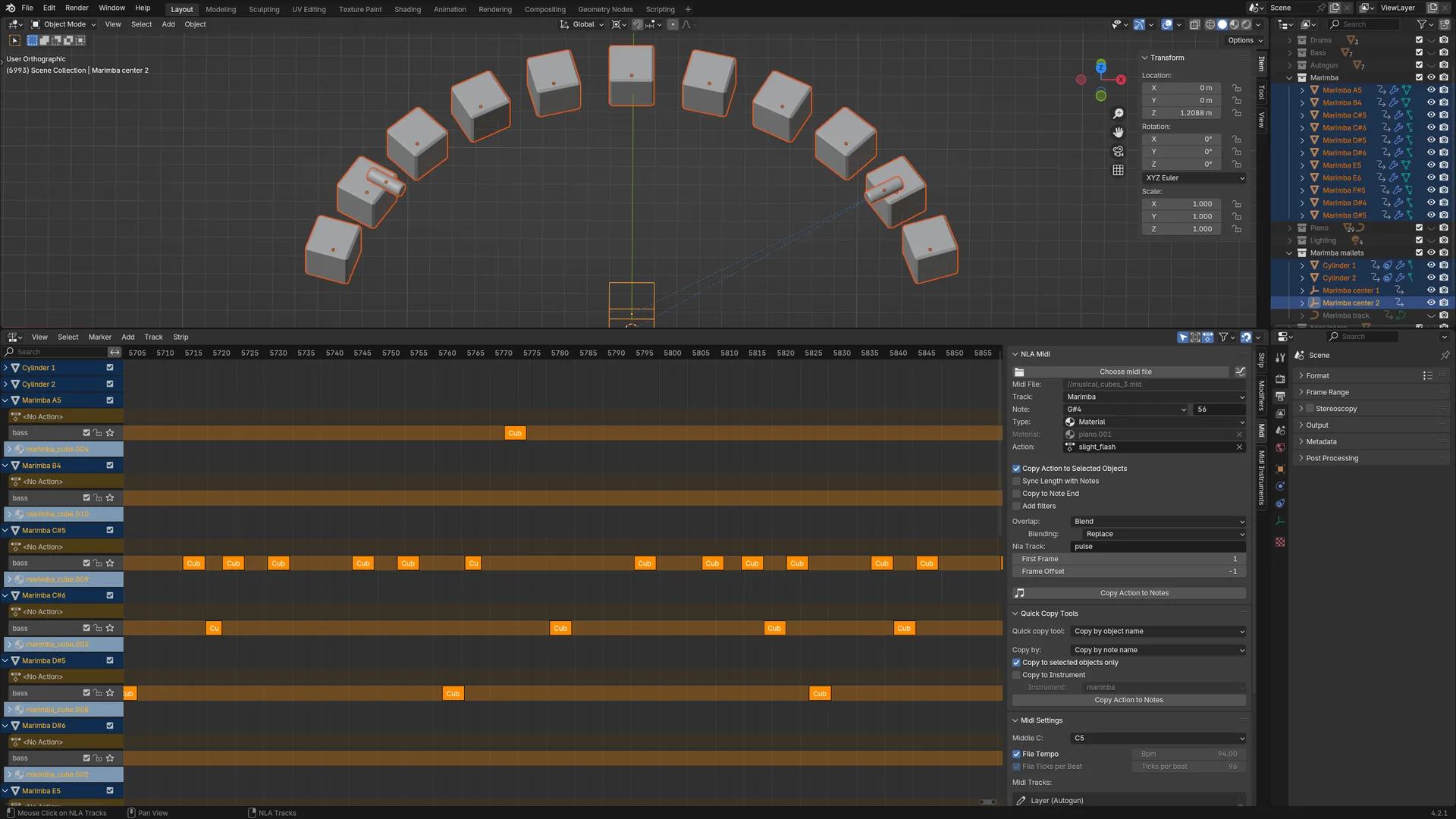
NLA Midi Copier is a Blender add-on by Cornerback24 for syncing animation to MIDI files. It has separate workflows in the Nonlinear Animation (NLA) Editor and Graph Editor: copy action strips to MIDI notes, or generate keyframes on existing F-curves from MIDI data. The Blender Extensions listing provides the current version and compatibility details.
Copy actions to MIDI notes in the NLA Editor
Open the Midi panel, choose a MIDI file, select an object and an action, then click “Copy Action to Notes.” Filters let you control which notes receive the action. Quick Copy Tools can copy actions to multiple notes at once. The Midi Instruments panel supports copying multiple stored actions, including all the actions stored in an instrument.
Generate keyframes in the Graph Editor
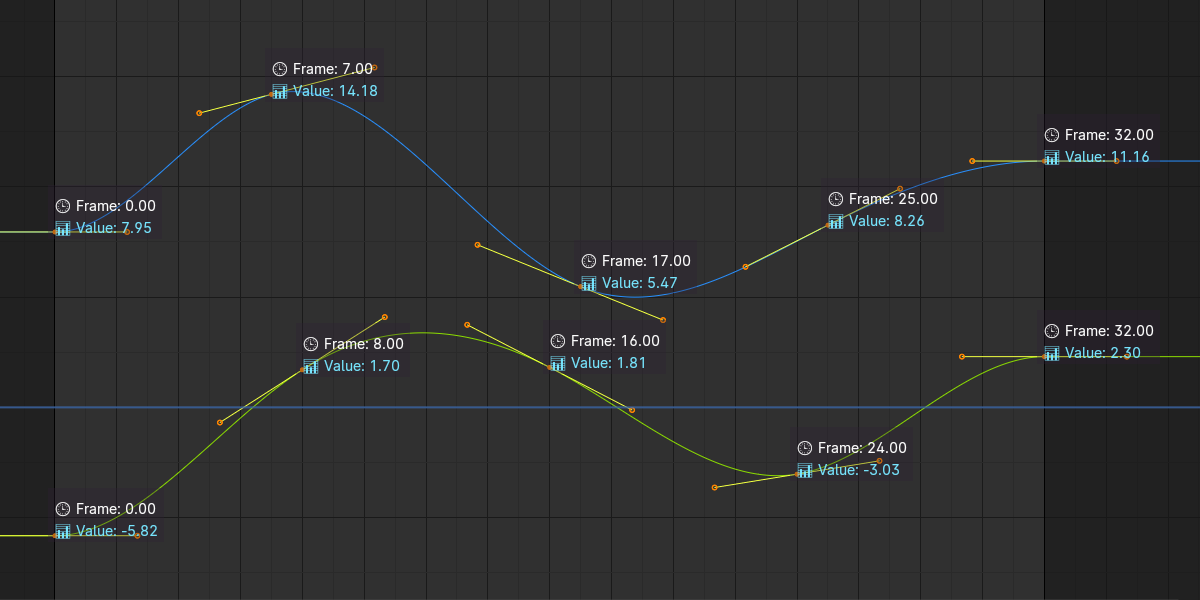
For this workflow, the object needs animation data so you can select an F-curve; inserting a keyframe creates animation data. Select an F-curve, set the lowest and highest pitches to use, choose a unit type, and set the Min and Max keyframe values before clicking Generate Keyframes. The calculation can use all pitches, notes from the selected MIDI track, or notes in a scale. Keyframes can also be based on properties other than pitch. “Limit transition length” inserts extra keyframes to cap the transition time.
Settings and additional tools
The Midi Settings panel can override which C is displayed as middle C, the file tempo, and displayed track names. Settings in the NLA Editor and Graph Editor are separate, so loading a MIDI file in one does not load it in the other. A button lets you copy MIDI settings between the editors. Other Tools can create action strips for non-linear transitions and rename actions from the panel.
Compatibility and project details
The listing identifies version 1.2.1 as compatible with Blender 4.2 LTS and newer; the extension data specifies Blender 4.2.0 as the minimum version. Its listed permission is reading MIDI files from disk, and its license is GNU GPL version 3.0 or later. For descriptions of individual controls, see the developer’s README. The Blender manual also explains how to install an extension from disk.