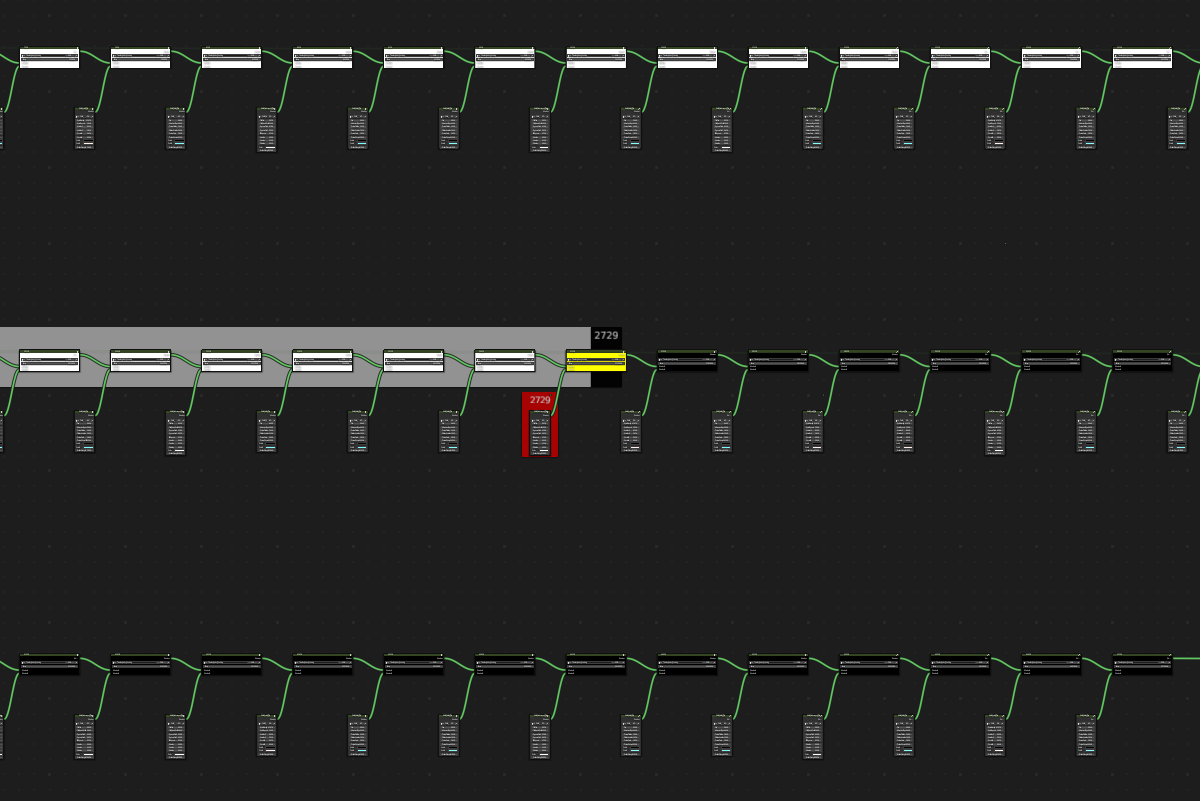
Node Editor Timeline is a Blender add-on by GhostVertex for tracking time progression inside node editors. It lets you create random cuts or use markers, then attach node groups to the resulting timeline. The product is part of the Music Video Toolkit. GhostVertex’s product listing identifies Blender 4.2 to 4.5 and a GPL license. It also says support will stop after Blender 5.0; check the current listing for compatibility details before installing on a newer release.
Set timing with frame ranges or markers
The minimum and maximum frame settings determine the time interval between timeline nodes. Different values produce random intervals within that range; setting both values the same gives fixed spacing. To repeat cut points, enable “Use markers instead of frame range” so the timeline follows markers you have placed. GhostVertex describes this as a way to keep cuts consistent across timelines, such as when setting a rhythm for a music video. The “Nodes Distances” setting controls the spatial gap between nodes in the editor, while the frame settings control timing.
Choose how node groups enter the timeline
“Add Nodes to Timeline” duplicates node groups and attaches them to the timeline. Each copy can have its own parameter settings, which the developer gives as a use for building an audio visualizer. “Add Nodes to Timeline and Only Attach Nodes” leaves the groups unduplicated, reducing the number of nodes. Turn off the add-nodes option to create an empty timeline and link nodes yourself. You can randomize the groups again by pressing the same button, which produces a different arrangement.
Switch and blend inputs over time
Frame Switch changes from one input to another at a chosen frame. Frame Switch Repetitive alternates between inputs at a specified interval. Blending Switch starts a crossfade at a chosen frame and lets you set its duration; the repetitive version adds hold times and an offset. These blending nodes are not available in Geometry Nodes because geometry cannot be blended. The Switcher can react to an input such as music or frames: intensity scales a weak signal, and the threshold determines when it switches. See the developer documentation for the node settings and examples.
Performance limits and controls
The product listing describes its timeline approach as much faster than the scene workflow in Blender’s NLE and links to a comparison, but it provides no benchmark figures. In the shader editor, the add-on can mute unused nodes automatically to improve Eevee performance. The documentation notes that a larger number of visible nodes takes more resources and suggests trying solid viewport shading if performance is slow. “Only Attach Nodes” can also reduce node count by avoiding duplicates. In the compositor, use only a few timeline nodes because more can overload it.
Install or update the add-on
GhostVertex’s installation instructions say to leave the downloaded ZIP file packed, drag it into an open Blender window, and confirm the installation. Before installing an update, uninstall the existing add-on and restart Blender; then install the new version. The listing currently specifies Blender 4.2 to 4.5, so check it for the latest release and compatibility information.