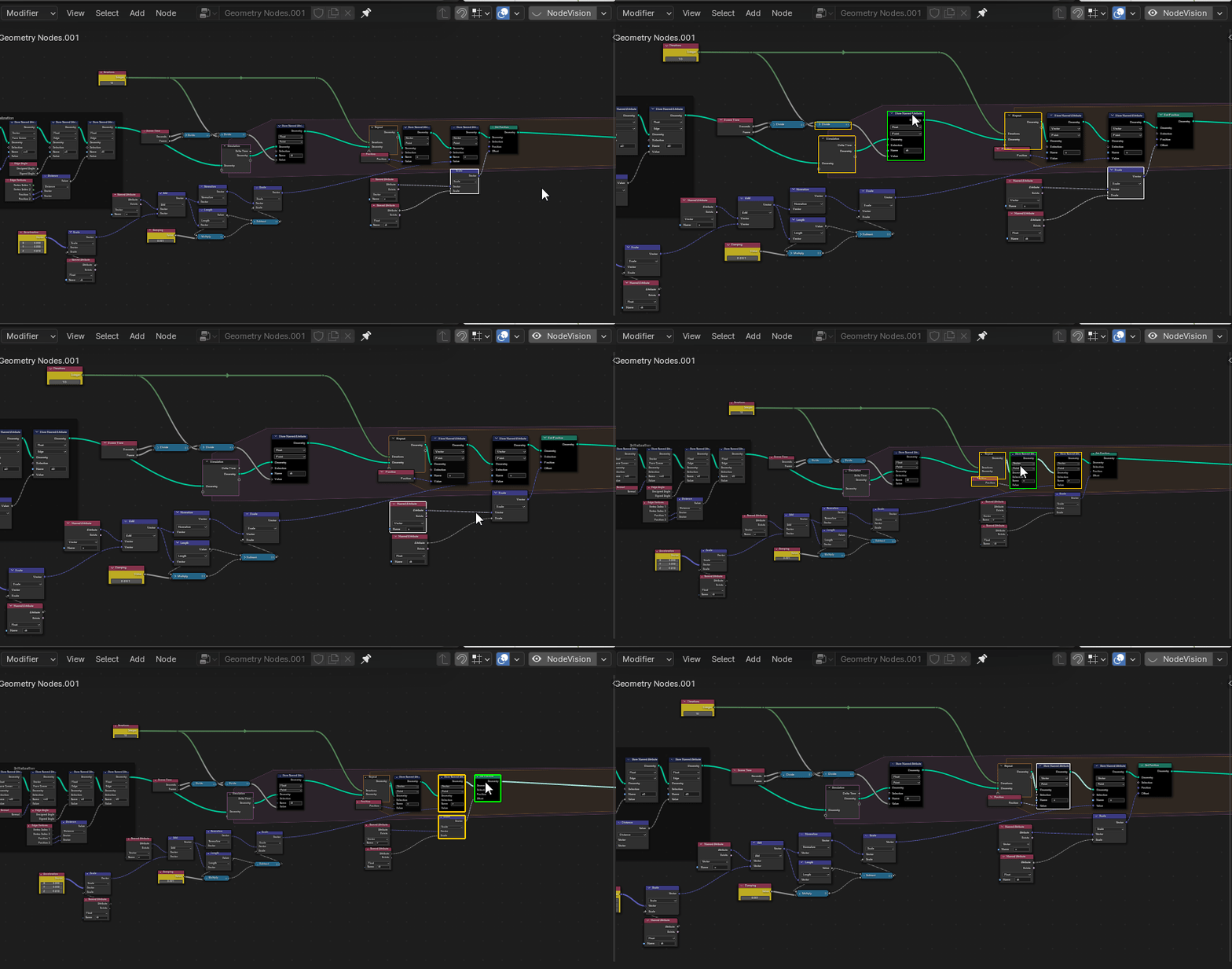
NodeVision is a Blender add-on that highlights node connections as you hover over a node in the Node Editor. It adds a header toggle, adjustable highlight width and an Auto-select setting, so you can follow a node setup and control the effect from the editor.
Follow connections as you hover
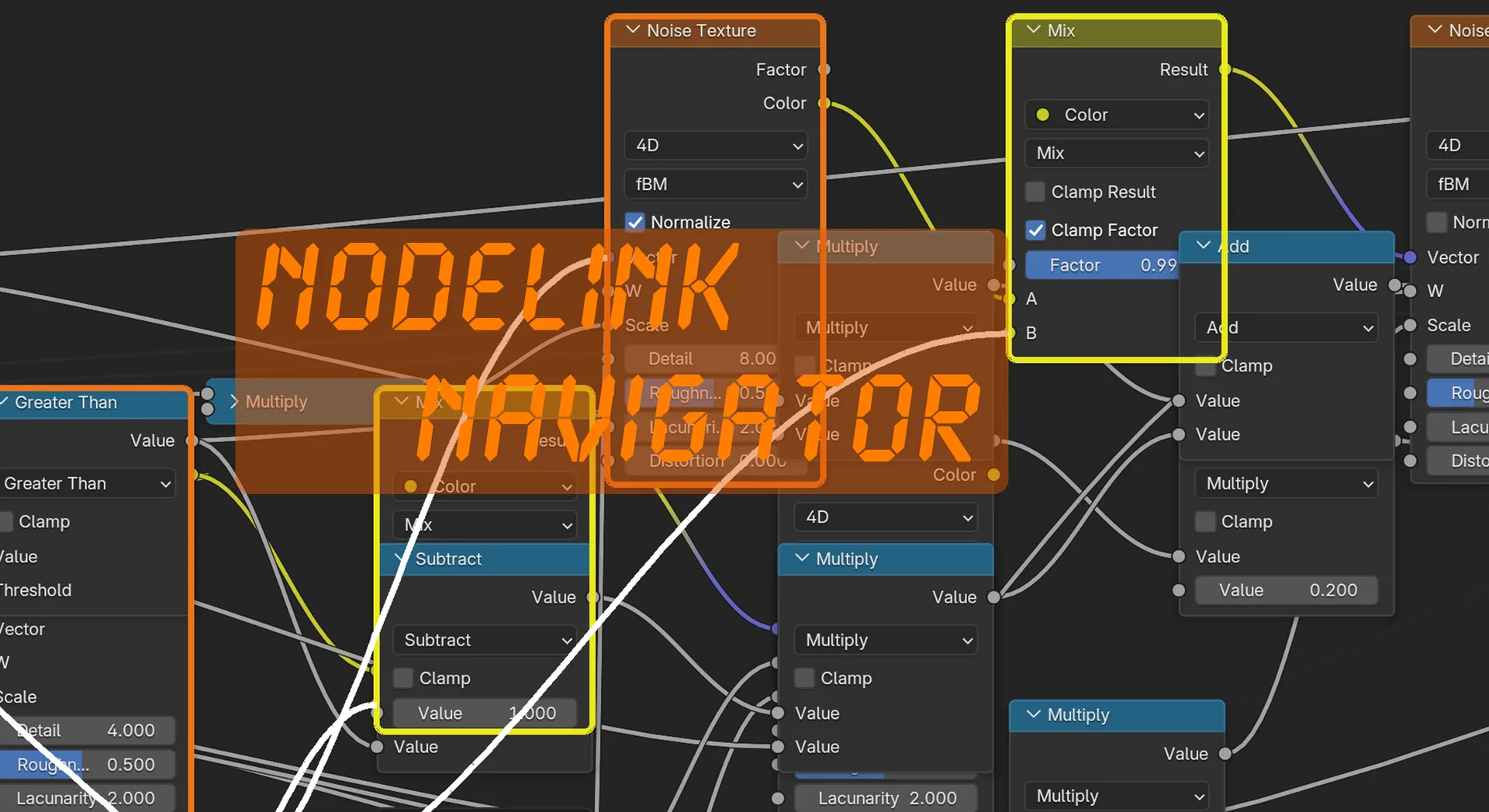
Hover over a node to highlight its connections and related nodes. The add-on emphasizes links to and from the hovered node, making their paths easier to trace through a node graph. This can help when a setup has many connected nodes and you need to see how one part relates to another.
Controls in the Node Editor
NodeVision keeps its main controls in the editor header. Click its button to turn highlighting on or off; the icon changes to show the current state. The settings popover holds the line-width and Auto-select options; ESC is a separate keyboard shortcut:
- Adjust the highlight line width to make connection paths thinner or more prominent.
- Turn Auto-select on or off to control whether nodes are selected as you hover over them.
- Press ESC in the Node Editor to deactivate highlighting and return to the standard view.
Install and start using NodeVision
The NodeVision documentation describes this installation sequence:
- Download the
node_vision.zipadd-on file from your order downloads or library. - In Blender, open Edit > Preferences and go to Add-ons.
- Choose Install, select the ZIP file, and install it.
- Enable NodeVision with the checkbox beside its name, then open the Node Editor and use the NodeVision button in its header.
Version and compatibility
The product listing identifies version 0.2 and Blender 4.1. It does not confirm compatibility with other Blender releases, so check the current listing before installing on another version. Socket feedback and theme or color controls are listed as upcoming features; they are not described as available in version 0.2.