Optimize You Workflow! - Blender Object Hotkeyer lets you assign Blender objects to keyboard shortcuts for quick selection. You can also assign a mode to an object slot, so its key selects the object and switches to Object, Pose, Edit, or Weight Paint mode. The add-on is designed for scenes where you repeatedly move between characters, cameras, lights, and other objects.
Assign objects and modes to keys
The default shortcuts are F1 to F5. You can change them in Blender’s preferences by searching for “Select Object.” Assign an object to a slot in the add-on’s 3D Viewport side panel, then optionally choose the mode for that slot. Pressing its shortcut selects the assigned object and switches to the chosen mode. The Object Hotkeyer setup guide shows how to assign an object to a slot and optionally set its mode.
Use it for animation and weight painting
For scene work, separate shortcuts can take you between characters, a camera, a depth-of-field point, lights, curves, or empties. That can help when matching character animation with camera and lighting adjustments, or when editing two interacting characters.
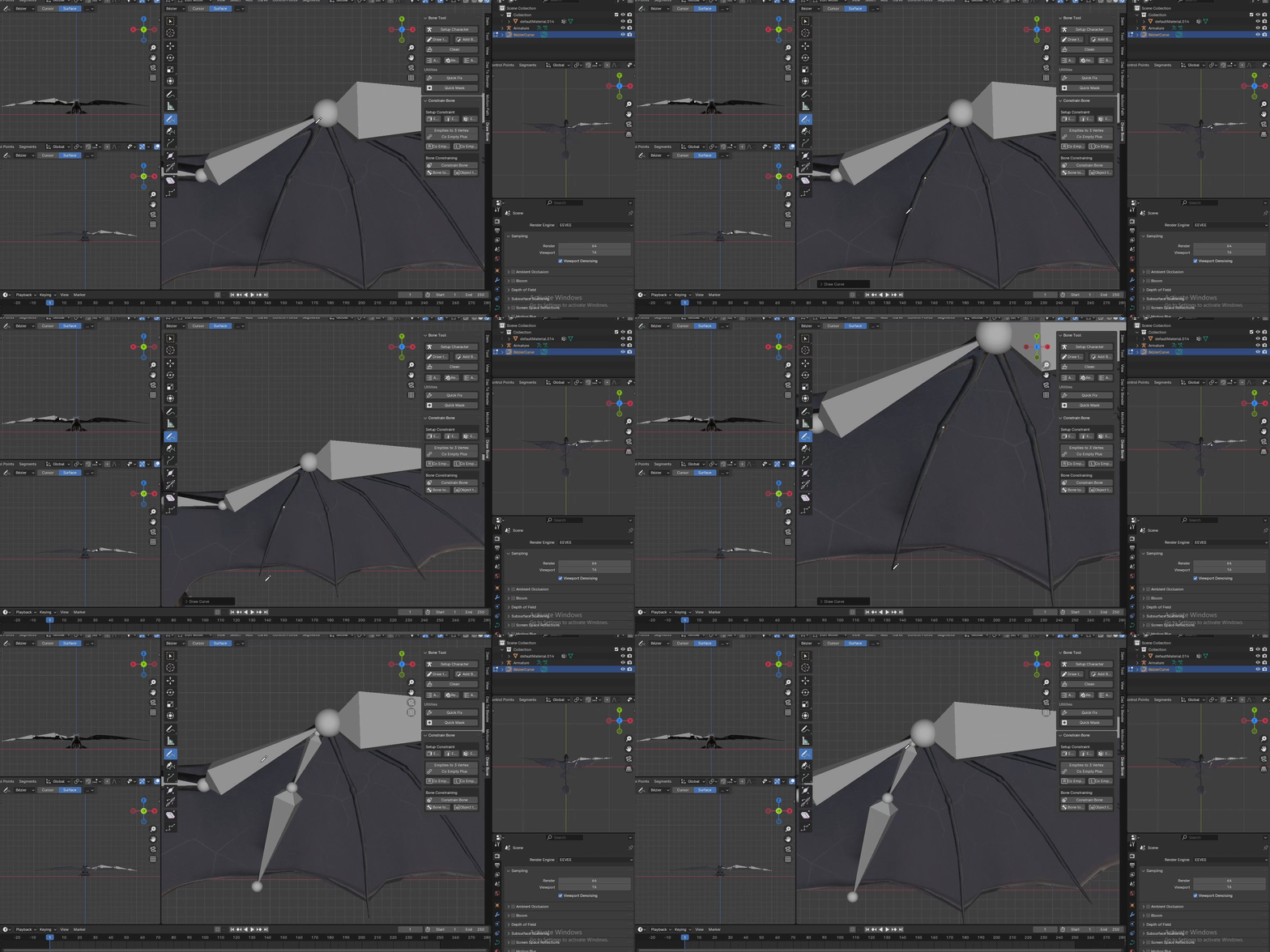
For weight painting, assign an armature in Pose mode to one key and a mesh in Weight Paint mode to another. This lets you switch between painting the mesh and posing the rig without repeatedly selecting each object and changing modes. The add-on can help with complex rigs such as Rigify and Mixamo.
Install and set up the add-on
- Before downloading, check the product listing for your Blender version: it names 4.3, 4.2, 4.1, 4.0, and 3.6 through 3.0, but does not confirm unlisted versions. Version 2 changed the download from a Python script to a zip file.
- In Blender, open Preferences and the Add-ons section, choose Install, select the downloaded file, and enable the add-on.
- In the 3D Viewport side panel, choose an object for a slot and optionally set its mode.
- Press the shortcut for that slot. The add-on clears the current selection, selects the assigned object, and switches to its chosen mode.
The FAQ's hidden-object guidance says to unhide the object before the add-on can select it. If the chosen mode is unavailable for an object, it defaults to Object Mode.
License
The product listing identifies the add-on as GPL licensed.