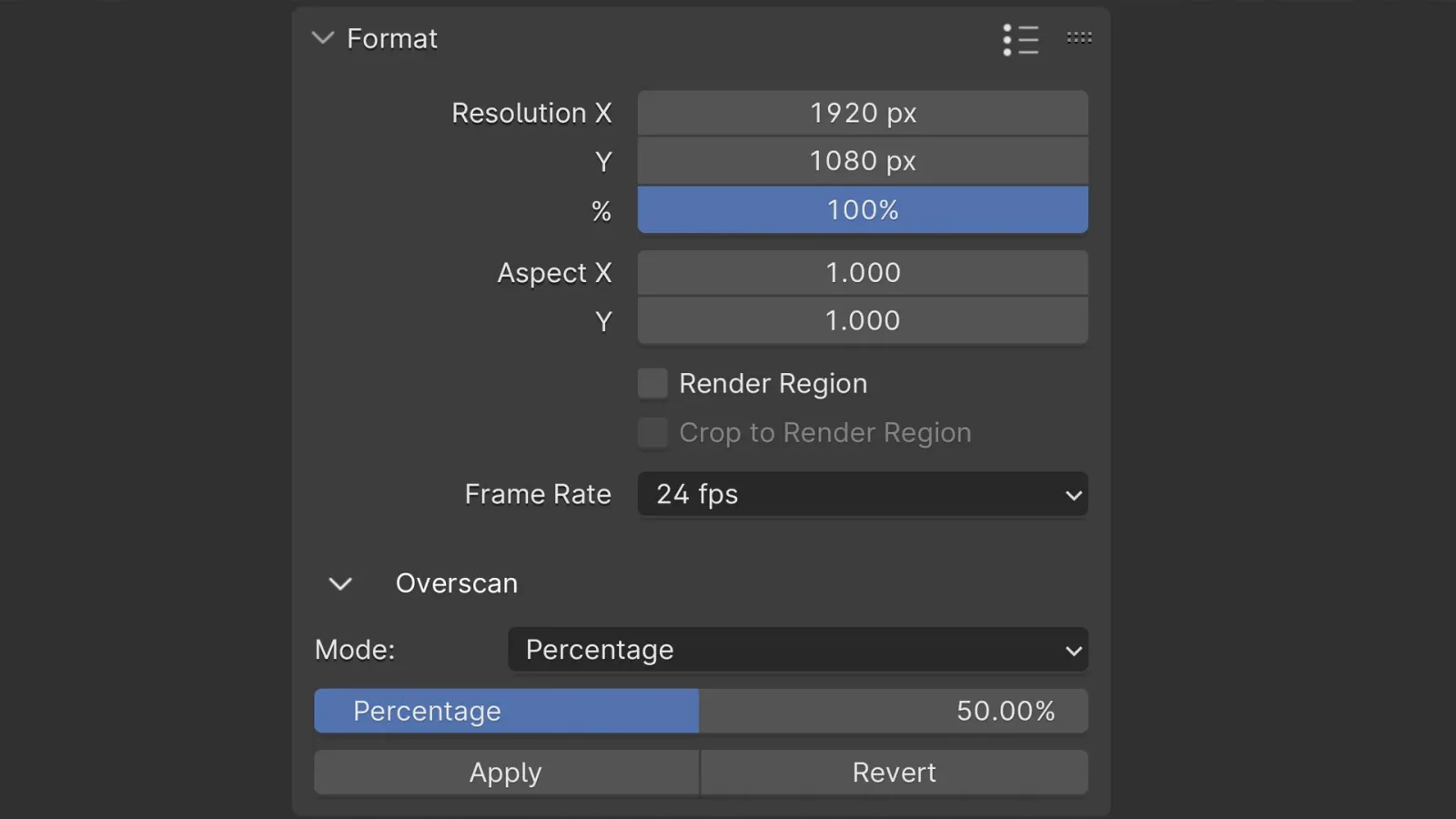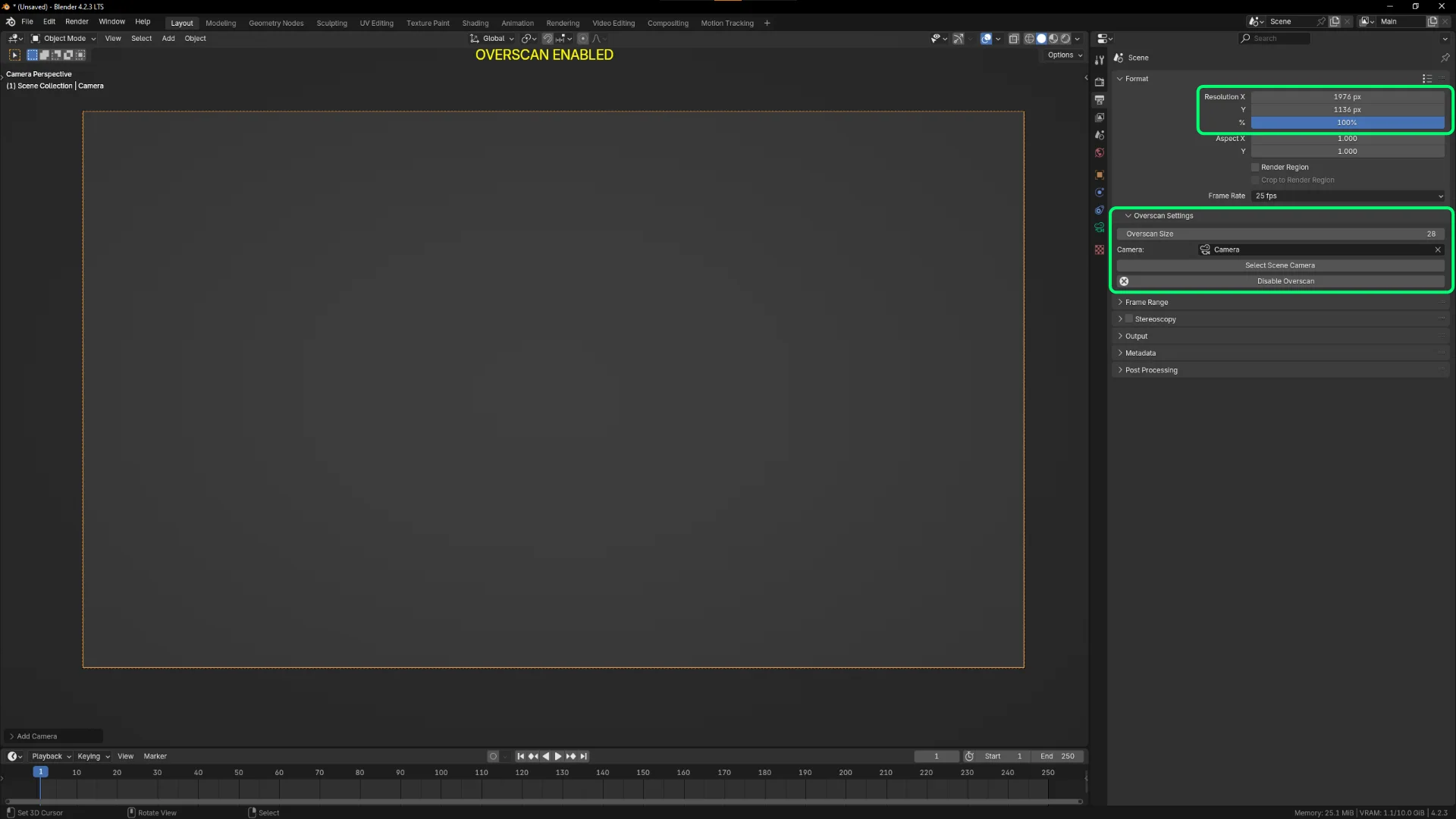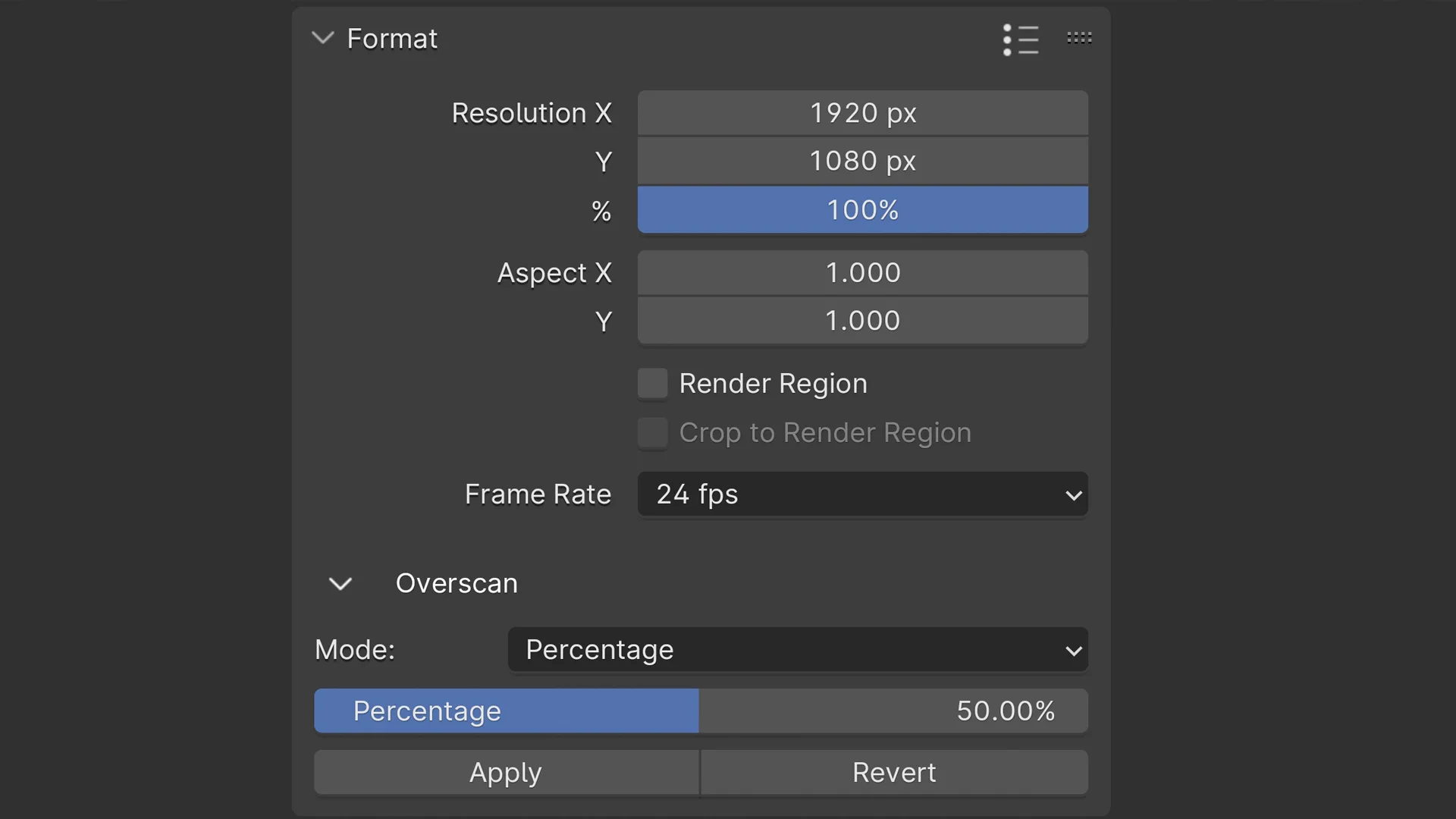
Overscan Render is a Blender add-on maintained by Blenderbob for rendering beyond the original camera crop. Its controls appear in Output settings, beneath the render resolution. Choose a percentage increase, add the same pixel amount to both original dimensions, or set a target X resolution at least as large as the original width.
Choose an overscan mode
Percentage scales the original width and height. Extra Pixels adds the selected pixel count to both original dimensions. Specific X resolution sets the width, using the original width as its minimum, and adjusts the height to preserve the original aspect ratio.
| Mode | How it changes the output | Result |
|---|---|---|
| Percentage | Adds a chosen percentage to the original dimensions. | 1920 × 1080 at 10% becomes 2112 × 1188. |
| Extra Pixels | Adds the selected pixel count to both original dimensions. | A setting of 100 changes 1920 × 1080 to 2020 × 1180. |
| Specific X resolution | Sets the X resolution, using the original width as its minimum, and adjusts Y to preserve the original aspect ratio. | A target below the original width leaves the width at its original value. |
Use Percentage for a proportional increase, Extra Pixels to add a fixed count to both original dimensions, or Specific X resolution to set a target width at least as large as the original. Check the resulting dimensions in Output settings before rendering.
Check the crop marker and reset behavior
A small line in the viewport marks the original crop while overscan is active. The add-on also renames the active camera with an _o suffix. Revert restores the original render dimensions and camera name.
Changing the amount or mode recalculates output dimensions from the original values, so you can adjust overscan without pressing Revert first.
Compatibility and installation
The Blender Extensions listing identifies Blenderbob as the maintainer and lists version 1.2.3, Blender 4.2.0 as the minimum version, and the GNU GPL-3.0-or-later license. Check the official version history for release details. For installation from a downloaded file, follow Blender's Install from Disk instructions.