Pbr Uber-Shader is a reusable material node group for Blender’s Cycles renderer. It follows the PBR Metal/Roughness workflow and combines dielectric, metallic, and refractive shading. The listing specifies Blender 2.7x and Cycles; compatibility with newer Blender releases is unconfirmed.
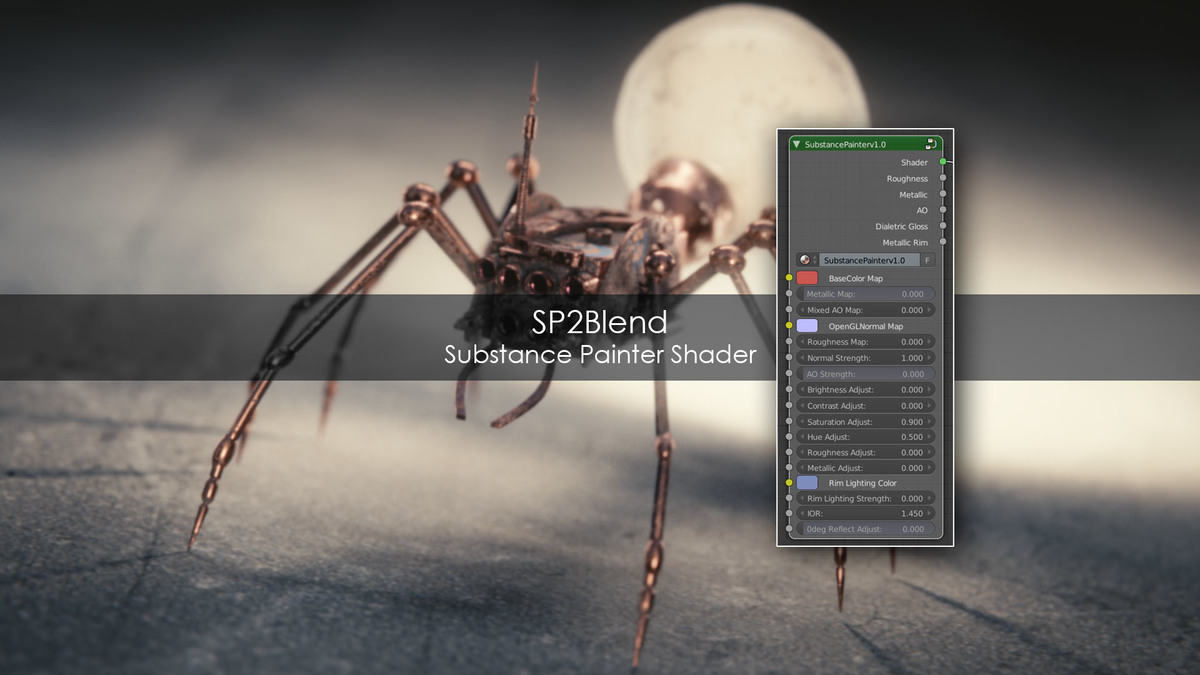
The shader accepts texture sets from tools such as Substance, 3D Coat, or Quixel. The developer says software that outputs base colour, roughness, metalness, and normal or height maps can also supply a compatible set.
Supported texture maps
- Base Colour (Albedo or Diffuse)
- Ambient Occlusion
- Roughness
- Metallic
- Normal
- Emission
- Height, used for bump mapping
- Opacity
The developer describes the workflow as importing a texture set and connecting each map to its matching input. The marketplace’s update notes also document direct IOR control, Fresnel refinements, roughness controls, and glass effects.
Append the node group into a scene
The product documentation identifies the node group as Substance_PBR and describes appending it from the supplied Blender file.
- In your scene, choose File > Append, or press Shift+F1, and open the downloaded
.blendfile. - Open its Node Tree, select
Substance_PBR, then choose Link/Append from Library. - Connect your texture maps to the corresponding inputs on the node group.
Check normal-map settings
The product FAQ says texture inputs other than Base Colour and Emission should use Non-Color data. If a normal map makes the material look dark or distorted, check that setting first. The shader also has an Invert toggle for switching between OpenGL and DirectX tangent-space normal maps. The developer recommends OpenGL; use the toggle if your map’s orientation does not match the result you expect.
Version and licensing notes
The developer compared Pbr Uber-Shader with Blender 2.79’s Principled BSDF and described the built-in shader as a strong option for ordinary dielectric and metallic shading. That comparison is historical and does not establish compatibility with current Blender releases. Review the marketplace listing before using the shader in a newer workflow.
The listing labels the product’s license Creative Commons. Its documentation asks people distributing products that use the PBR material node to remove the node before redistribution and link back to the product page. Check the marketplace’s current license terms for your use case.