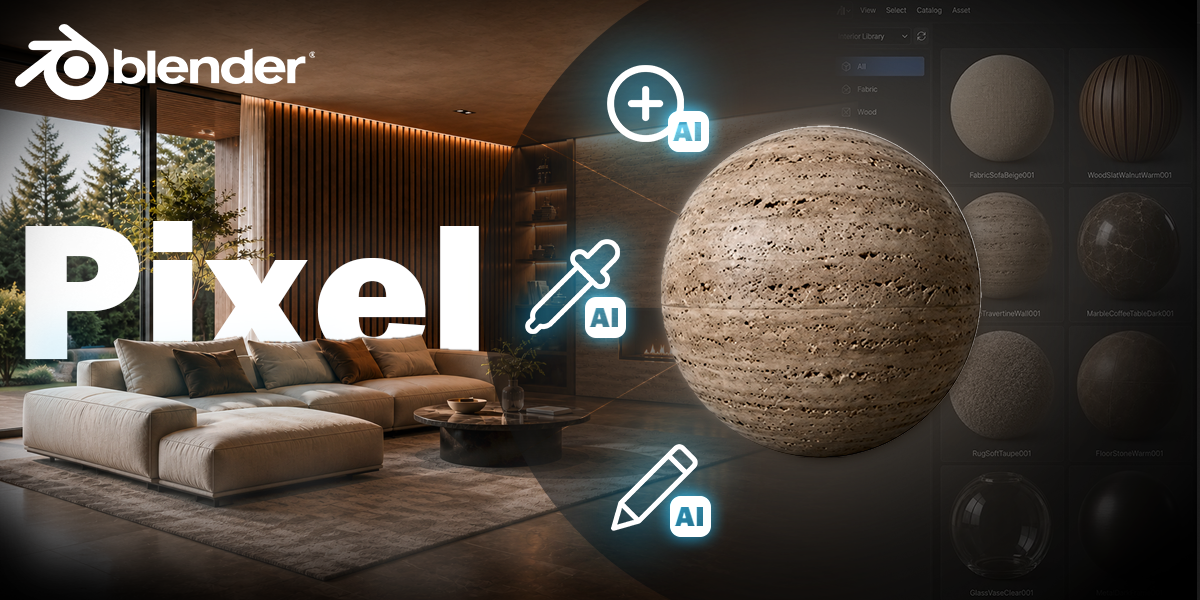
▩ Pixel is a Blender add-on from BlendR6 for creating and refining materials with AI-assisted tools. The product documentation calls it PixelAI. It can work from prompts, images or renders, with material and image tools available inside Blender.
Create and refine materials
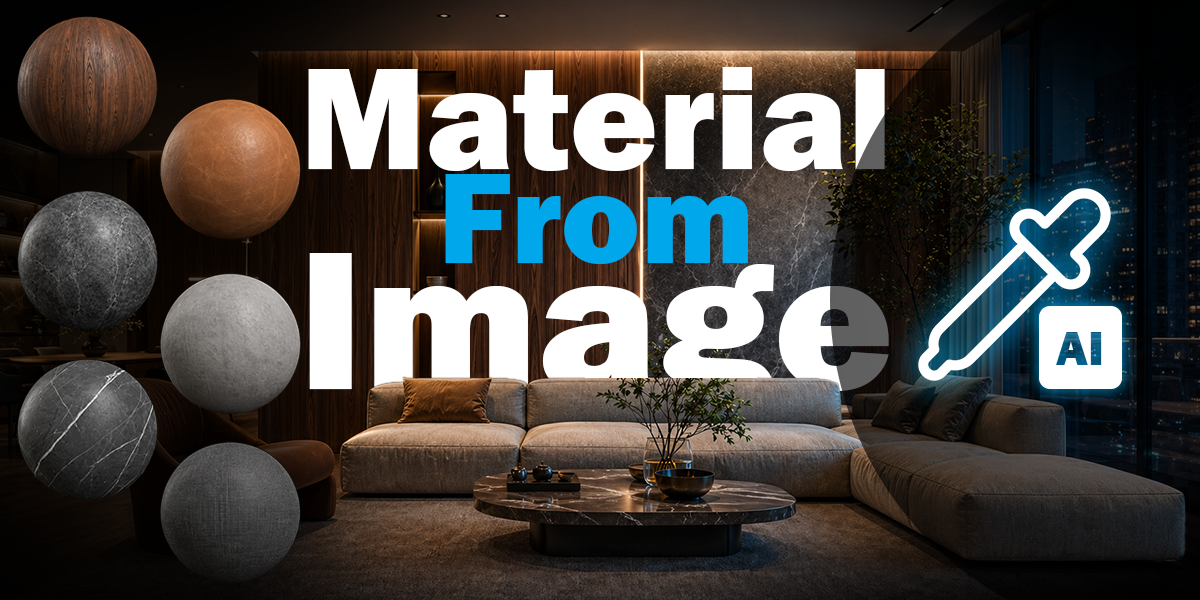
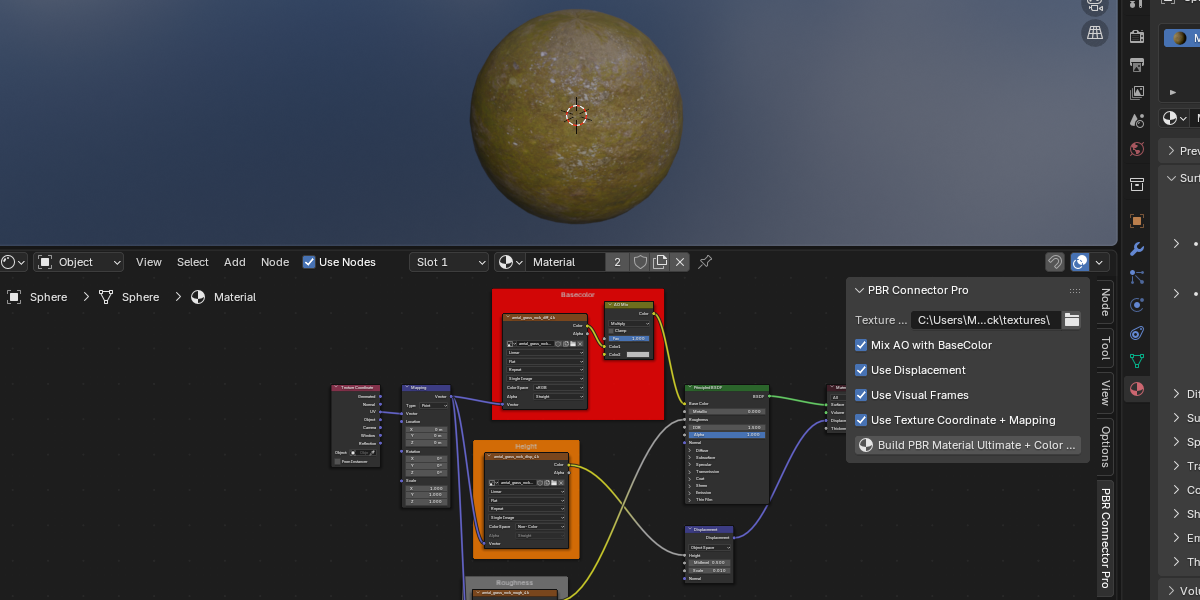
Text to Material uses prompts for surfaces such as wood, marble and fabric to create texture ideas. The PBR workflow can generate albedo, roughness, normal, height, metallic and ambient occlusion maps. Pixel also includes tools for making textures seamless, fixing visible seams, flattening lighting information and upscaling assets.
For image work, the Layer Editor supports masks, blend modes and opacity control. Other Image Editor tools include selections, brushes and transforms. AI Rendering compares an original visual with AI-generated rendering stages, so you can review different looks for a material presentation.
Requirements and installation
The documentation specifies Windows and Blender 4.0 or newer. The product listing gives a Blender version range of 4.0 through 5.1. Pixel uses a local AI Terminal backend for its AI features; the installer sets it up, with no manual backend configuration required for normal installation. See the PixelAI documentation for installation steps and workflow notes.
To install the add-on ZIP manually, use Blender’s Edit > Preferences > Add-ons > Install controls, select the ZIP and enable PixelAI. The documentation says its panels appear in the 3D Viewport, Shader Editor and Image Editor. For a layered image, use PixelAI’s Image Layer Save button to apply the result to the source image, then save it through Blender’s usual image workflow.
Local processing notes
AI generation depends on the installed backend and available models. The documentation also notes that large images and complex layer stacks may need more GPU or CPU memory. Check the current product listing for compatibility and license details; it identifies the license as GPL.