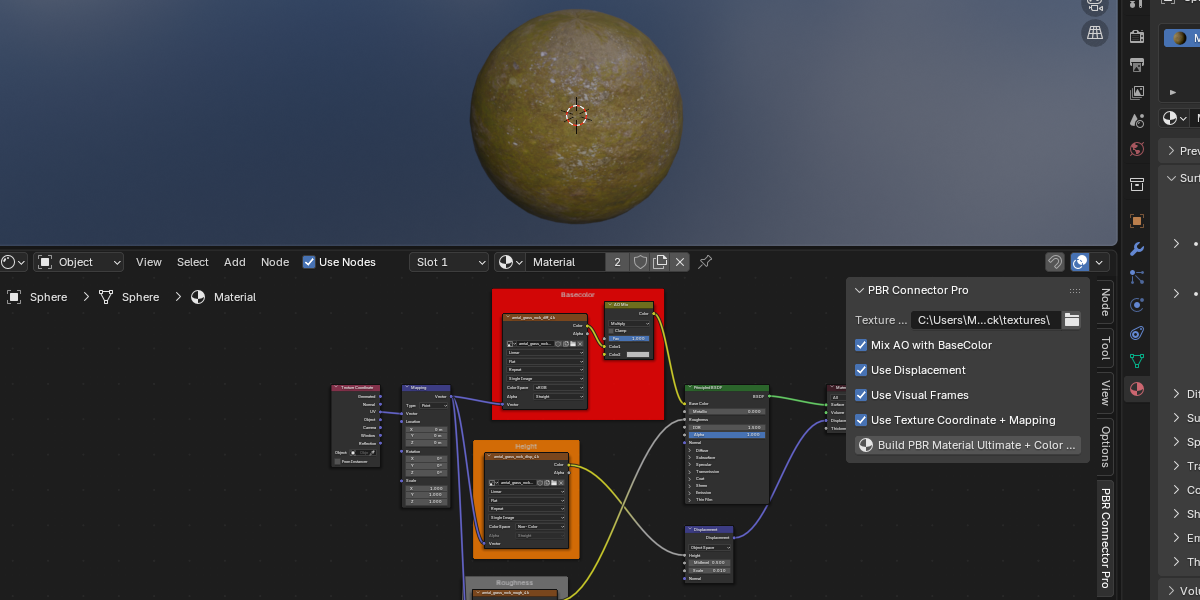
Pbr Connector Pro is a Blender add-on that builds a PBR material from an object's texture folder. It uses fuzzy matching to identify common image-based maps, connects them to a Principled BSDF, and organizes the resulting nodes with a shared Mapping Node and color-coded frames.
Build a material from a texture folder
Select an object, open the Shader Editor or Material Properties, and use the PBR Pro panel. Choose the folder containing the textures, set the AO, Displacement, Highlight Frames, and Mapping options, then click Build PBR Material Ultimate + Color Frames. The add-on creates a Principled BSDF shader and Material Output, detects matching files, and connects the maps to their corresponding inputs.
Fuzzy matching recognizes common names and aliases, including Base Color, Albedo, or Diffuse; Metallic or Metalness; Normal, NRM, or Norm; and Height, Displacement, or Bump. The product documentation gives names such as *_BaseColor.png and *_Roughness.exr as examples. Standard PBR naming conventions can be detected without renaming those files.
Map controls and node layout
The add-on can connect Base Color, Roughness, Metallic, Normal, Height or Displacement, and Ambient Occlusion maps. The Use AO control enables or disables AO multiplication with Base Color, while Use Displacement controls whether displacement nodes are created. Use Mapping adds or removes the Texture Coordinate and Mapping nodes.
When Highlight Frames is enabled, the texture groups use color-coded frames: Base Color is red, AO is white, Metallic is silver, Normal Map is blue, Roughness is grey, and Height or Displacement is orange. This makes the map types easier to locate in the Node Editor.
UDIM tiles, render engines, and compatibility
Pbr Connector Pro supports UDIM tiles for multi-tile materials. Tiles use the same Mapping Node by default; per-tile mapping can be added manually. The add-on is listed for Blender 4.0 through 4.5 and works with Cycles and Eevee.
Its main workflow is for image-based PBR textures. You can add procedural textures manually after the material has been built. The product is distributed under the GPL license.
Installation
- Download the Pbr Connector Pro ZIP file.
- In Blender, open Edit > Preferences > Add-ons and choose Install.
- Select the ZIP file and click Install Add-on.
- Enable PBR Connector Pro Ultimate + Color Frames in the add-on list.
- Save preferences if you want Blender to retain the setting.
See the product documentation for the panel controls and texture details, or check the developer's product listing for current availability and compatibility information.